
STILOPAD · STEP-BY-STEP HELP
Make more of every page.
Friendly, illustrated help for notebooks, planners and PDFs. Choose a task or describe what you want in your own words.
Last updated October 8, 2026
Find the help you need
 01How-to guideHow to create a notebook in StilopadStart a digital notebook, choose its first page and give it a name on Android or Web Lite.Read the guide
 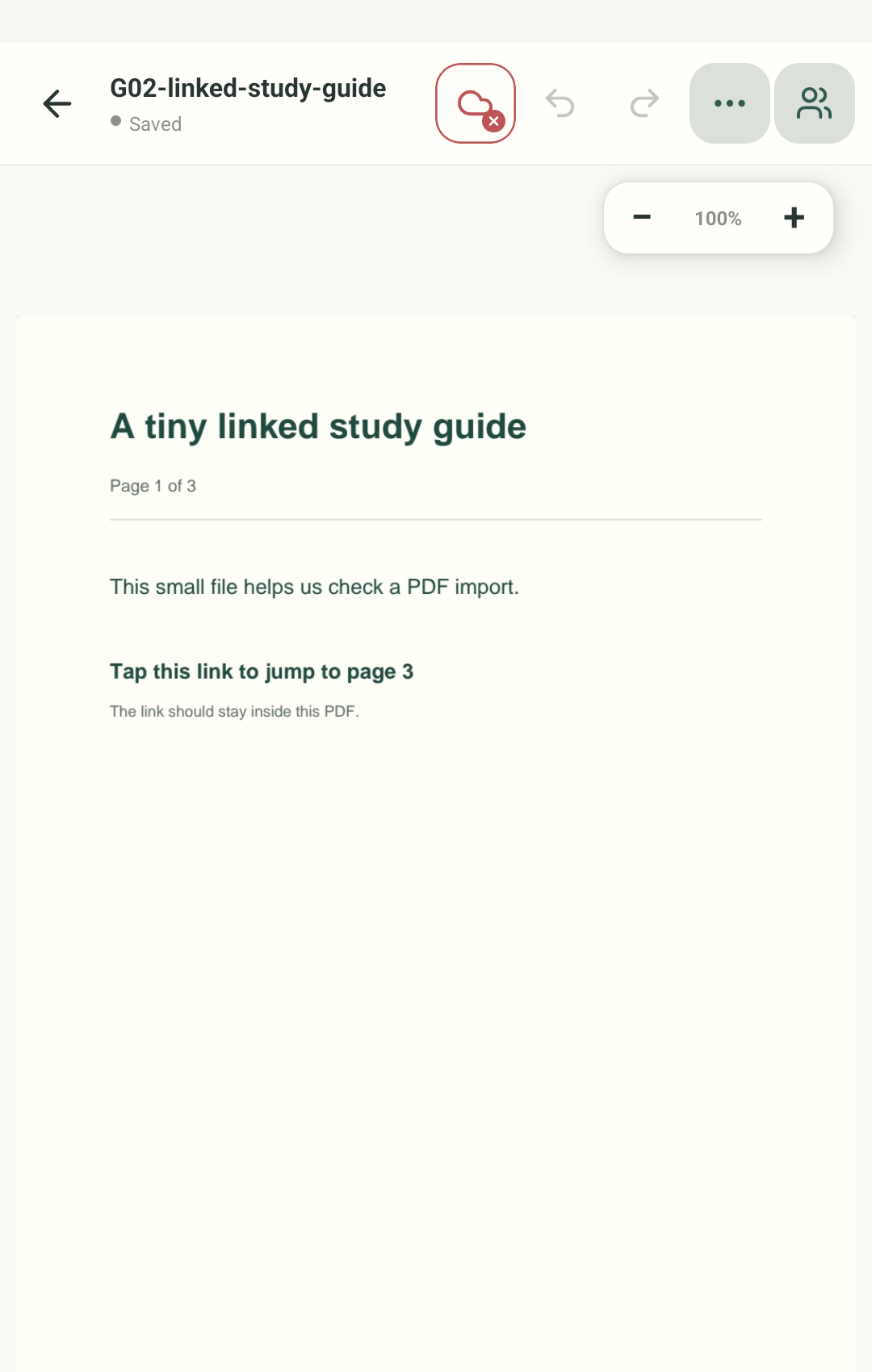 02How-to guideHow to import a PDF into StilopadOpen a PDF planner, book or worksheet in Stilopad, then check that its pages and links are there.Read the guide
  03How-to guideHow to change the Stilopad app themeChoose a light, dark or colourful Stilopad palette for the library and editor.Read the guide
  04How-to guideHow to use full screen in StilopadHide most editor controls to make more room for your digital notebook page.Read the guide
 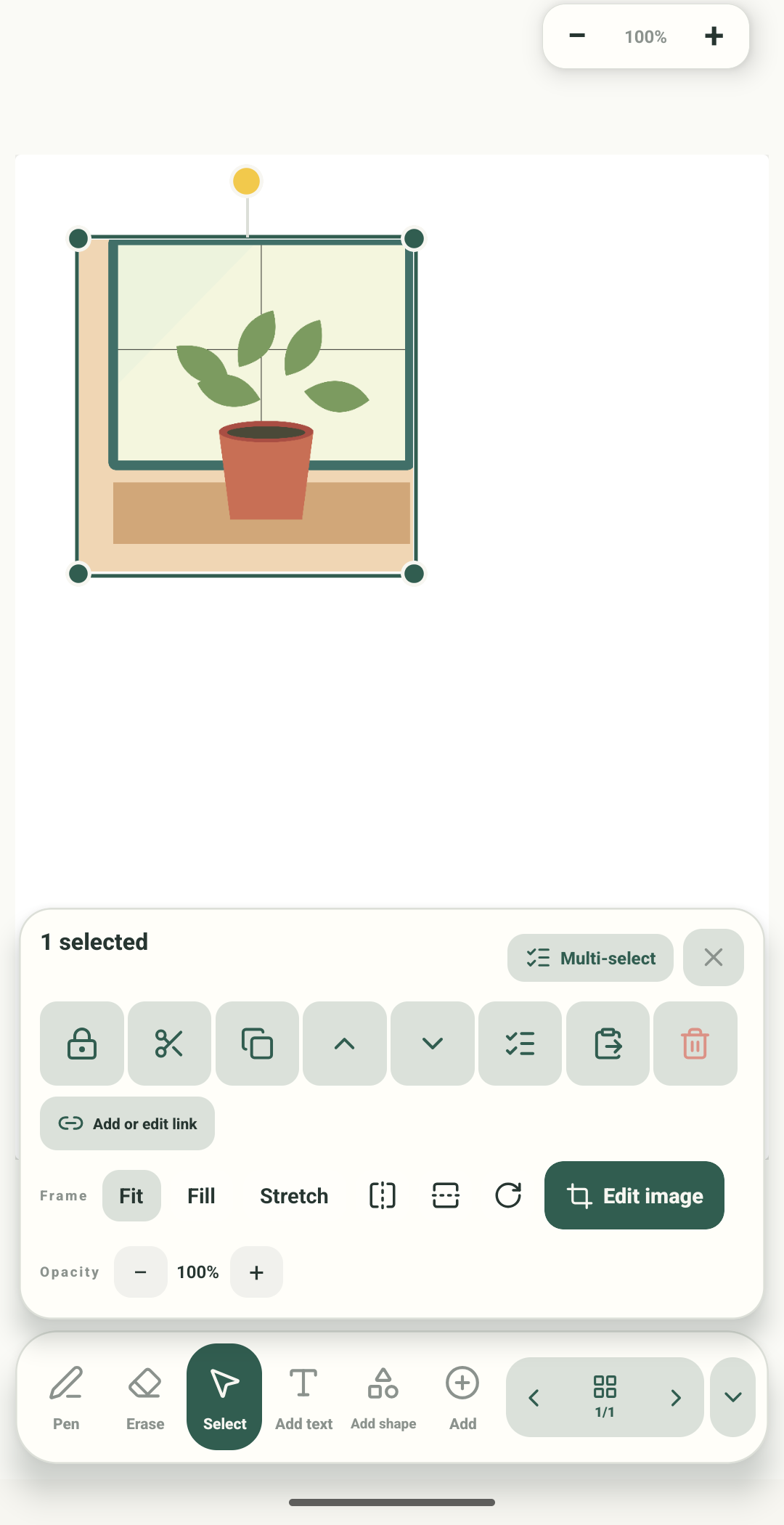 05How-to guideHow to add and edit an image in StilopadAdd a picture to a notebook page, adjust its crop and apply the result.Read the guide
 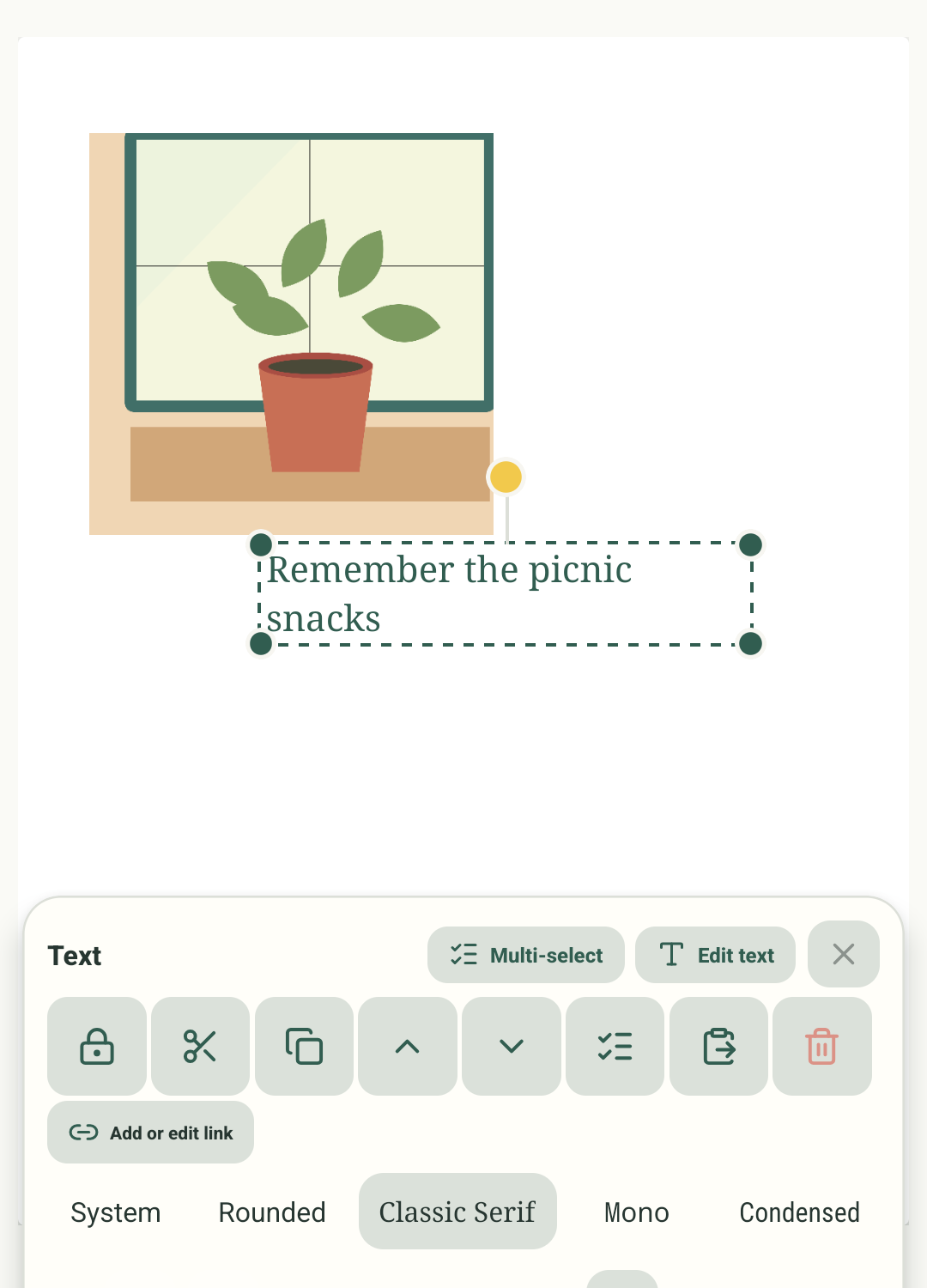 06How-to guideHow to write and style text in StilopadAdd a text box, type a note, choose a font and colour, and check how it looks on the page.Read the guide
 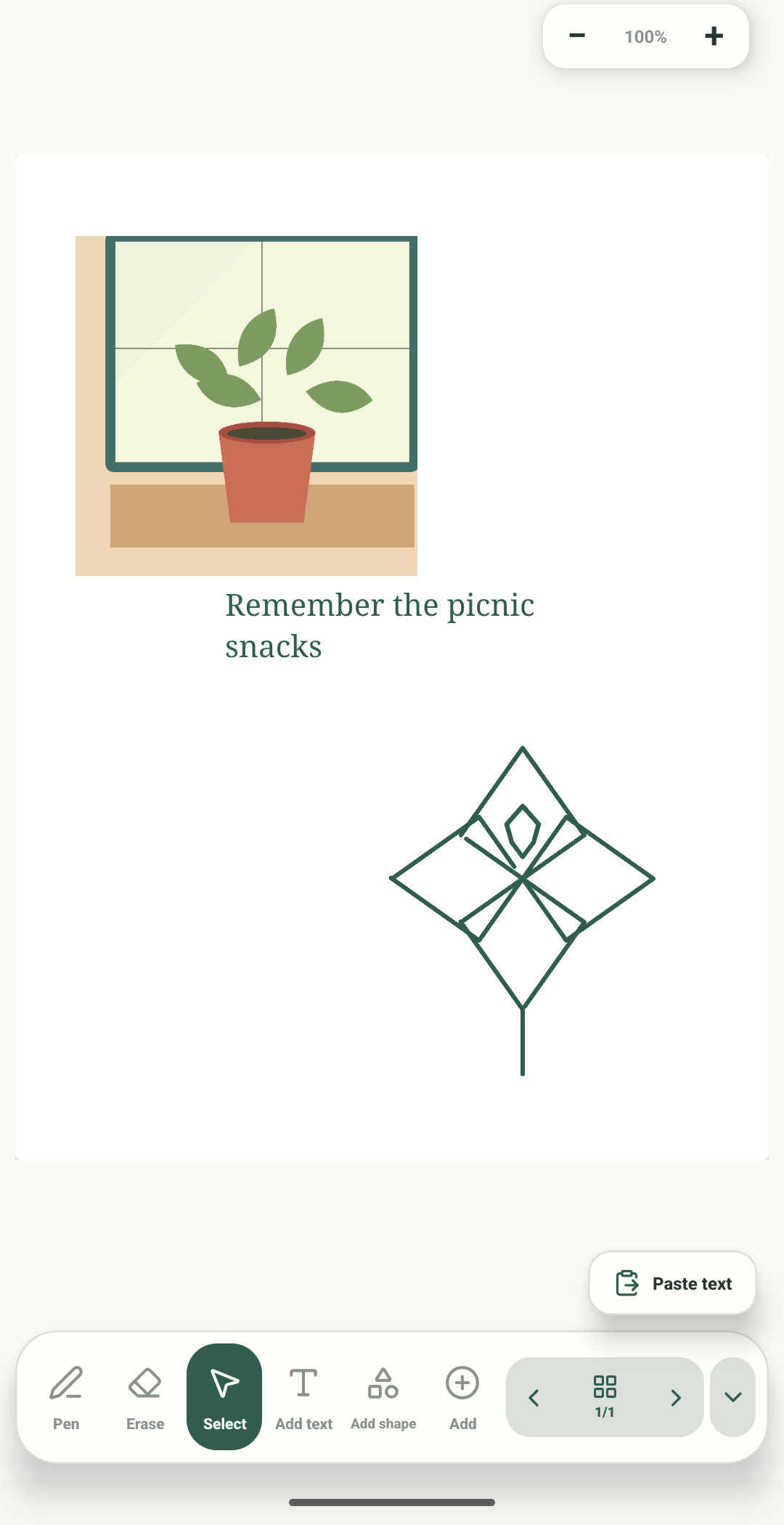 07How-to guideHow to draw and erase in StilopadChoose a pen, colour and width, draw on the page, then erase a mark you do not want.Read the guide
 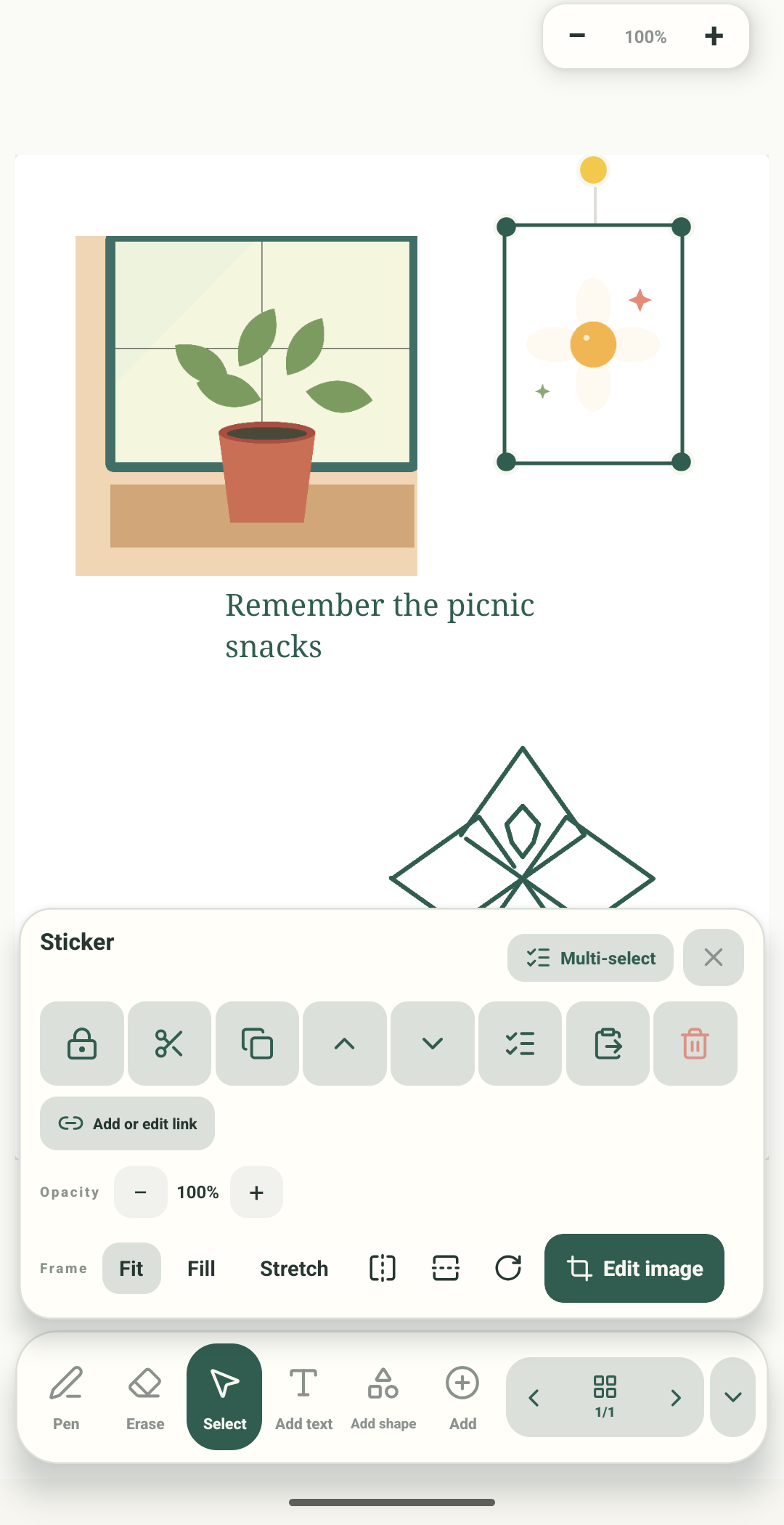 08How-to guideHow to add or remove a sticker in StilopadChoose a sticker from your collection, place it on a page, and remove only the page copy when you are done.Read the guide
 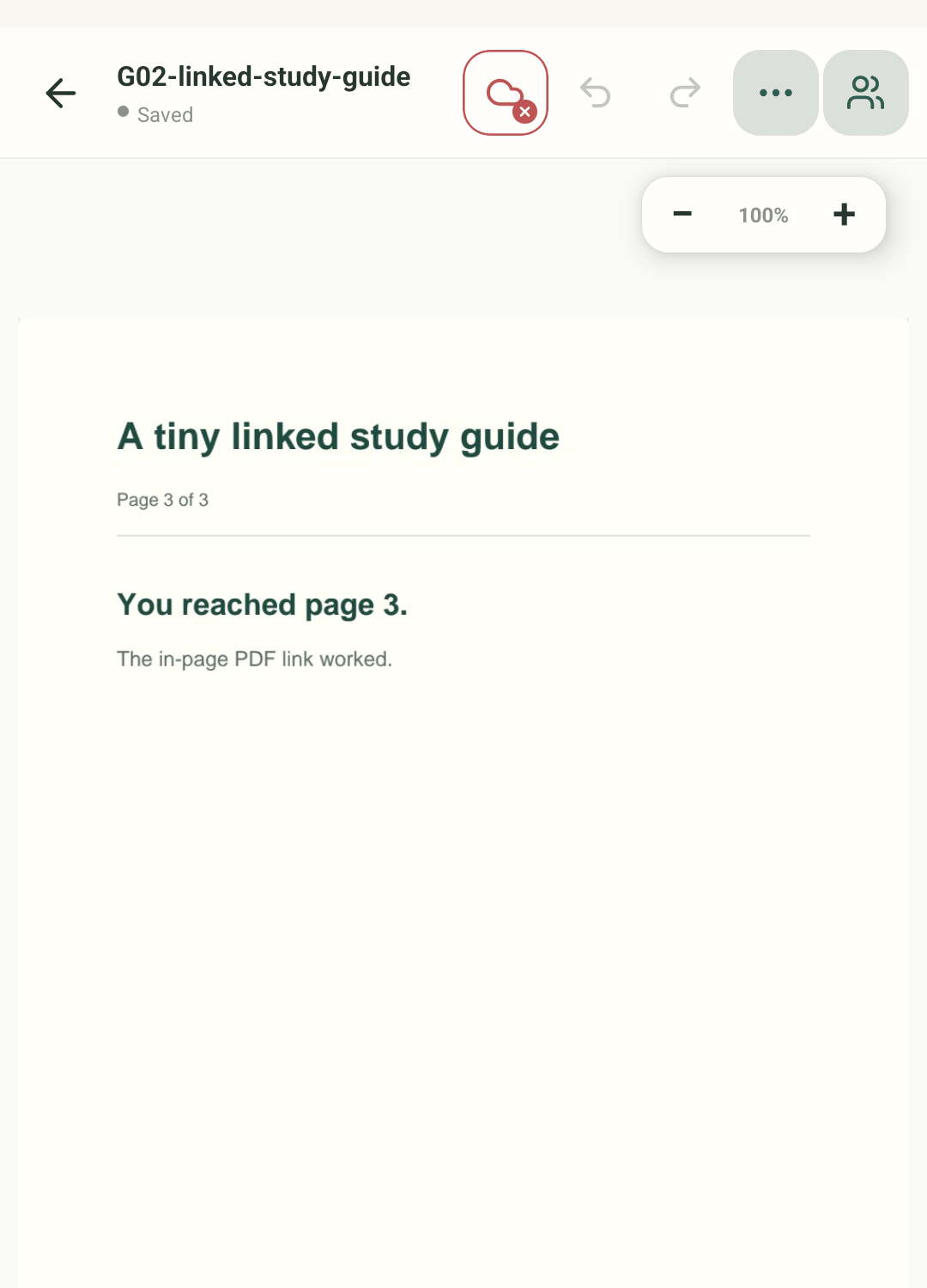 09How-to guideHow to open page links directly in StilopadTurn off the confirmation for links that move to another page in the same notebook.Read the guide
 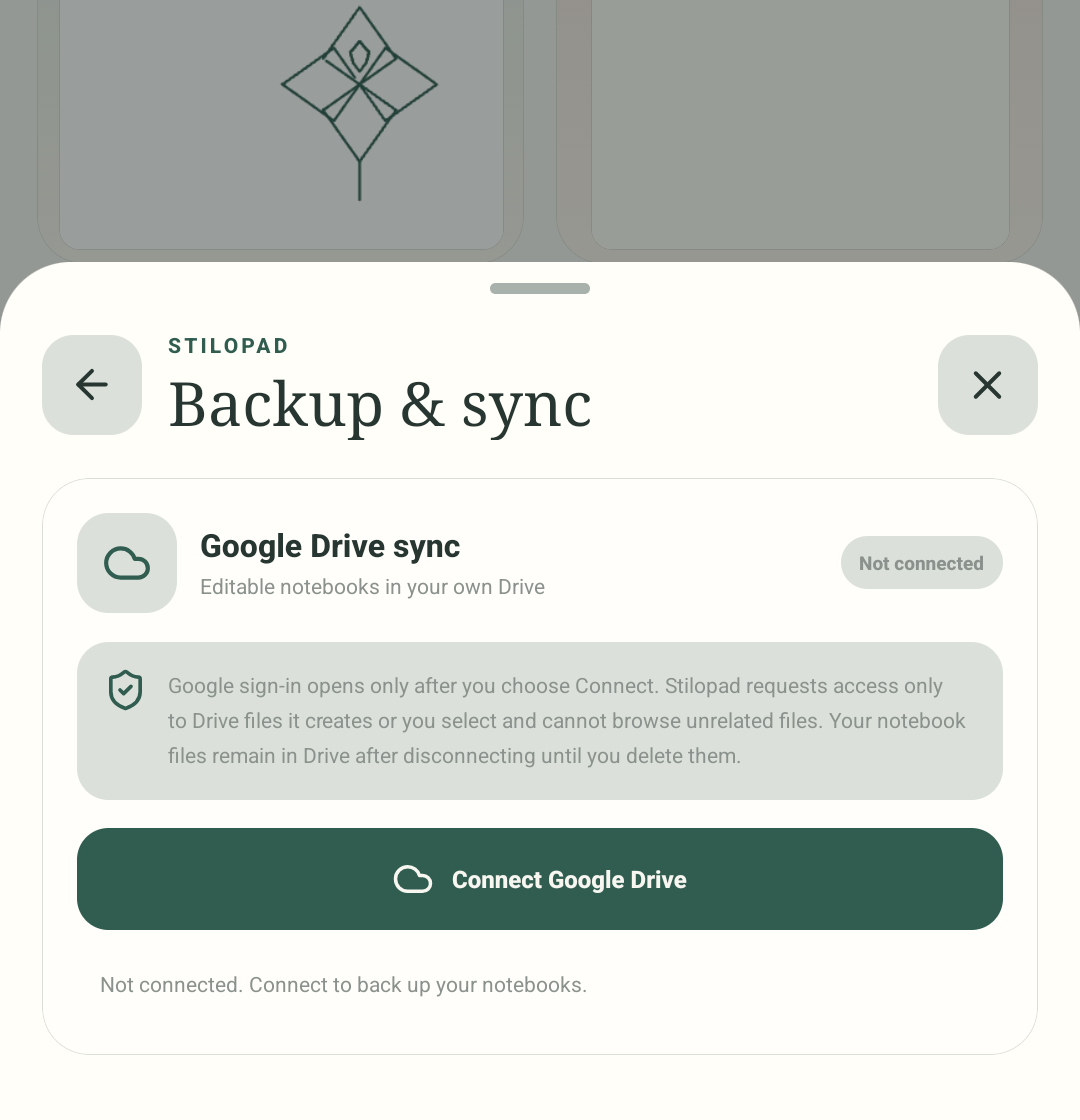 10How-to guideHow to sync notebooks with Google DriveConnect Drive from Stilopad settings, then let your notebook library sync between devices.Read the guide
 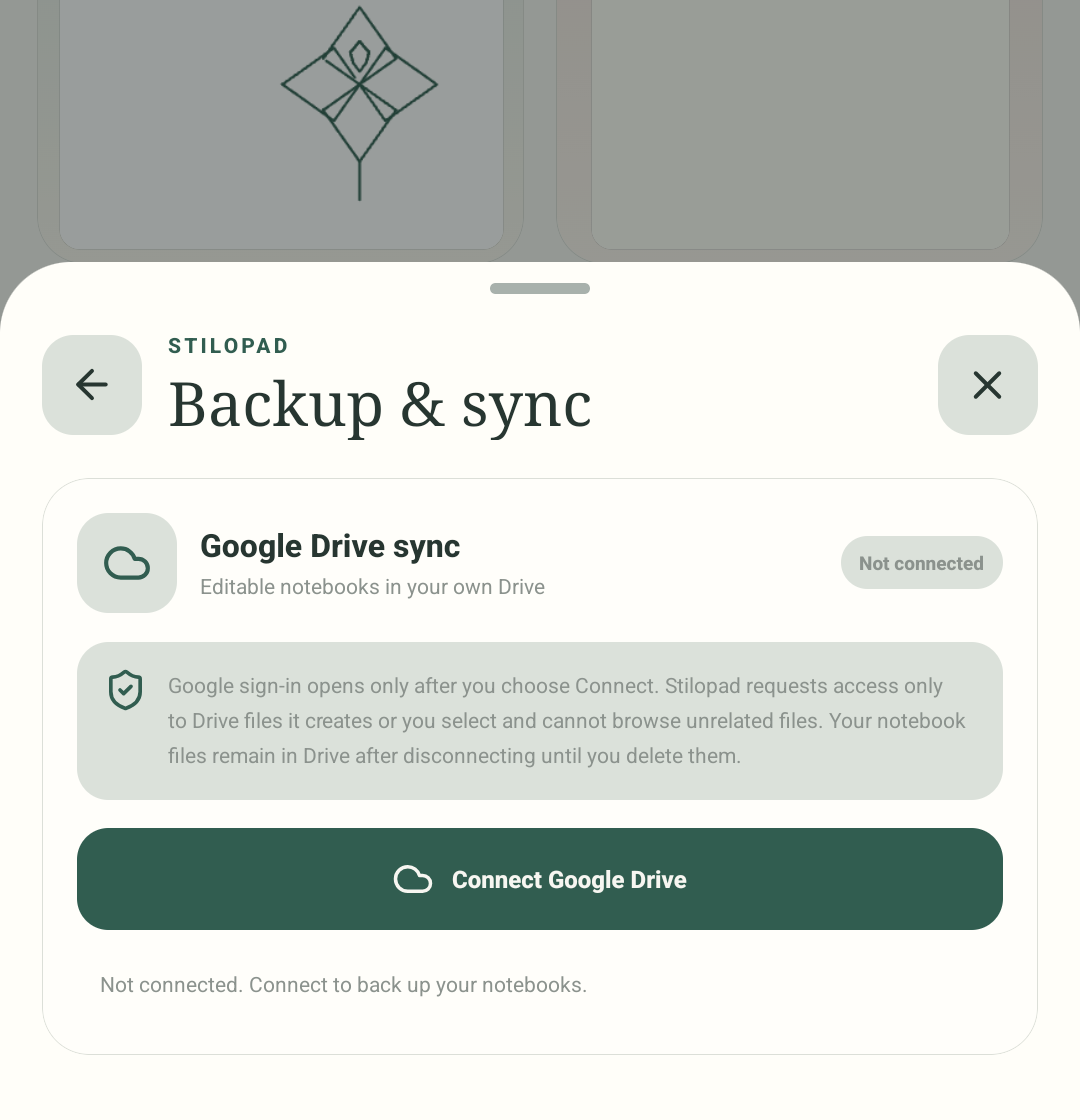 11How-to guideHow to restore notebooks from Google DriveConnect the same Google account on a device and let Stilopad find notebook backups it can restore.Read the guide
 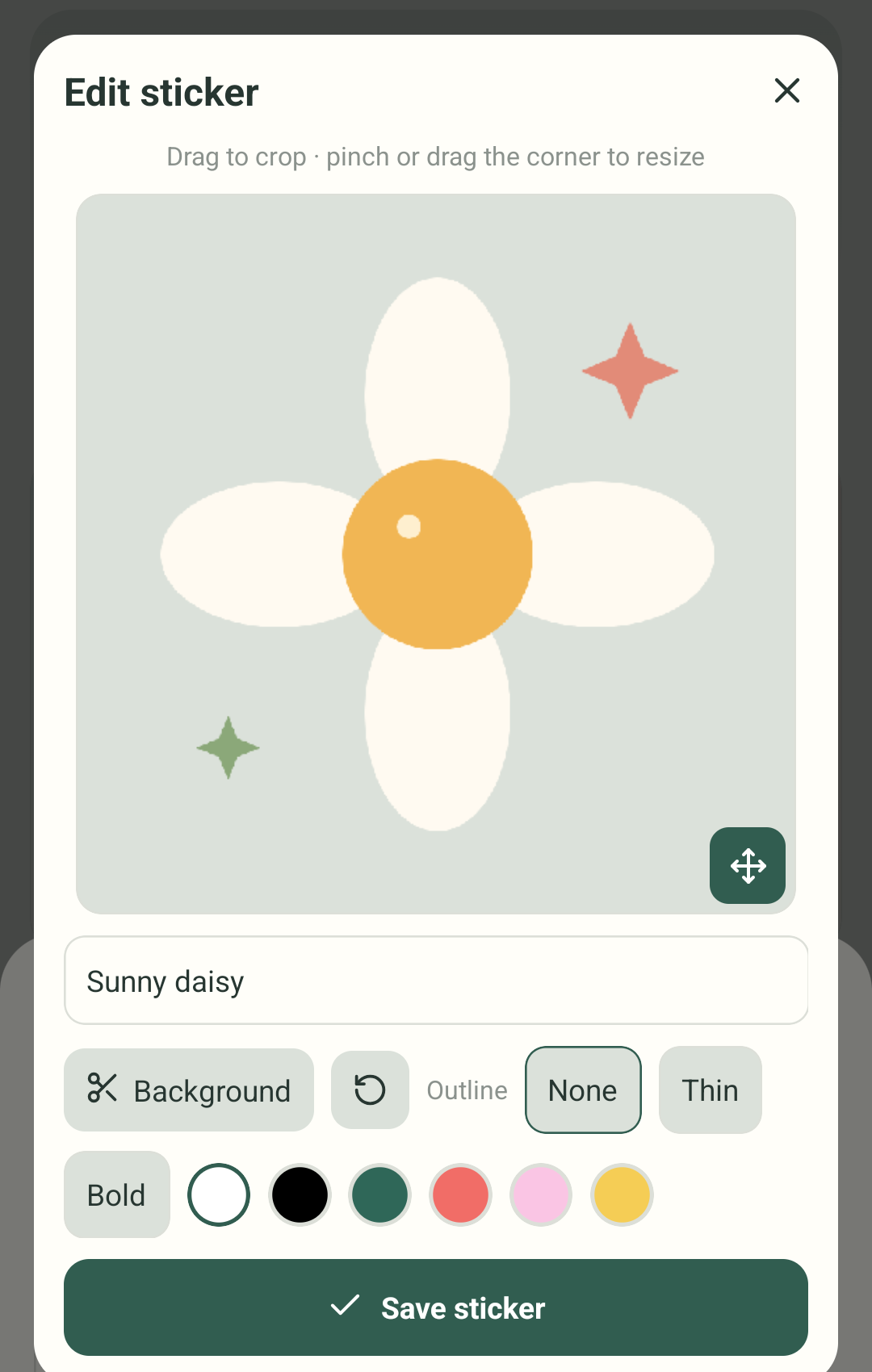 12How-to guideHow to manage stickers in StilopadOpen My stickers to add a picture, edit a saved sticker, or hide one you no longer want to see.Read the guide
 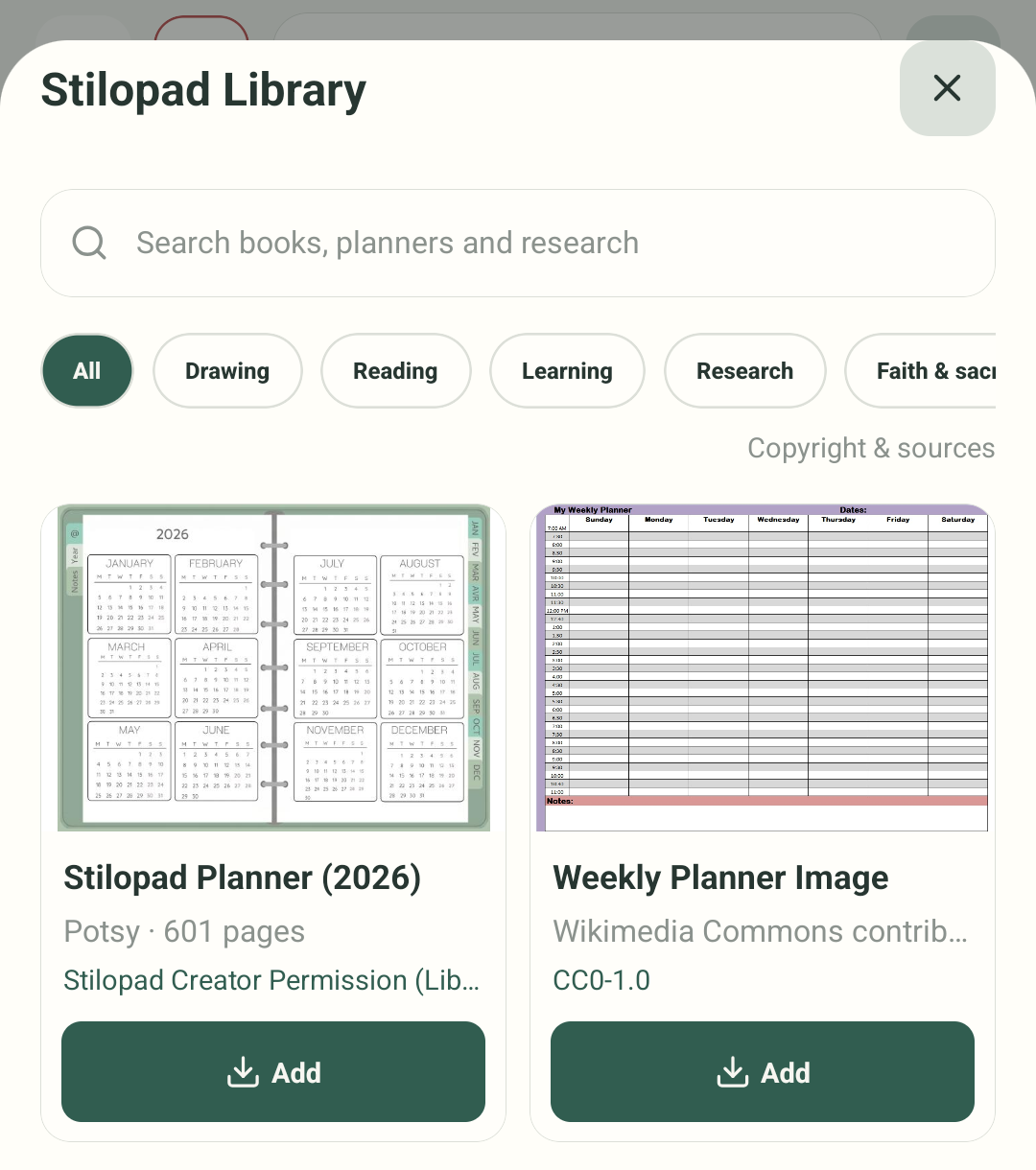 13How-to guideHow to browse the Stilopad LibraryFind a planner or notebook in the mobile Library, check its details, and add a copy to your own notebooks.Read the guide
 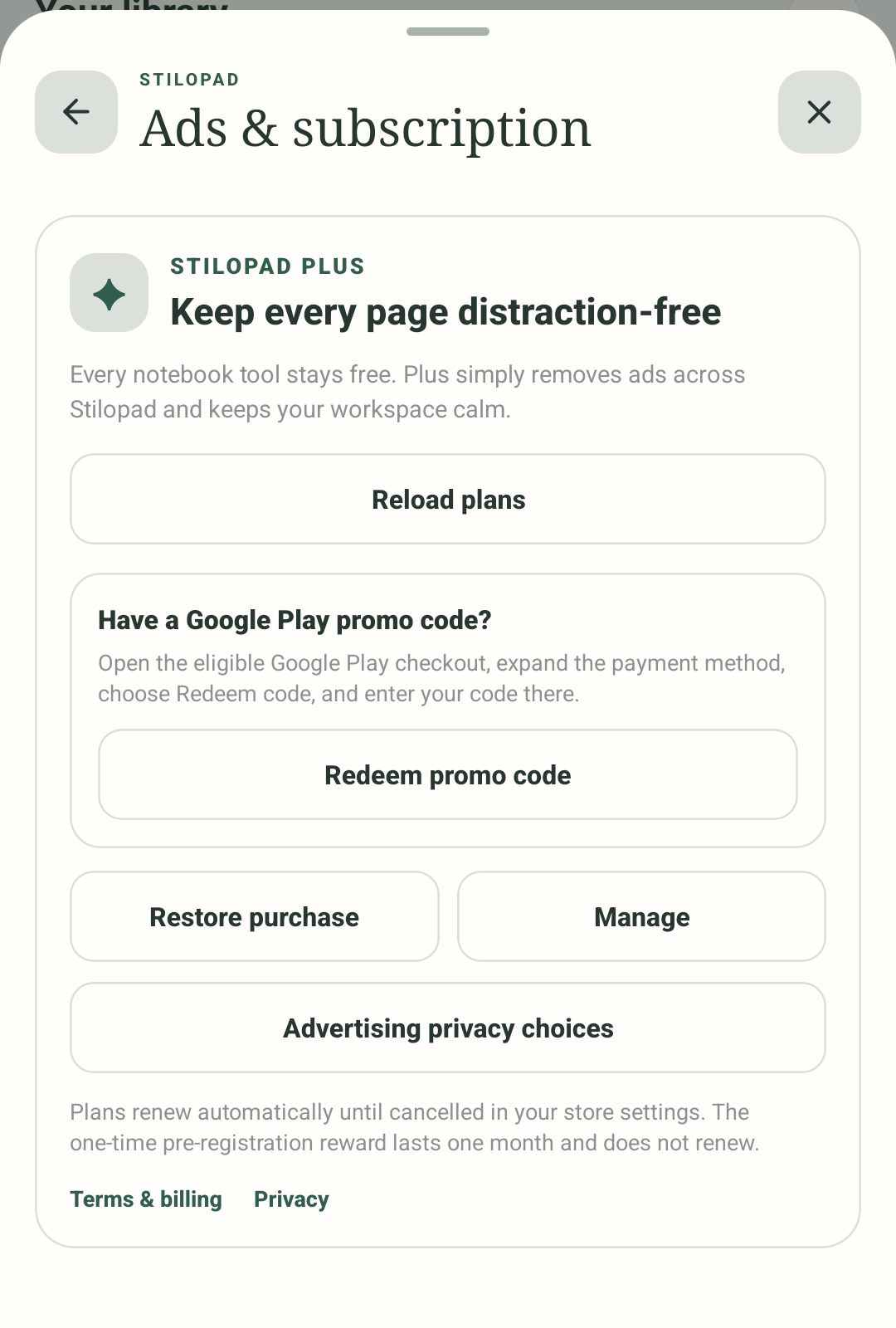 14How-to guideHow to remove ads with a subscriptionFind Ads & subscription in Settings, review the store’s plan details, and check your status afterwards.Read the guide
 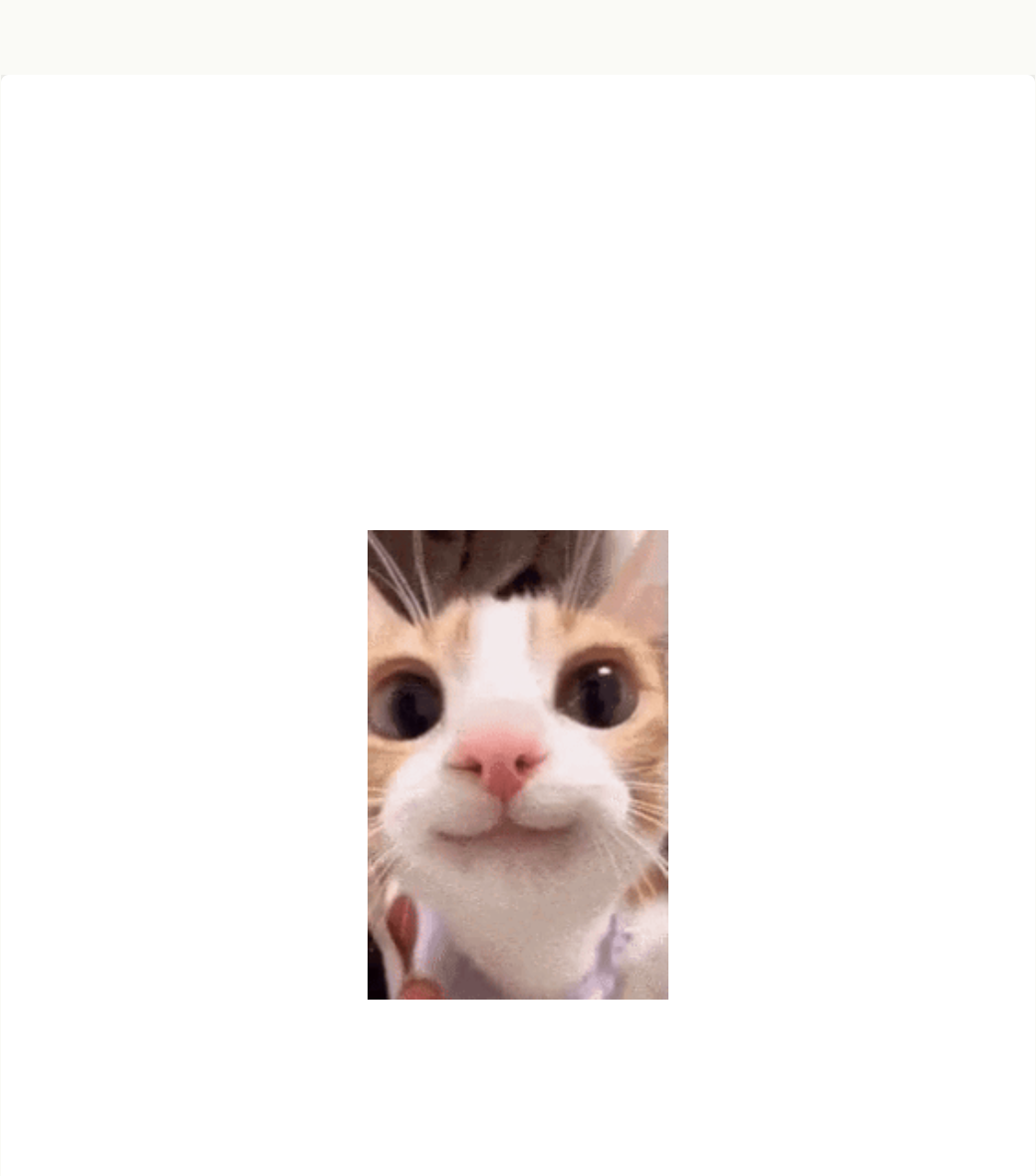 15How-to guideHow to find and add a GIFSearch for a moving GIF, choose a result, and place that same item on a notebook page.Read the guide
 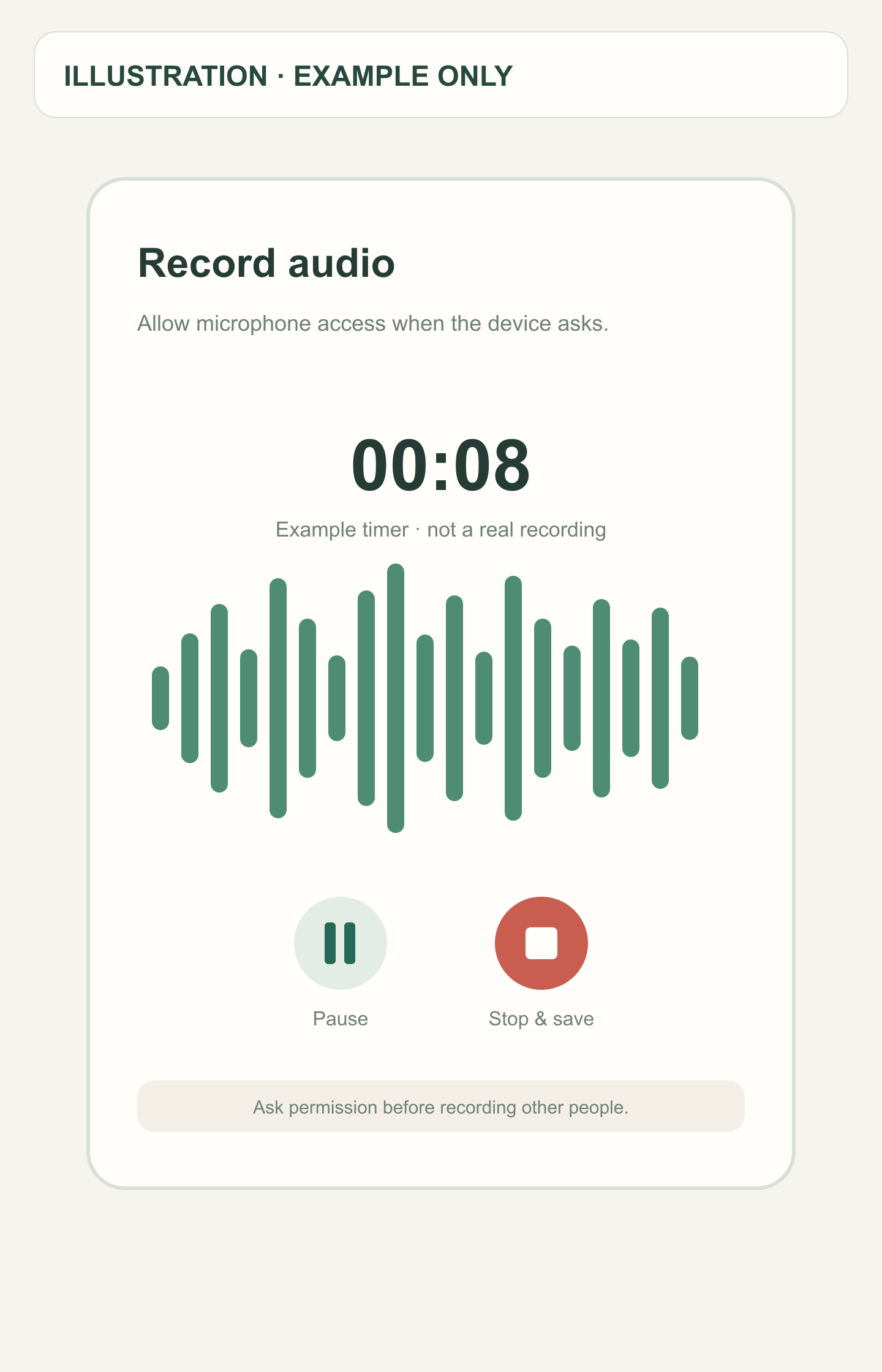 16Example artHow-to guideHow to record a voice noteRecord a short audio note, save it on your page, then play it back.Read the guide
 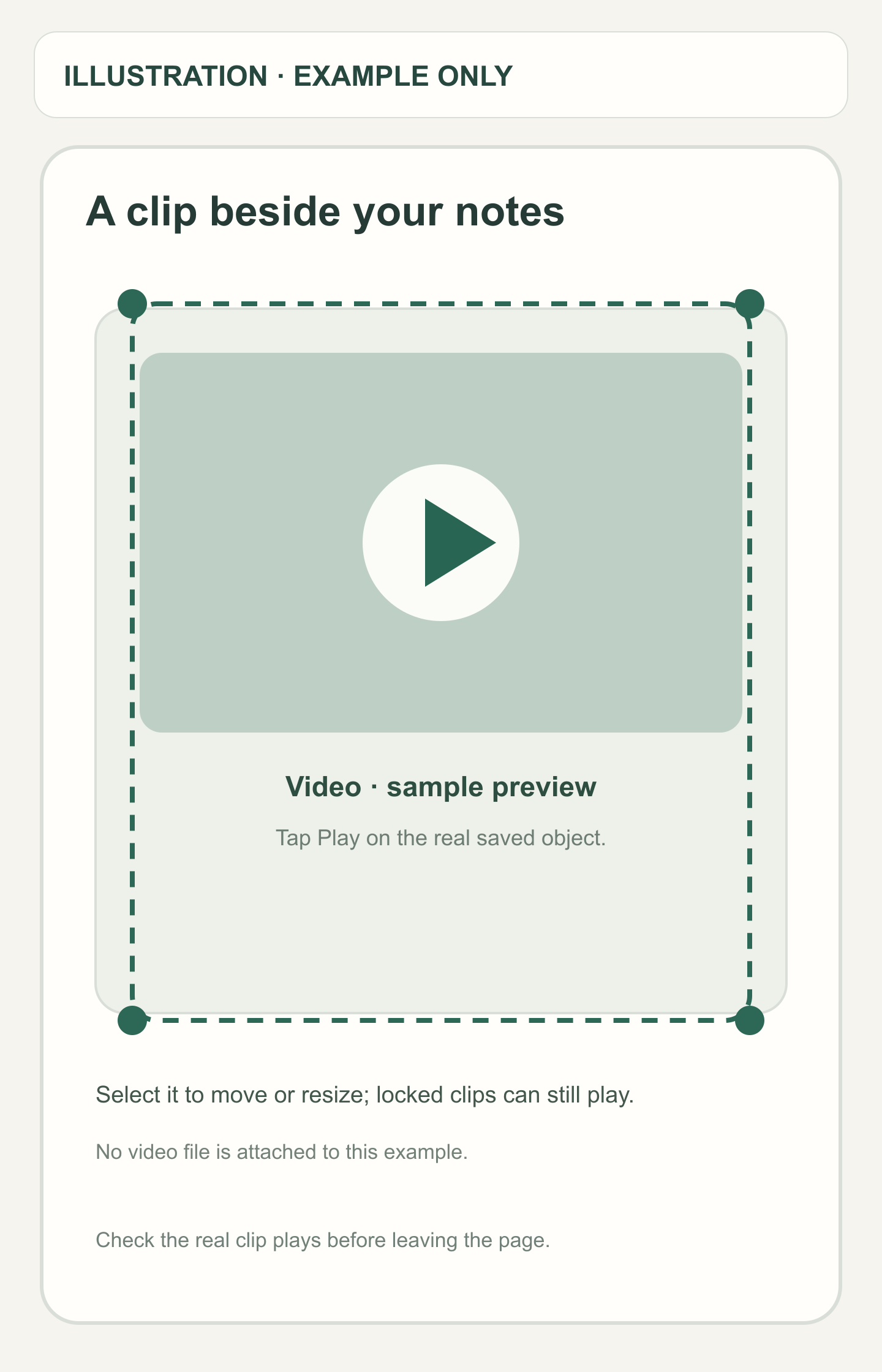 17Example artHow-to guideHow to add or record a videoChoose an existing clip or record one, then keep it beside the rest of your page.Read the guide
 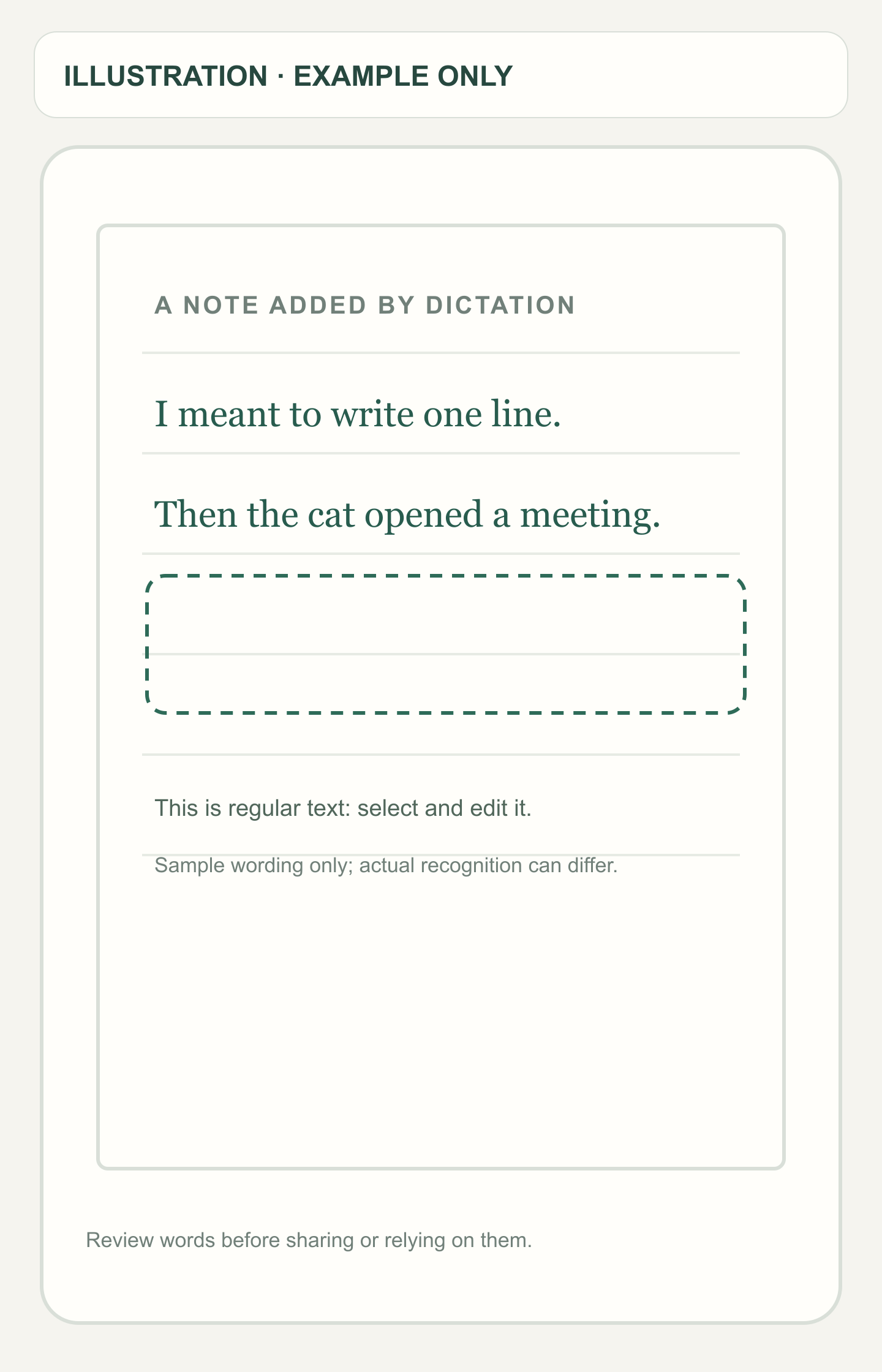 18Example artHow-to guideHow to turn speech into textSay a short note and insert the words as editable text on your page.Read the guide
 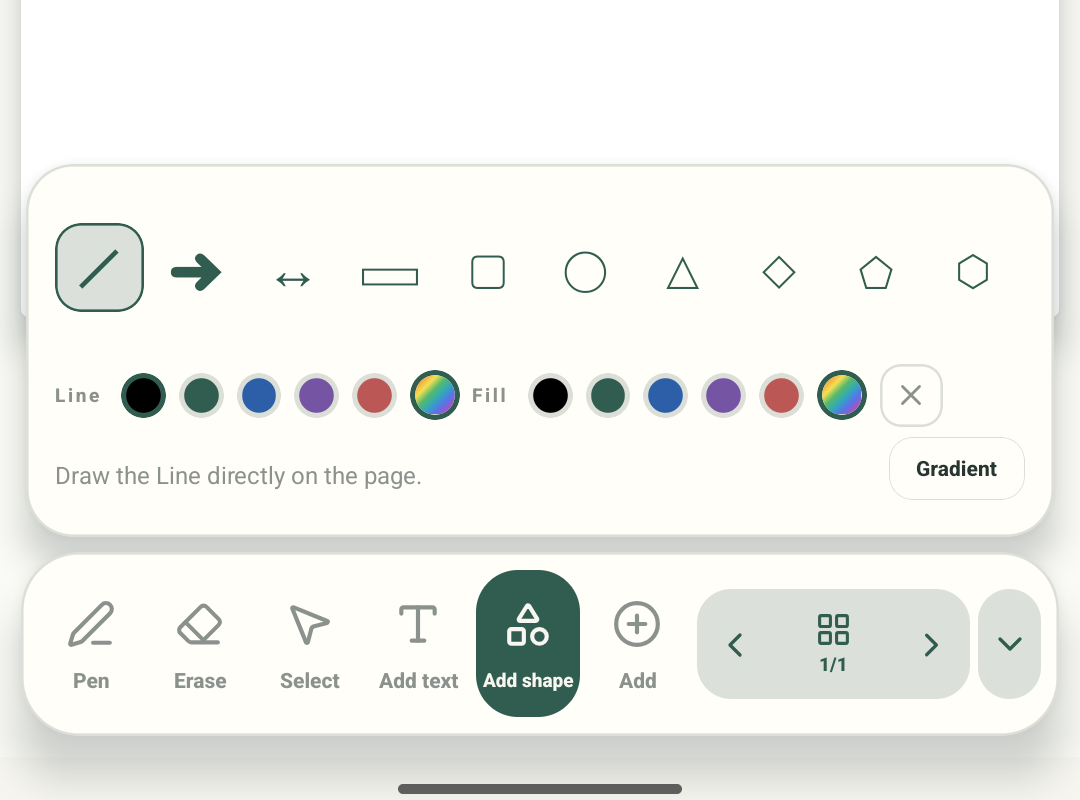 19How-to guideHow to add shapes and arrowsFrame a thought with a shape or point to it with an arrow.Read the guide
 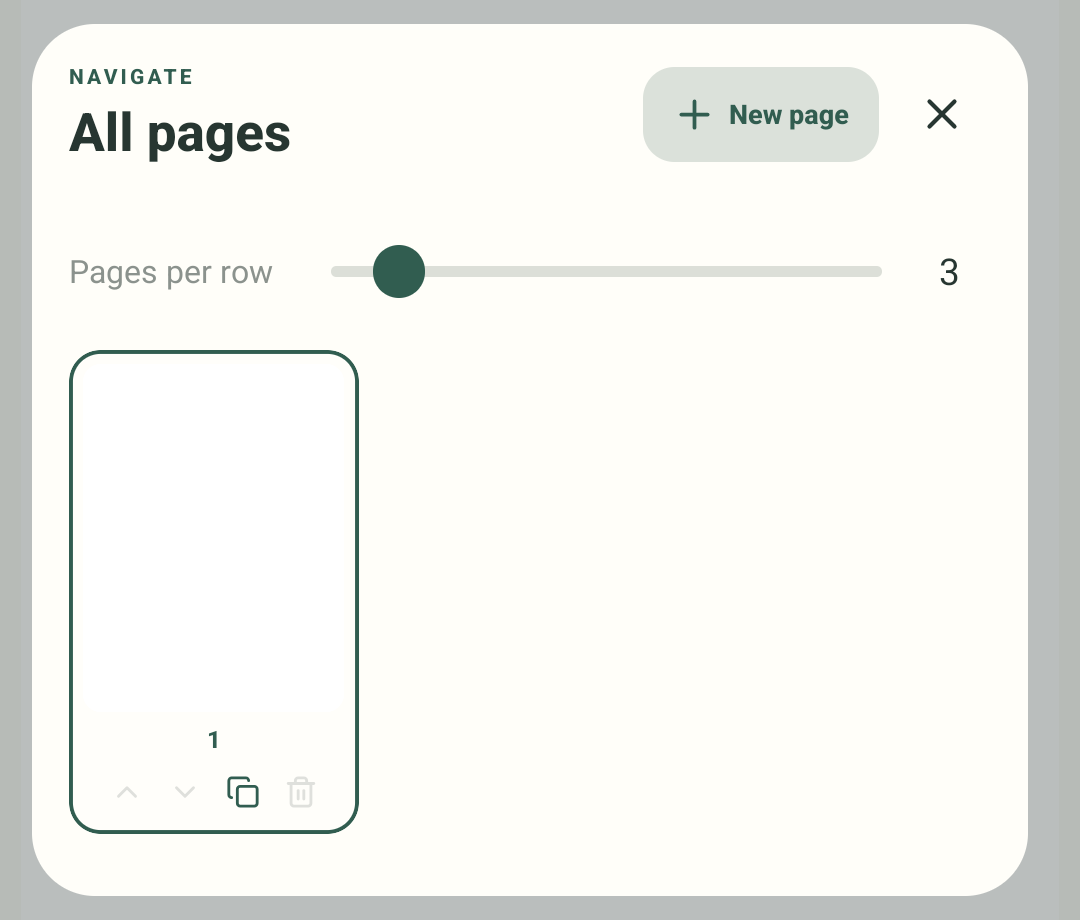 20How-to guideHow to add and arrange pagesOpen the page overview to add a page, jump to another one, copy, or change page order.Read the guide
 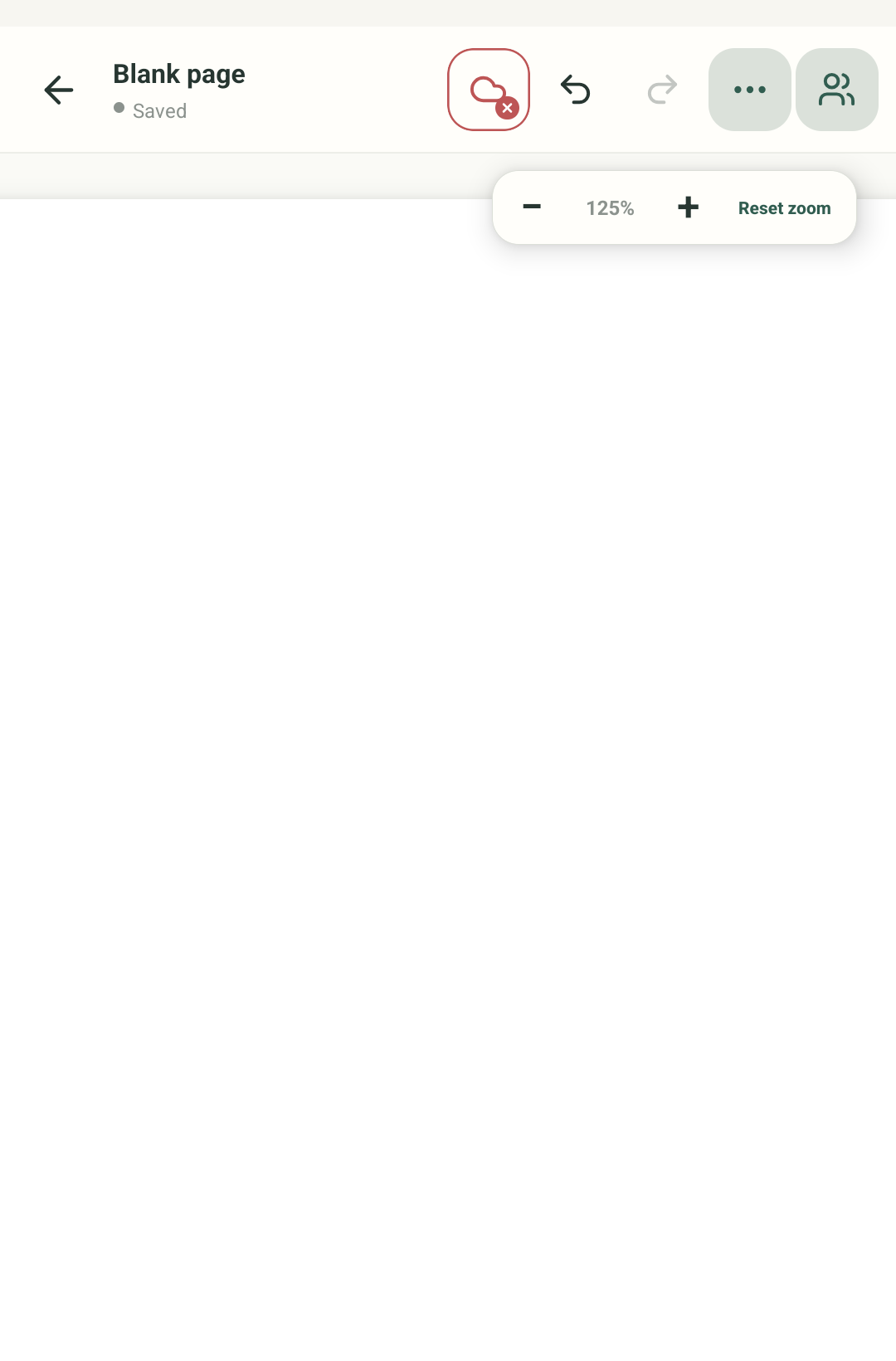 21How-to guideHow to turn pages and zoom inUse the page buttons, swipe between nearby pages, open the page overview, and zoom for a closer look.Read the guide
 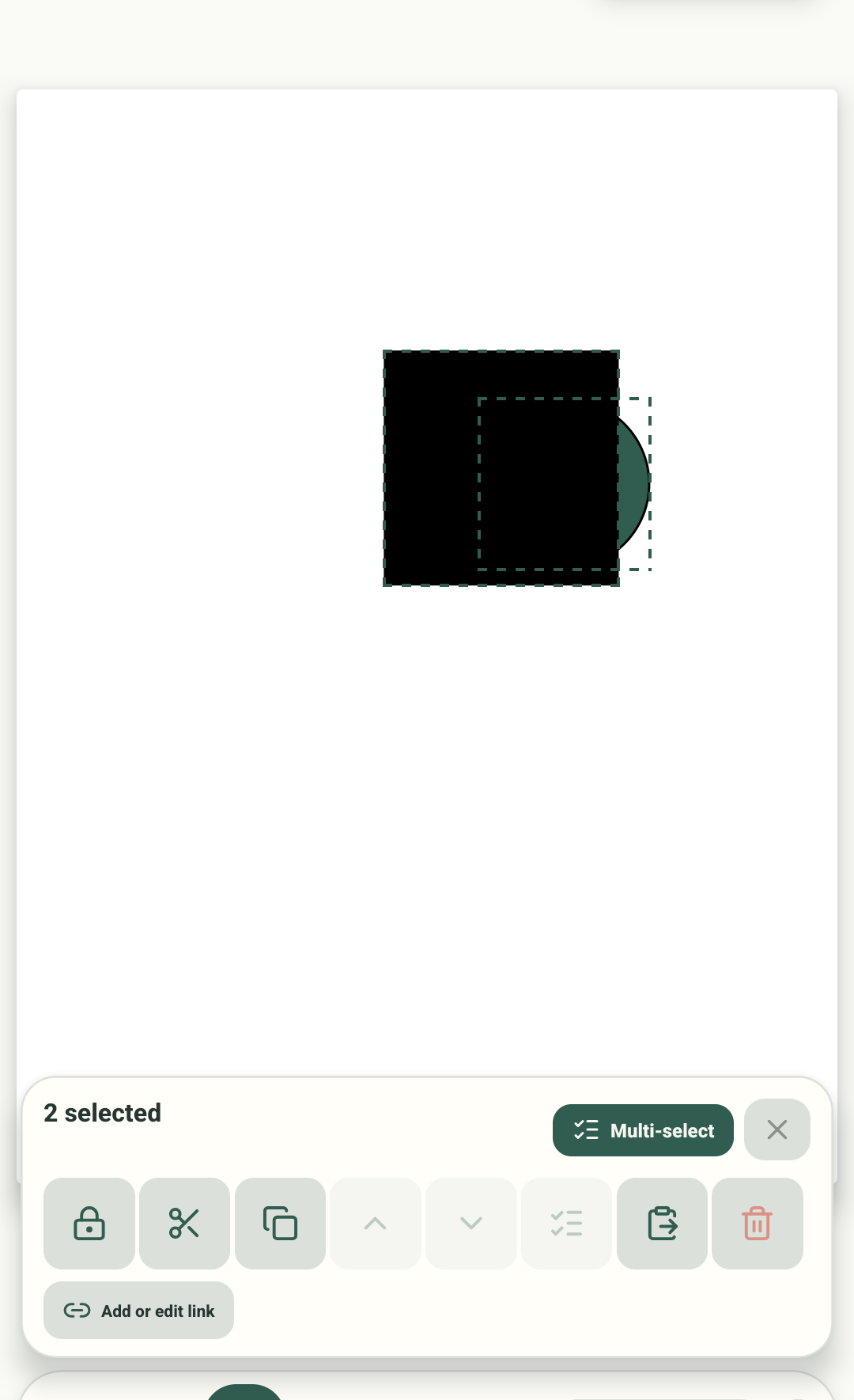 22How-to guideHow to select, move and lock objectsSelect words or shapes, move them, keep an item still with Lock, and change which overlapping item sits on top.Read the guide
 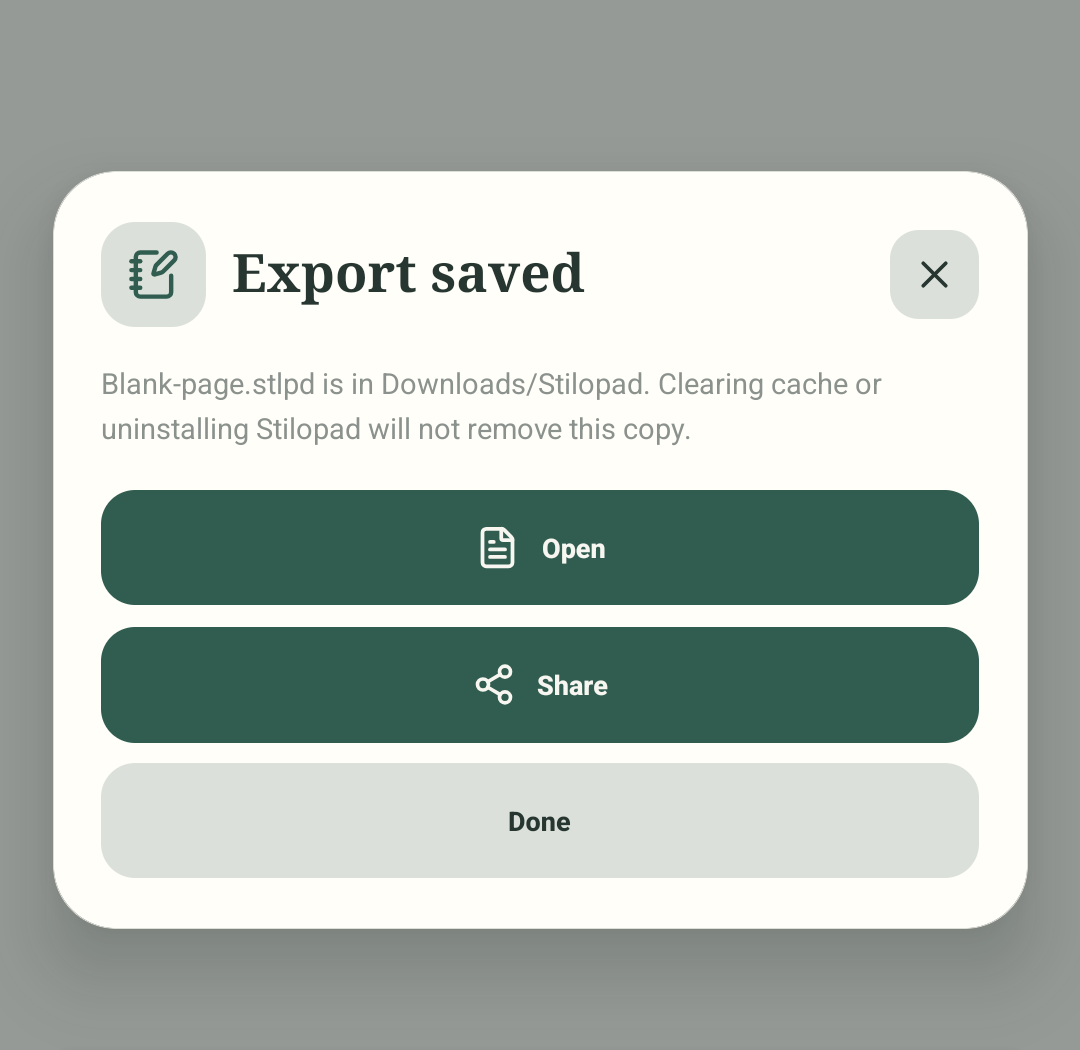 23How-to guideHow to export a notebookChoose an export format, wait while Stilopad prepares the file, and check where it was saved.Read the guide
  24How-to guideHow to back up and restore a notebook fileSave an editable `.stlpd` copy, find it in Files, import it, then open the restored notebook.Read the guide
 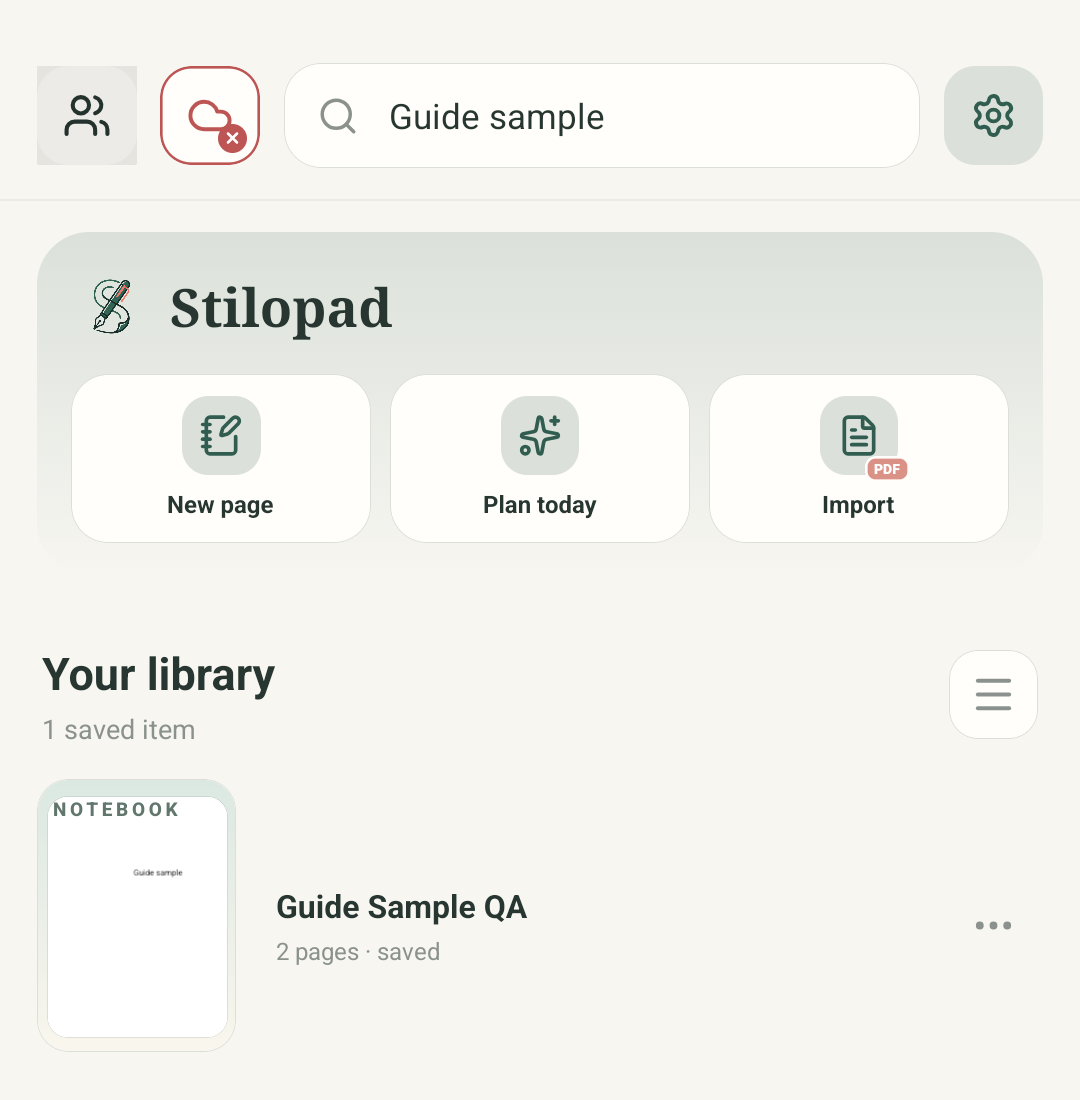 25How-to guideHow to organise and find your notebooksGive notebooks clear names, choose a library view, and find one with search.Read the guide
 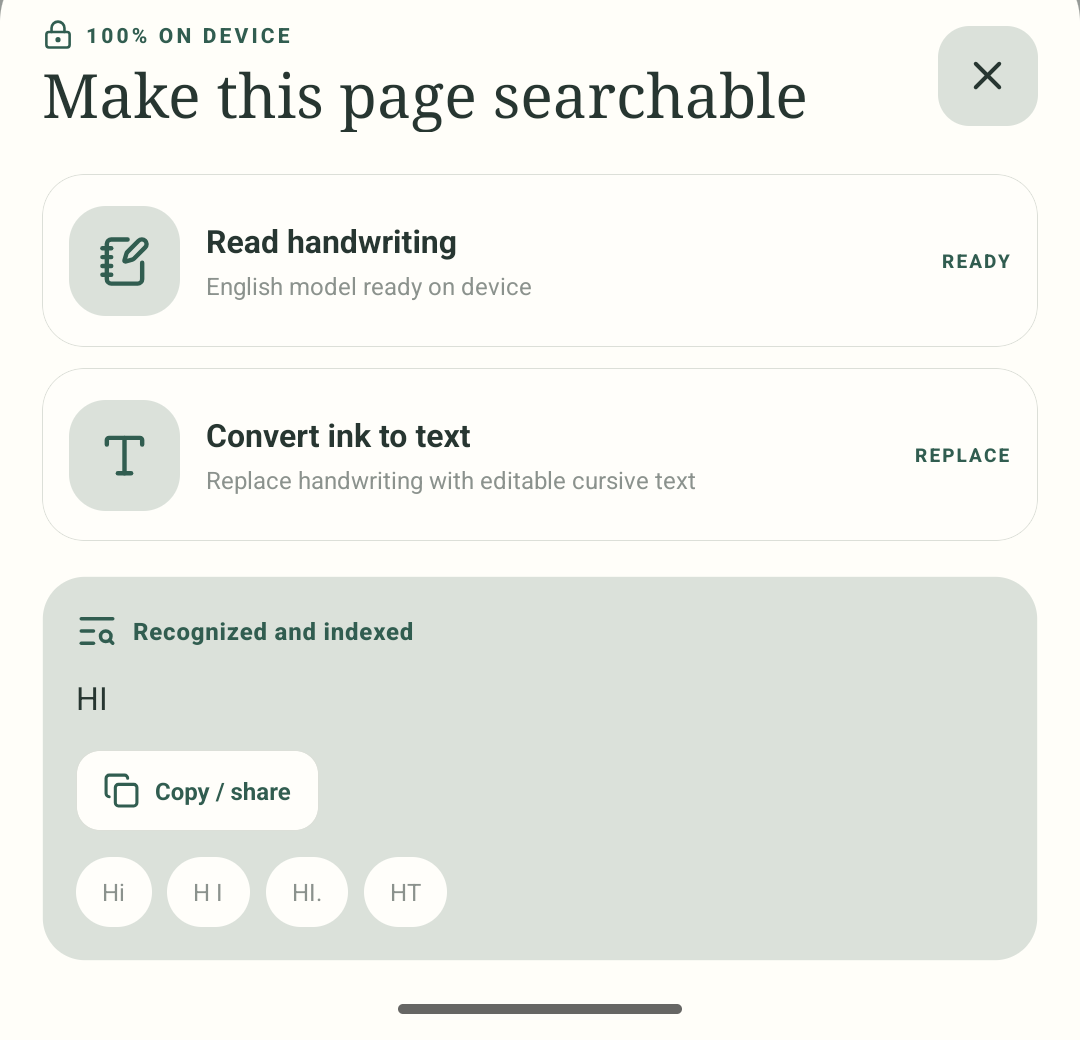 26How-to guideHow to make handwriting searchableLet Stilopad recognise handwriting on a page, then find that notebook with a search.Read the guide
 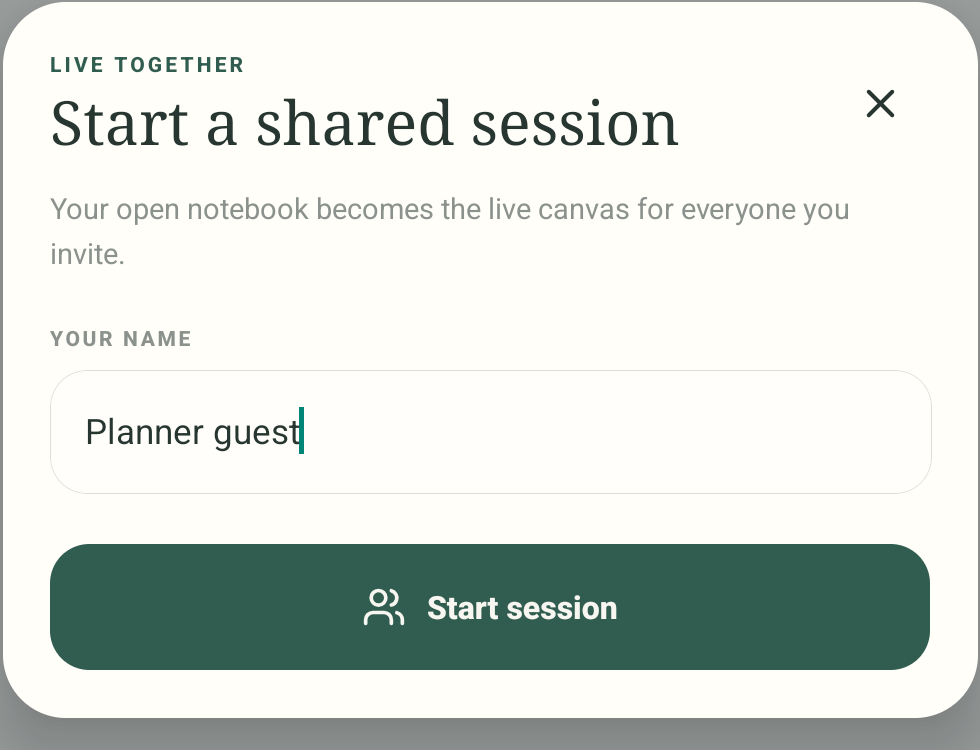 27How-to guideHow to start or join a shared sessionStart a live notebook room or enter a host’s six-letter code to join one.Read the guide
 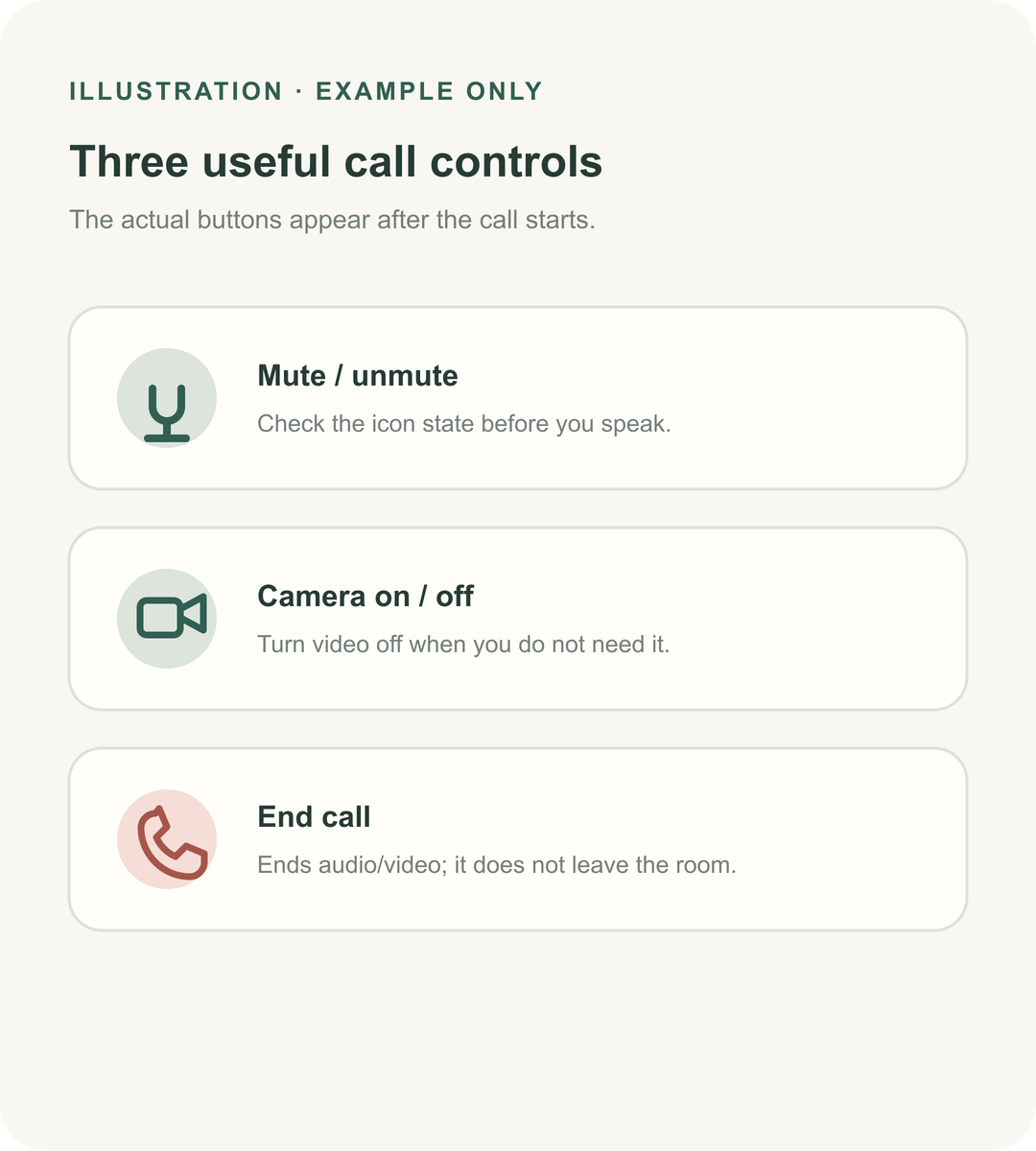 28Example artHow-to guideHow to use audio and video in a shared sessionChoose an audio or video call, control your microphone and camera, and end the call when finished.Read the guide
 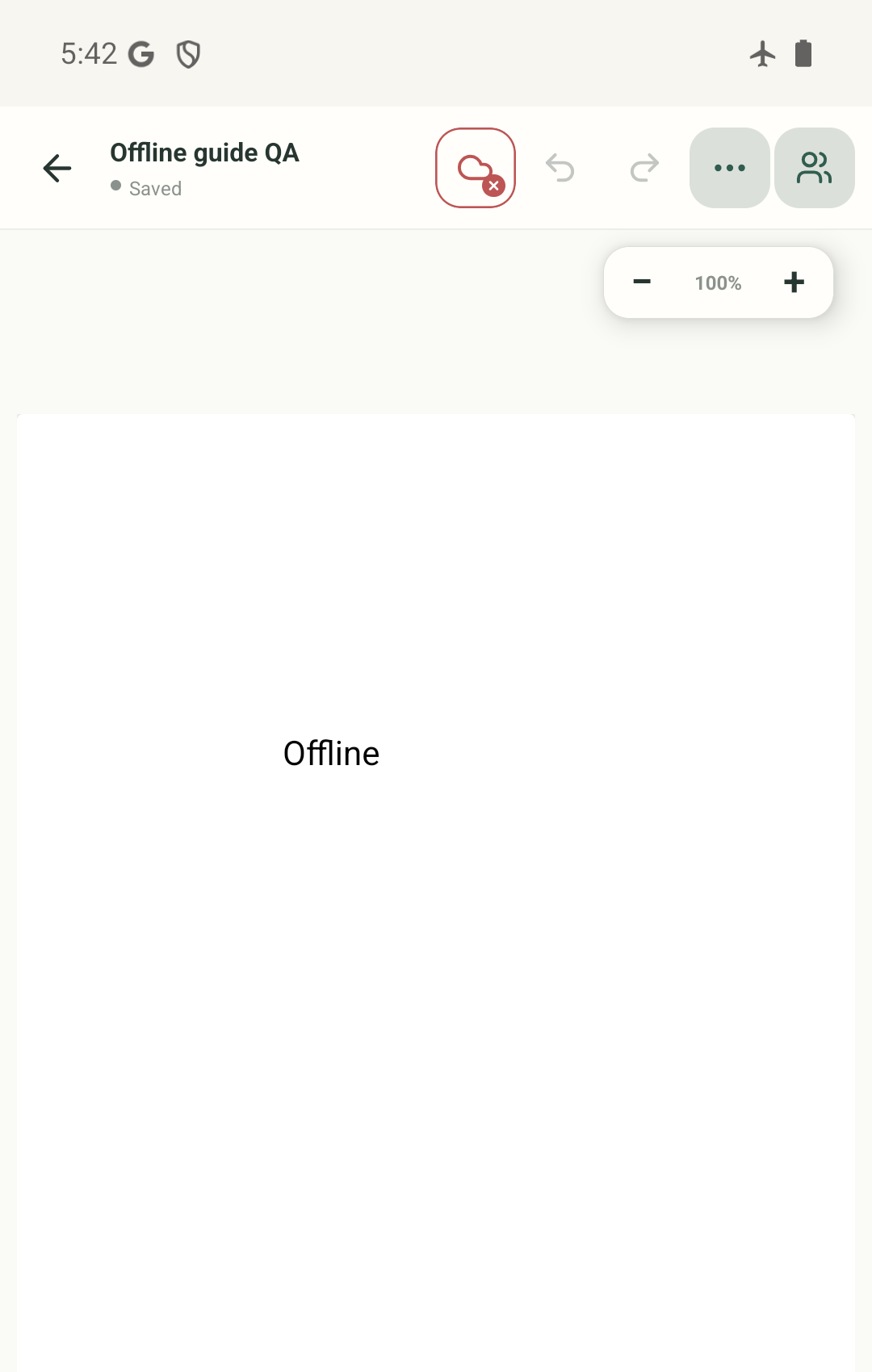 29How-to guideHow to use Stilopad offlineOpen a notebook saved on your device, keep working without a connection, then reconnect when you are ready.Read the guide
 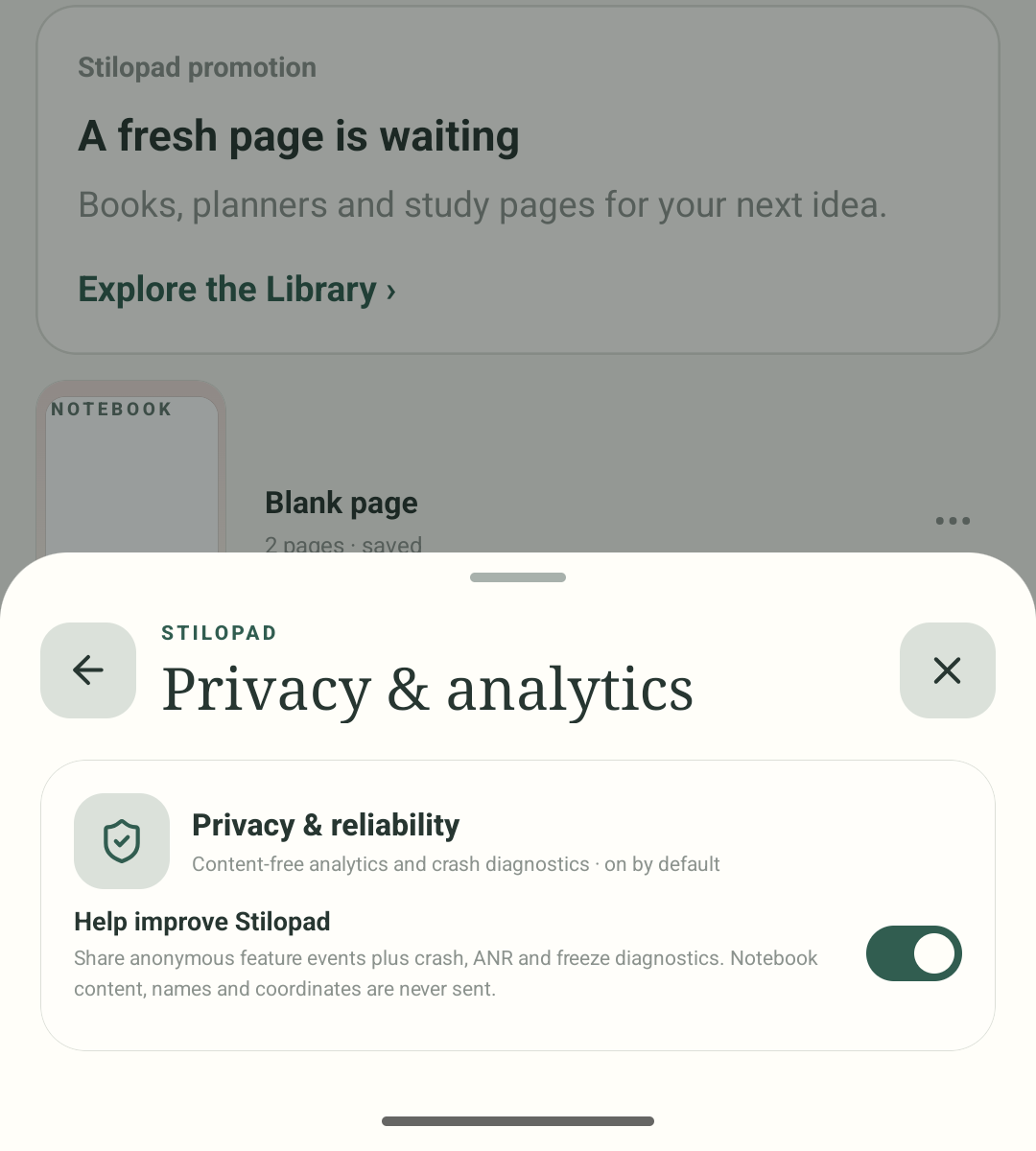 30How-to guideHow to find privacy and app permissionsFind Stilopad’s privacy controls and Android’s separate camera and microphone permissions.Read the guide
 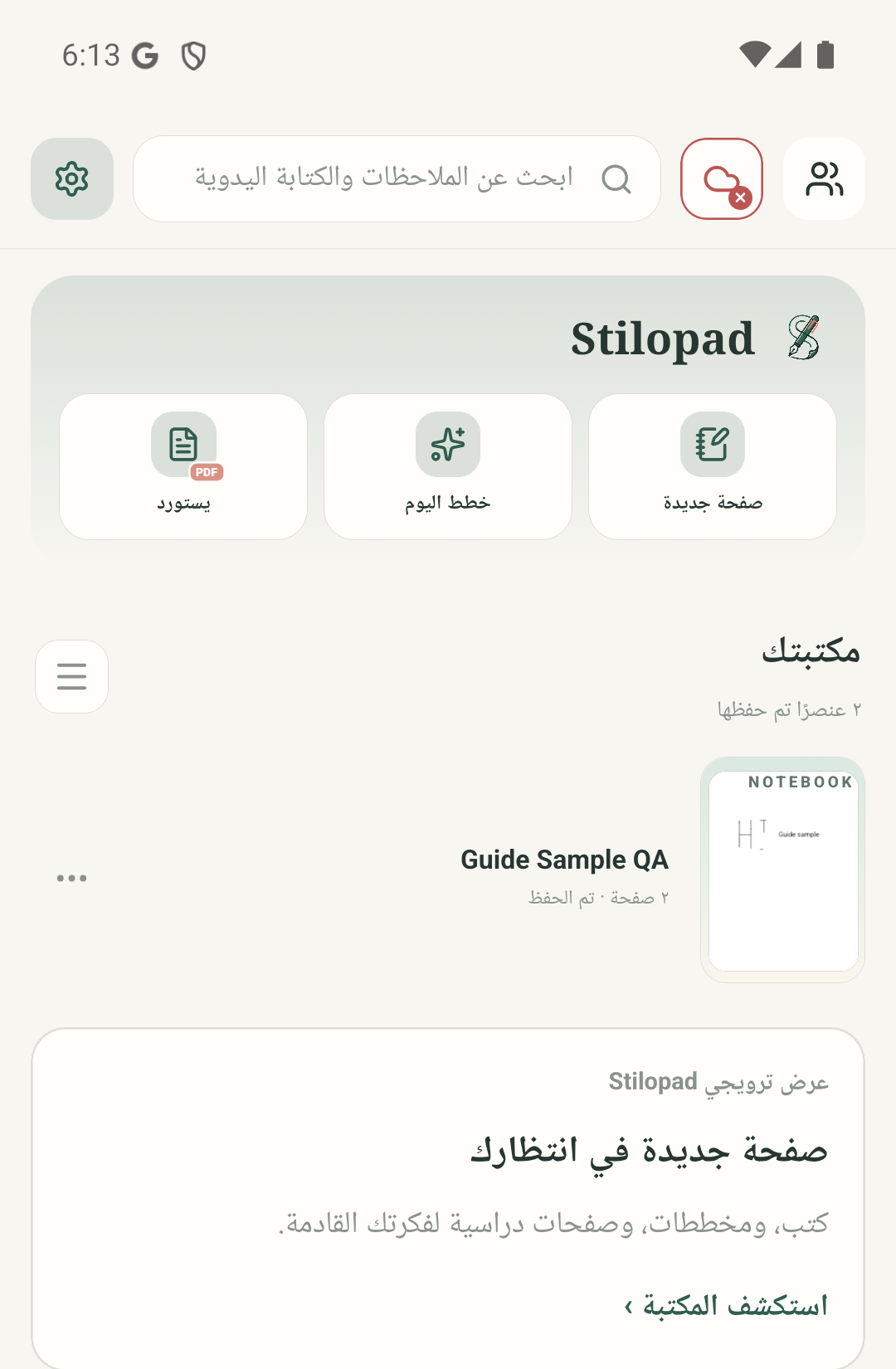 31How-to guideHow to change Stilopad’s languageSearch for a language in Settings, see the interface direction change, or choose the device-language option.Read the guide
 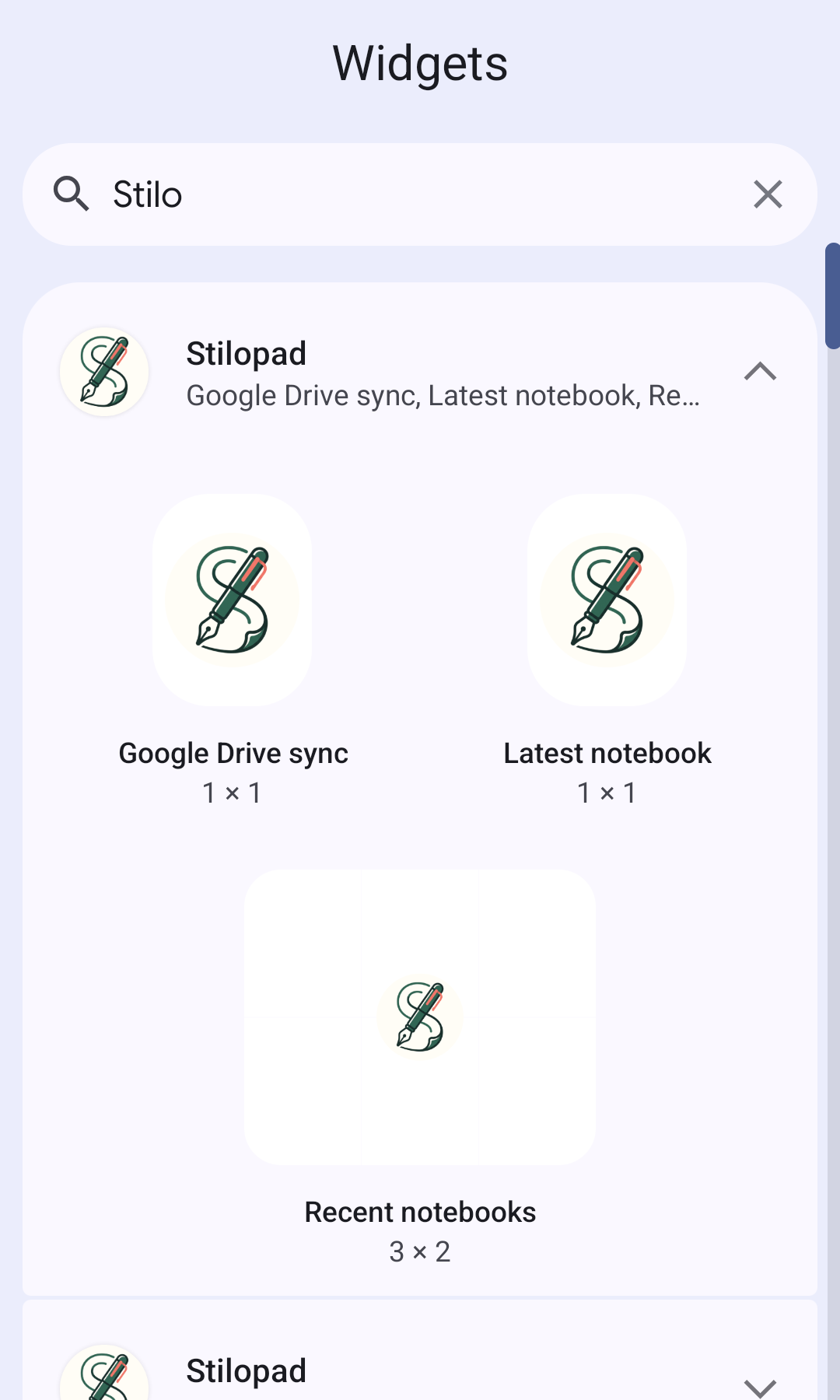 32How-to guideHow to find Stilopad home-screen widgetsOpen Android’s widget picker and see the available Stilopad notebook and Google Drive widgets.Read the guide
 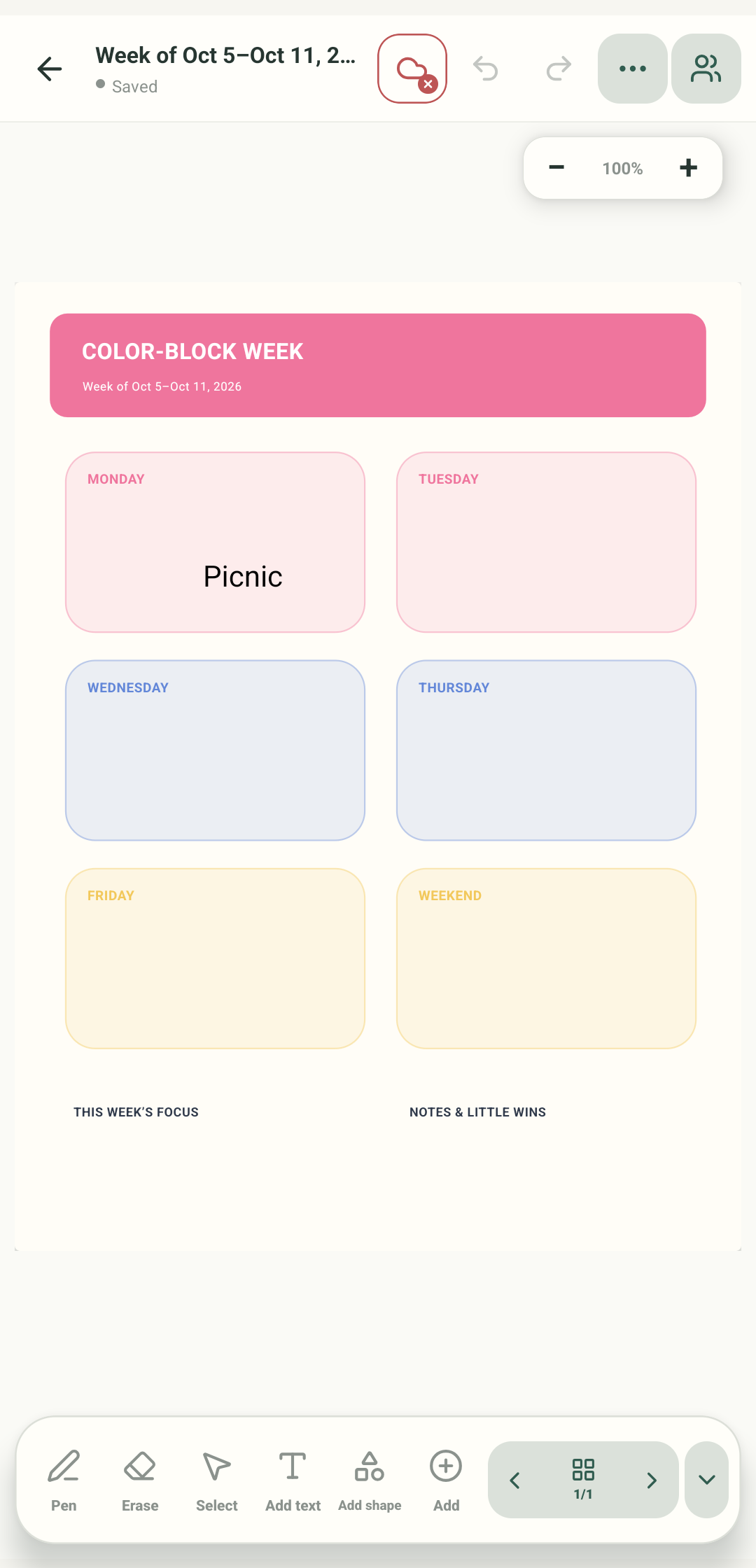 33How-to guideHow to make a daily, weekly or monthly plannerChoose a one-page planner for today, this week or this month, then add your own notes.Read the guide
 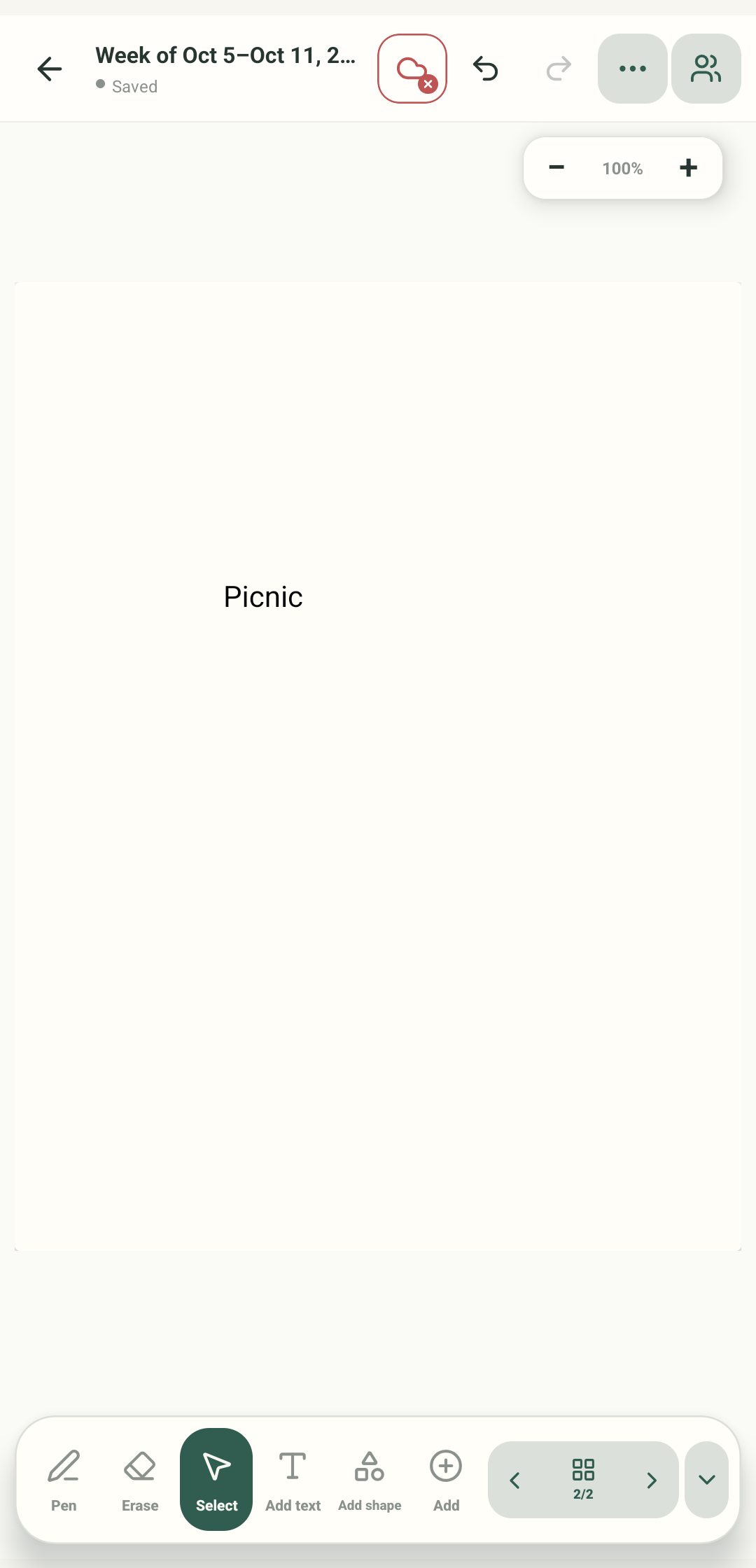 34How-to guideHow to copy an object to another pageUse Select and Copy, then choose Paste objects to place a second copy on another page.Read the guide
 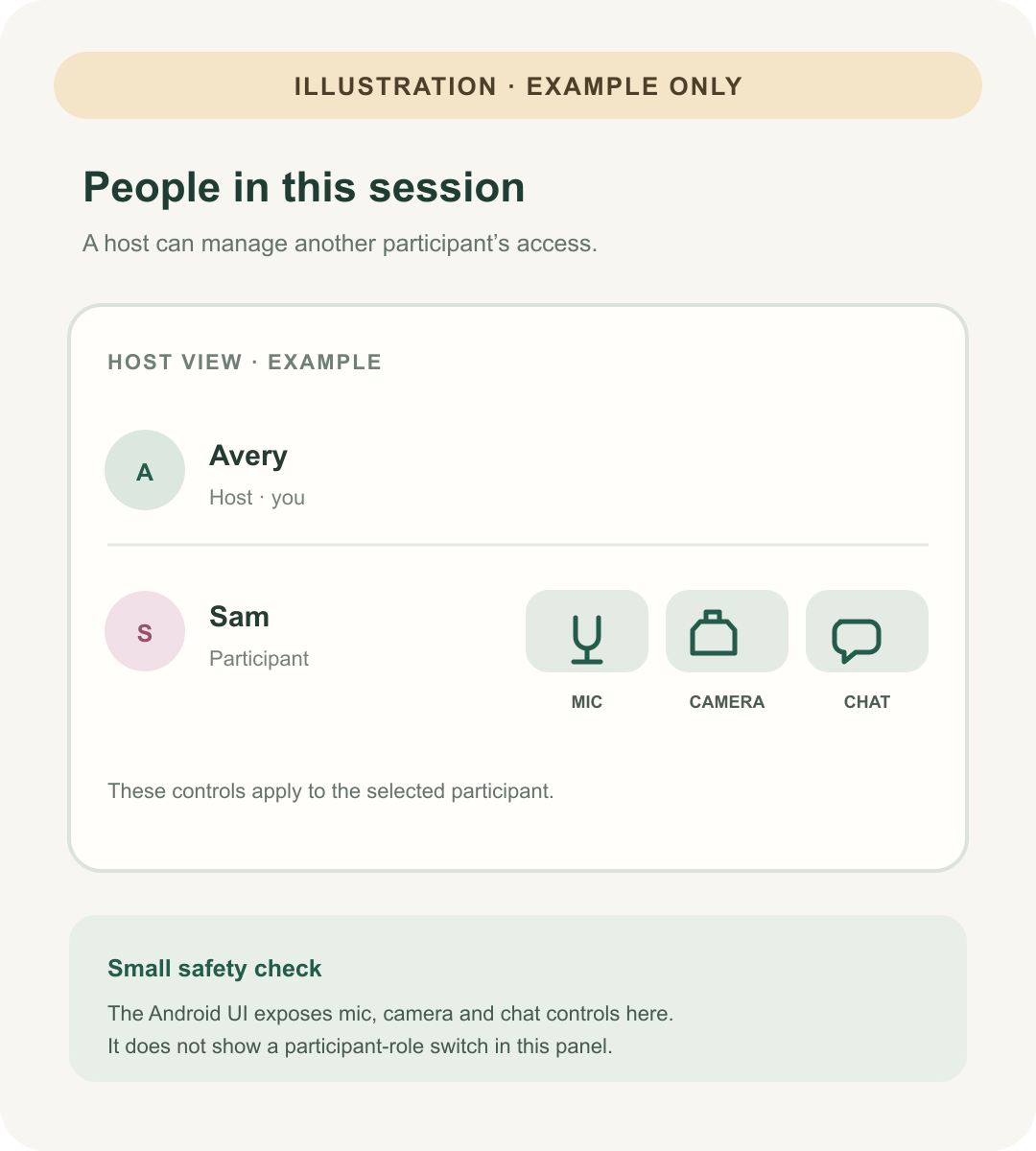 35Example artHow-to guideHow to manage a shared sessionFind the host’s people controls, understand participant options and pause before sending a report.Read the guide
 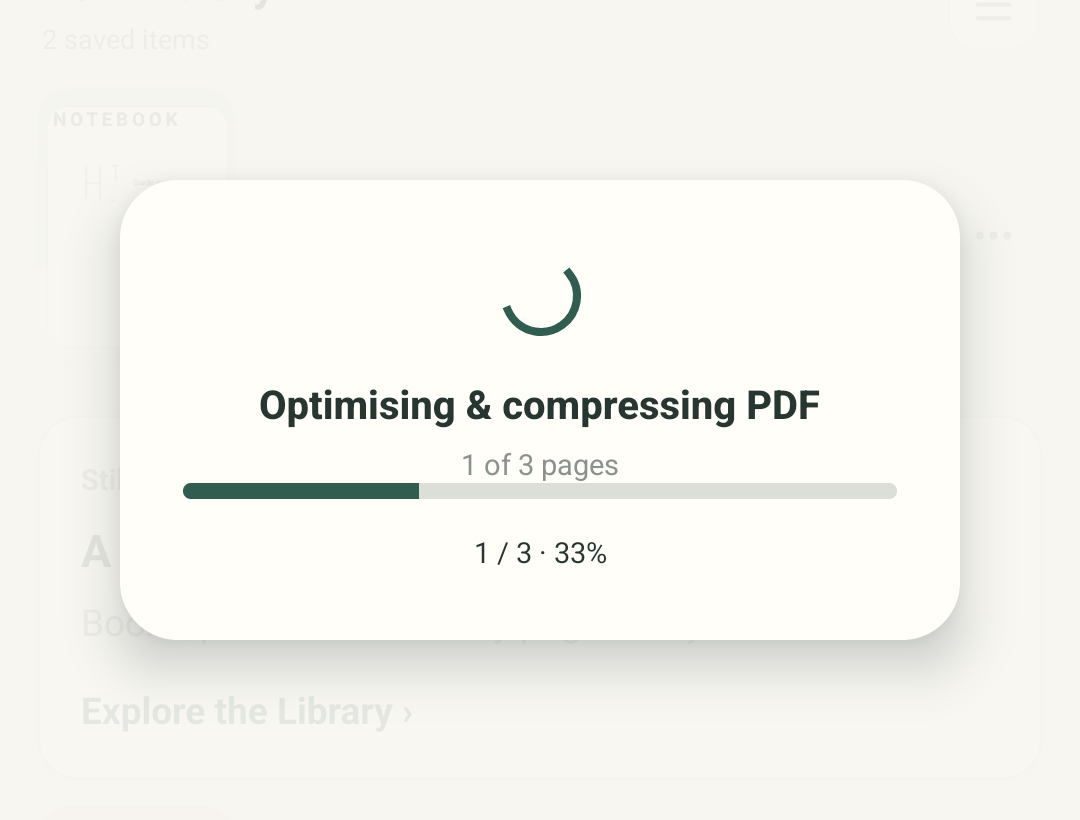 36How-to guideHow to check import and sync progressFollow the current stage while a PDF is prepared, and check Drive status separately.Read the guide
 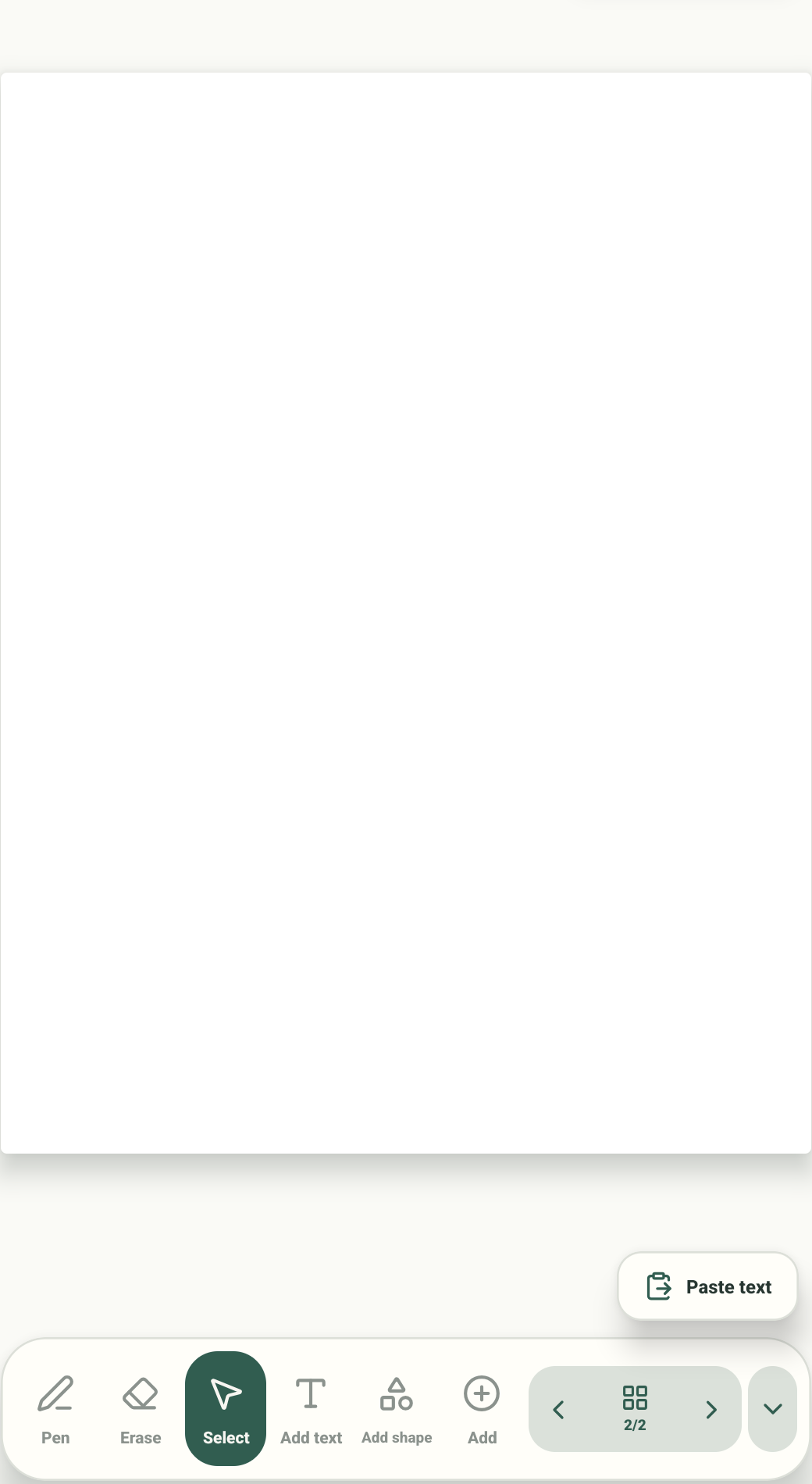 37How-to guideHow to add a link to a page or websiteAttach a link to selected text, choose a page in this notebook, and confirm before opening it.Read the guide
 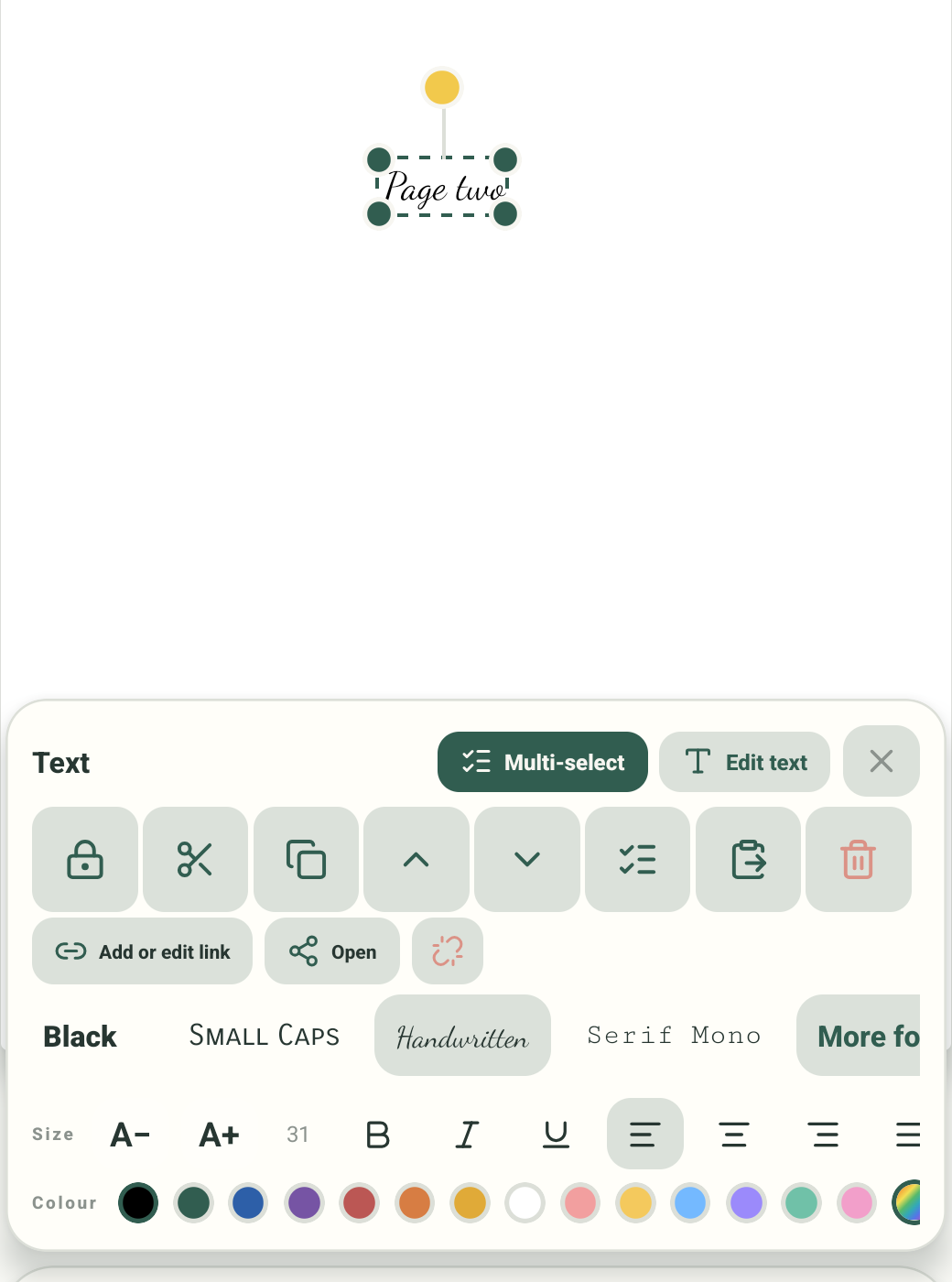 38How-to guideHow to choose a font or add your ownPreview built-in font styles, apply one to selected text, or open the font-file picker.Read the guide
 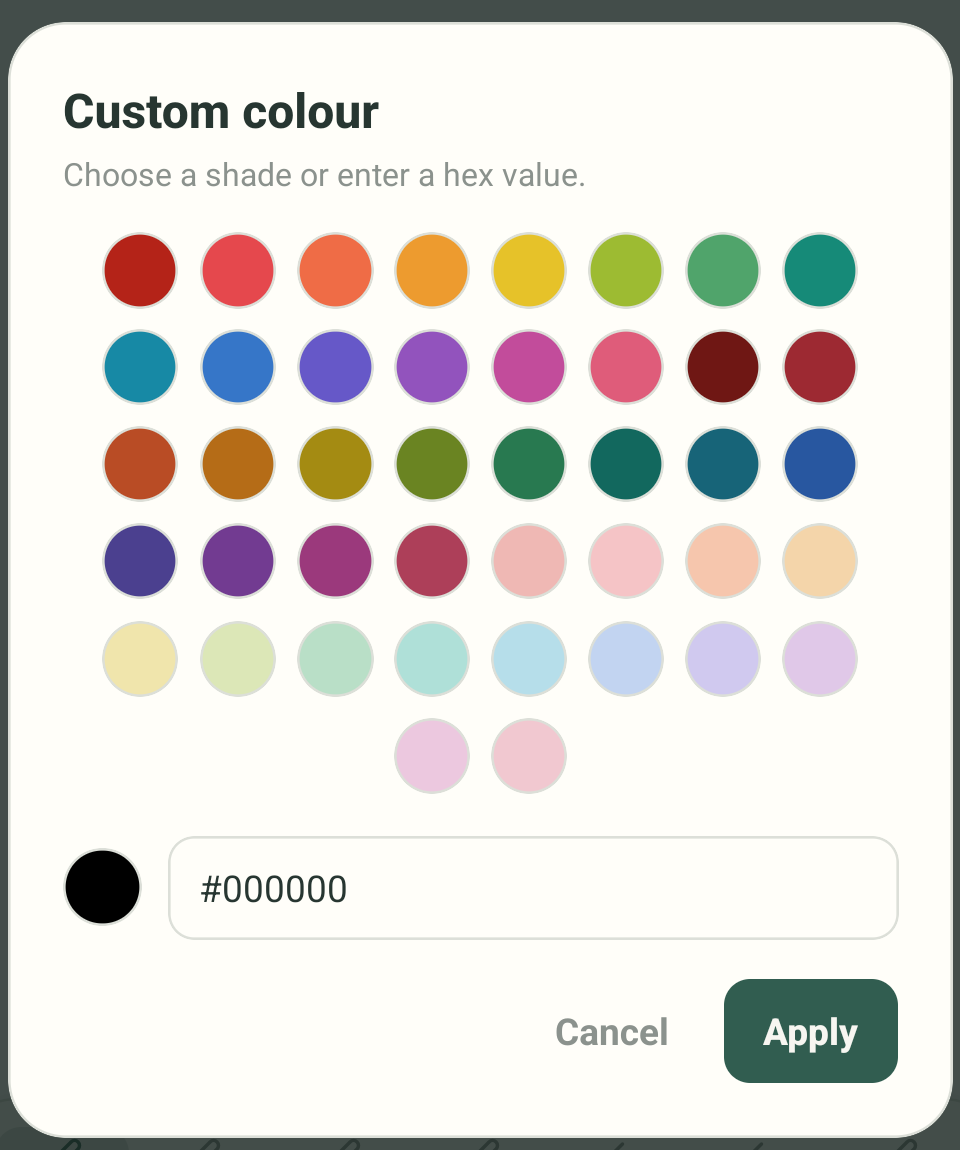 39How-to guideHow to choose a custom colour and pen widthOpen the Pen colour row, use the rainbow picker, apply a shade, and find the width controls.Read the guide
 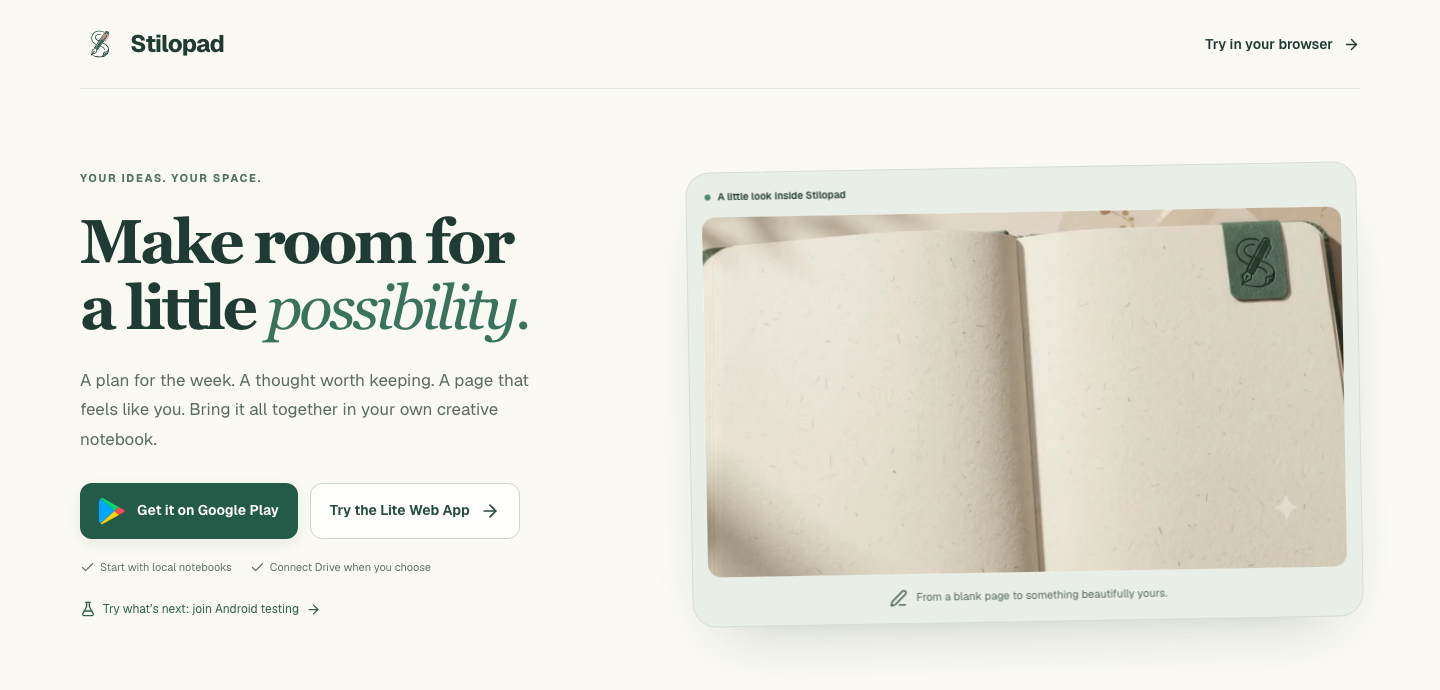 40How-to guideHow to get Stilopad on your deviceChoose Android on Google Play, try Web Lite in a browser, or join the iOS availability waitlist.Read the guide
  ×
× 41ComparisonStilopad vs Goodnotes: choose your workflow, not just your notebook coverGoodnotes brings a broad study ecosystem. Stilopad is worth exploring if you want a browser-first way to plan and share a page.Read comparison ×
 42ComparisonStilopad vs Notability: a study desk or a shared creative page?Start with the difference between capturing a lesson and creating something together.Read comparison ×
 43ComparisonStilopad vs Noteshelf: beautiful pages are only the beginningBoth belong on a visual note-taker’s shortlist. The deciding factor is how the tools behave around your writing.Read comparison ×
 44ComparisonStilopad vs Penly: picking a home for your digital plannerFor planner lovers, links, stickers and everyday navigation matter more than a dramatic feature count.Read comparison ×
 45ComparisonStilopad vs Squid: pen-first notes or a mixed-media planner?Squid’s vector ink is a strong reference point. Stilopad takes a broader planning-and-collaboration approach.Read comparison ×
 46ComparisonStilopad vs Noteful: focused organization or a collaborative canvas?A quiet interface is a feature. The right choice depends on what you need around the page.Read comparison
 Thoughtful comparisons
Our comparisons are written for Stilopad by Potsy of LadyPinkilicious. They are creator-authored guides—not independent product reviews—and are intended to help you test which workflow fits.
We use official product pages and a small, dated sample of store reviews as prompts for testing. Historical complaints are not current defect rates. Each article distinguishes existing Stilopad features from work still being verified, links its sources and reminds readers that prices and platform entitlements can change.