
A simple guide to export
How to export a notebook
Choose an export format, wait while Stilopad prepares the file, and check where it was saved.
An export gives you a separate file. Choose a format for reading or a Stilopad file that you can open and keep editing.
Export a notebook on Android
Export an editable copy and find it
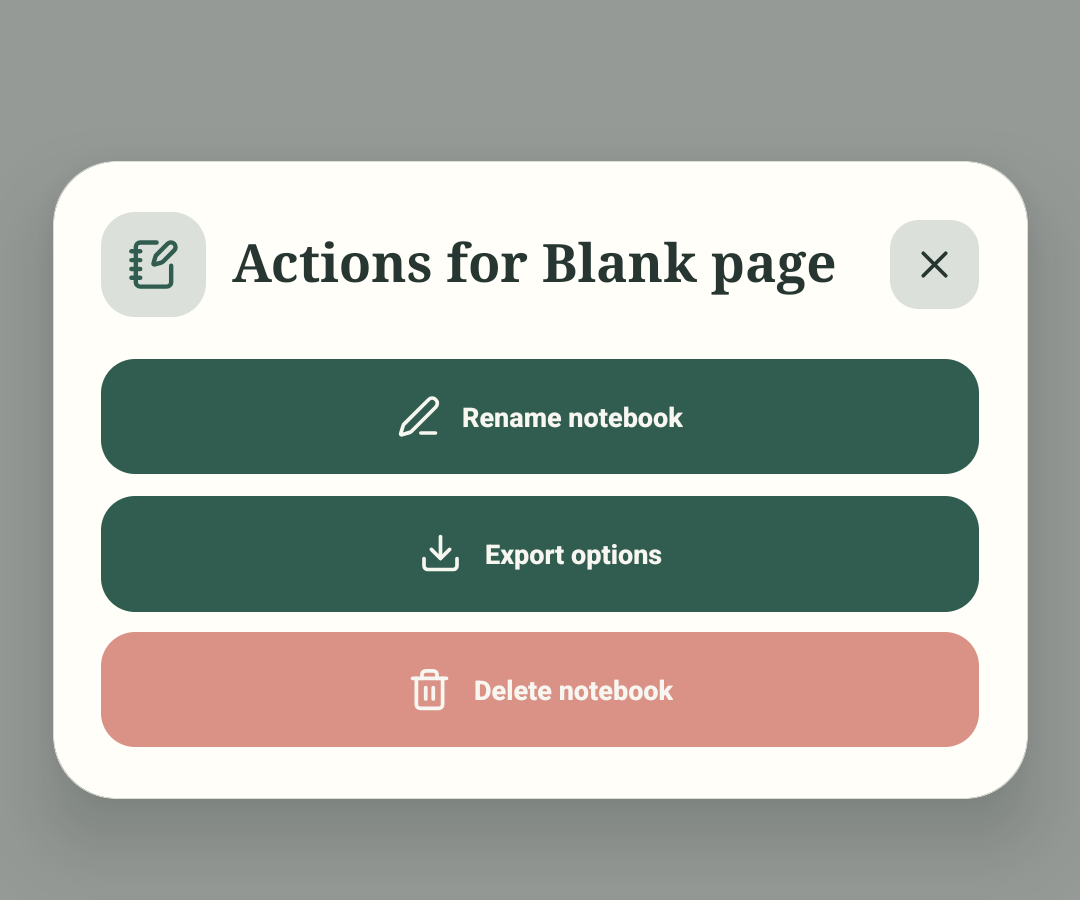
Step 1 of 4 — Open notebook actions
These real Android Stilopad Light screenshots from debug build 0.1.71 (72) show the Actions menu, format choices, editable-file progress and saved confirmation. The exported file was separately verified in Android Files and is shown in the backup-and-restore guide. Android PDF/PNG fidelity and Share were not tested. In a separate Web Lite QA notebook, all three browser-download choices worked: a 3-page `.stlpd`, a 3-page PDF and a 768 × 1024 PNG of the current page. The PDF was rendered and visually checked; this sample did not test links, media fidelity or importing the files.
Export a notebook on Android
Export a notebook on Android
Open notebook actions
In an open notebook, tap the three-dot button in the top bar, then tap Export options. This real Actions menu shows the next choice.
Pick a file type
Stilopad offers Export PDF, Current page PNG and Editable file. For this walkthrough, tap Editable file to keep the notebook editable.
Wait while the file is prepared
The app shows “Exporting notebook” while it packs pages and media. Wait for that message to finish; do not start another export while it is working.
Read the save location
The confirmation names the file and folder. In this test it says Blank-page.stlpd is in Downloads/Stilopad. The Open and Share buttons are available, but Share was not opened.
This emulator test exported the editable Stilopad file. The options screen also lists PDF and Current page PNG, but those two output files were not tested here.
On Web Lite
On Web Lite
Open a notebook and choose Export options in the top bar.
Choose Editable file, PDF document or Current page PNG. Web Lite starts a browser download for the selected format.
The editable file and PDF include the notebook pages; Current page PNG exports only the page you are viewing. Open the downloaded file and keep the source notebook.
Choose a format for the job
An editable `.stlpd` file is for opening the notebook in Stilopad. PDF is useful for sharing or reading, and Current page PNG is an image of one page. A static PDF or PNG does not behave like an editable notebook.
An export is another copy
Exporting does not replace the notebook in your library. Keep the original and check the exported file opens before you rely on it as a backup or send it to someone.
If export takes a while
- Wait for the preparation message to end before tapping export again.
- Check the exact folder and filename in the saved confirmation.
- Before sharing, review the notebook for private notes, links, pictures and recordings. Android PDF/PNG fidelity and the system Share flow were not tested here.