
A simple guide to ad-free access
How to remove ads with a subscription
Find Ads & subscription in Settings, review the store’s plan details, and check your status afterwards.
Stilopad’s notebook tools are free to use. On supported mobile builds, a subscription can remove ads.
Review a plan on Android
Find the subscription controls safely
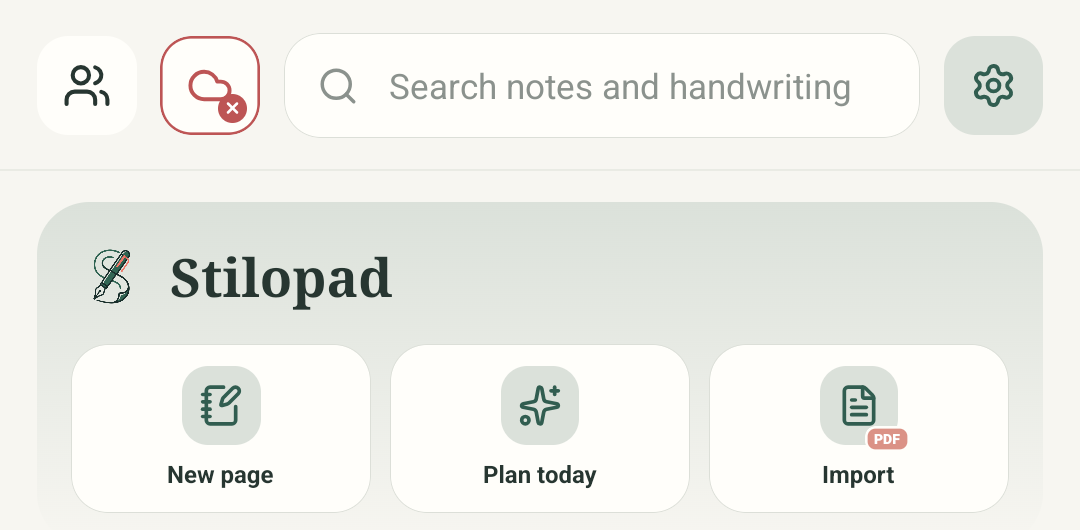
Step 1 of 5 — Start in your library
Home, Settings overview and Ads & subscription are real Android Stilopad Light screenshots from emulator-5554, debug build 0.1.71 (72). Play plans failed to load on this debug device; no purchase, restore, redemption or store checkout was attempted. Only the generic store-checkout explanation is an illustration. Web Lite has no paid checkout.
Review a plan on Android
Review a plan on Android
Start in your library
Tap the Settings gear at the top-right of the Stilopad home screen.
Open the Settings overview
The list begins with My stickers, Profile & editor, Language and other sections. Ads & subscription is farther down, so scroll the list to find it.
Open Ads & subscription
This real Settings capture shows the Ads & subscription row. Tap it to open the plan screen; this guide does not guess a price or promise a particular offer.
Review Ads & subscription
The real screen opens, but this debug emulator could not load Play plans and shows Reload plans instead. Check the offer, price and renewal details displayed by your own store; no purchase or promo redemption was performed here.
Read the store checkout
If you choose a plan, the store opens its own checkout. Check the exact plan, price, renewal period and signed-in store account. This example is not a live purchase sheet; no payment was made.
The home, Settings overview and Ads & subscription screen are real Stilopad Light captures. On this debug emulator, Play plans did not load and the real screen showed Reload plans; no purchase, restore or promo redemption was performed. Your store account supplies its own offers and prices.
On Web Lite
On Web Lite
The current Web Lite app does not sell an ad-free plan or provide a checkout. Its billing page explains this separately.
On Android, start in the library, tap the Settings gear and scroll the Settings overview to Ads & subscription. On iOS, use the equivalent mobile Settings route.
Review the store’s displayed price, billing period, renewal and account before confirming. Manage or restore a purchase with the same store account.
The store owns the payment details
Stilopad asks the app store to handle a mobile purchase. The store shows the price and renewal schedule for your region and account. Web Lite currently has no paid checkout.
Check the status after checkout
Return to Ads & subscription and check the active status. If access is missing, try Restore purchase with the same Play Store or Apple account that made the purchase. This guide did not make a purchase, so it does not show an active result.
If a plan does not appear
- Check that the app was installed through the supported store and that you are signed into the intended store account.
- If you already paid, try Restore purchase before buying again.
- To cancel or ask about a refund, use the store’s subscription and support pages. Cancelling does not itself issue a refund.