
A simple guide to copying page objects
How to copy an object to another page
Use Select and Copy, then choose Paste objects to place a second copy on another page.
Keep the original where it is and put a copy on another page. This Android walkthrough uses a text object and Stilopad’s own Paste objects action.
Copy an object on Android
Copy a text object, then paste the copy
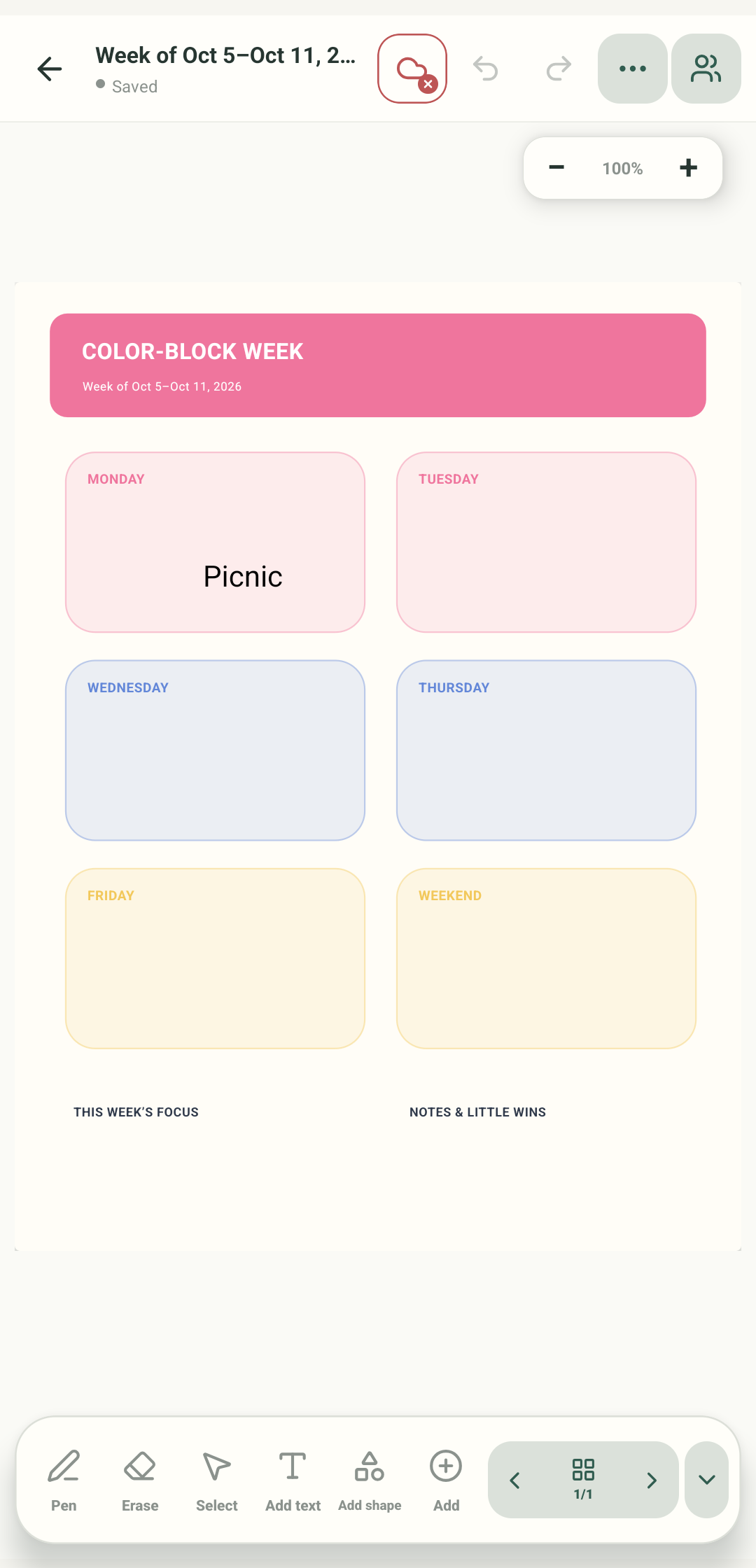
Step 1 of 4 — Open a page with an unlocked item
These Android Stilopad Light screens show a disposable weekly planner in debug build 0.1.71 (72), Pixel 8 API 35. Copying the selected Picnic text through Add → Paste objects created a second item on page 2 while the original remained on page 1. This verifies Stilopad’s internal object clipboard only; Android/system clipboard, images, cut, multi-selection and Web Lite were not tested. The disposable planner was deleted afterward.
Copy an object on Android
Copy an object on Android
Open a page with an unlocked item
Open a notebook and choose Select. Tap an unlocked text, image, shape or drawing you are allowed to copy. The example uses the word Picnic in a temporary weekly planner.
Tap Copy in the object toolbar
With the text selected, use the Copy icon in its contextual toolbar. The original stays on page 1. In this guide the temporary word Picnic was copied; it was not cut or removed.
Open Paste objects on the destination page
Go to another page, tap Add, then choose Paste objects. This is different from Paste, which can use the system clipboard when you copied something outside Stilopad.
Check the new copy
The copied Picnic appeared on page 2 and the app showed Saved. Page 1 kept its original. Move or edit the new copy without changing the source object.
The test copied one text object from page 1 to page 2 with Select → Copy → Add → Paste objects. This uses Stilopad’s internal object clipboard, not the Android system clipboard.
On Web Lite
On Web Lite
Open the page with the item you want to copy and select it using the controls available in Web Lite.
Look for Copy, then open the destination page and its Add menu. Android shows a separate Paste objects action for items copied inside Stilopad.
The Web Lite object-copy route and any system clipboard permissions were not exercised for this guide. Do not assume its controls match Android.
Two paste actions do different jobs
Paste objects reuses page items already copied inside the editor. Paste can read from the device or browser clipboard. This walkthrough only tested copying a text object within one Android notebook; it did not test external clipboard content, images, cut, multiple selection or Web Lite.
Copy keeps the first item
The original Picnic remained on page 1, while a new copy appeared on page 2. The test used an unlocked text object and the app’s internal object clipboard.
If Paste objects does not appear
- First select an object and tap its Copy action inside the editor.
- Open the destination page and choose Add → Paste objects; the separate Paste tile is for the system clipboard.
- Locked items cannot be edited or moved. Image/system clipboard paste, multi-select copy and Web Lite behavior were not tested here.