
A simple guide to getting a Drive notebook back
How to restore notebooks from Google Drive
Connect the same Google account on a device and let Stilopad find notebook backups it can restore.
There is no separate Restore button in this flow. Connect Drive and sync to check for missing or newer notebooks.
Restore through Drive sync on Android
Find the route that restores Drive notebooks
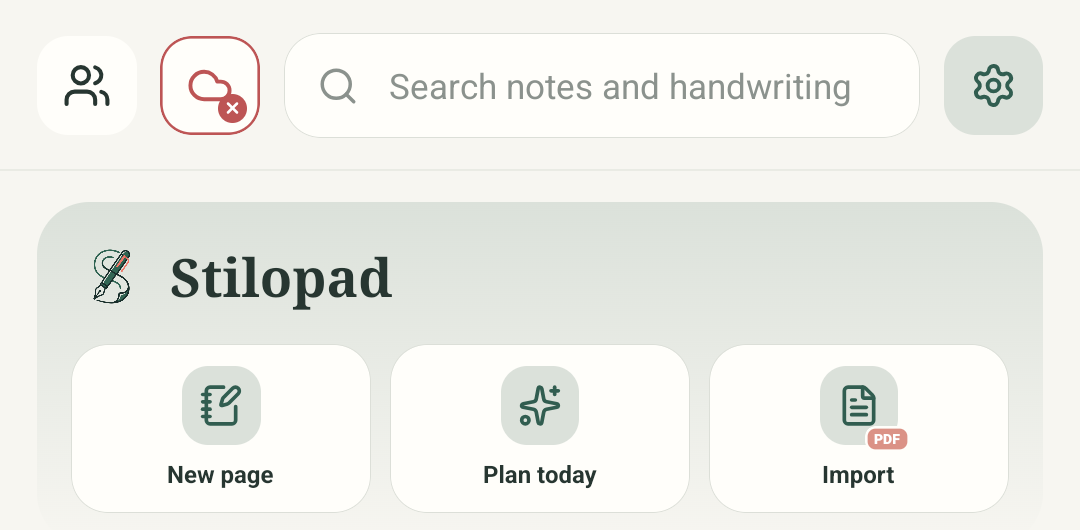
Step 1 of 6 — Start in your library
One real Android screenshot shows the disconnected connection entry point; two labelled SVG illustrations are examples, not screenshots or restore results. In an isolated Web Lite profile, I skipped the optional first-run Drive setup, opened Library → profile/settings → Google Drive sync, and inspected Not connected, Connect Google Drive and the access-consent note. No browser screenshot was saved, Connect was not pressed, and no Google account or transfer was used. Web Lite restore, remote inventory, sign-in, permissions, sync and second-device results remain unverified. Android screenshot controls are in English.
Restore through Drive sync on Android
Restore through Drive sync on Android
Start in your library
On the destination device, begin at the Stilopad home screen and tap Settings.
Open Backup & sync
Choose Backup & sync from the Settings overview. Check the connection status before choosing an account.
Start from Backup & sync
The captured screen is disconnected. After checking the local library, tap Connect Google Drive only if this is the same Google account that holds your backup. Connecting also starts a two-way sync of this device’s local library.
Connect from Backup & sync
If this is the account that holds the backup, tap Connect Google Drive and review the Google account and permission screen. This capture stops before sign-in; no account is connected and no restore is claimed.
Understand what sync checks
When a real account is connected, Stilopad checks its folder for missing or newer notebooks. This diagram explains possible stages only; no restore was run.
Check the restored notebook
When progress is complete, open the notebook in the library. Check several pages and any pictures or other media you need. This library card is a diagram only, not a restored file.
The screenshot confirms where Drive is connected. No account, remote inventory or restored notebook was used in this pass, so the restore result remains unverified until a disposable QA Drive account is available.
On Web Lite
On Web Lite
Start in the Library. If the optional first-run Drive prompt appears, choose Not now. Click the profile button at the top-right, then open Settings.
Open Google Drive sync. We inspected the Not connected status, Connect Google Drive button and access-consent note in Web Lite.
Connecting starts a two-way sync of this device’s local library. Continue only if you intend to sync and have confirmed the Google account that owns the backup. We stopped before Connect.
After a real connection finishes syncing, check the Library for the notebook and open it to inspect needed pages and media. This Web Lite restore result was not tested; the illustrations are examples, not restored files.
Restore happens inside sync
Stilopad compares the notebook in Drive with the local version. It can import a missing notebook or a newer cloud copy; it avoids replacing a newer local revision with an older one. Sync is not a history of every past version.
Check the result before editing
Open the notebook and look at its pages and important media. A message saying Download complete can still be followed by unpacking and saving, so wait for the whole sync to finish.
If the notebook is missing
- Check that this is the same Google account and that the source device finished its backup.
- Make space on the destination device, reconnect if asked, then run Sync now again.
- Do not delete a local notebook or reset sync first. Export a separate .stlpd copy before trying a different recovery route.