
A simple guide to video notes
How to add or record a video
Choose an existing clip or record one, then keep it beside the rest of your page.
A short video can hold a moment that is easier to show than describe. Importing a clip and recording a new one are different routes.
Add or record video on Android
Choose a video route and check the page object
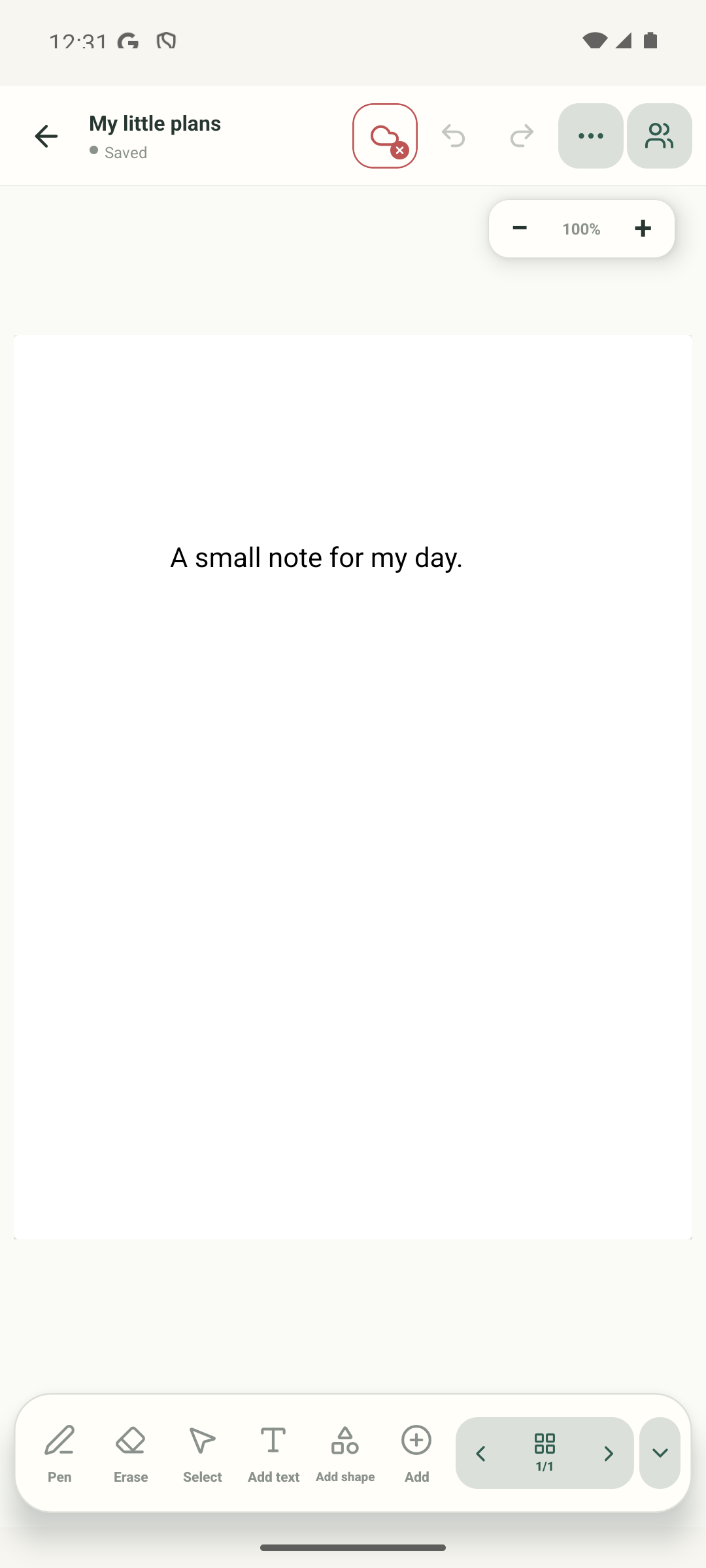
Step 1 of 5 — Start on the open page
The opening editor and Add sheet are real Android Stilopad Light screenshots. Both camera routes and the sample saved video are labelled illustrations. Android camera permission/return, Web Lite recording, file import and playback were not exercised in this pass.
Add or record video on Android
Add or record video on Android
Start on the open page
Open a notebook page and tap Add in the bottom toolbar. This is the real editor screen before the Add choices open.
Choose Record
In the real Add sheet, tap Record. Audio recording, Video recording and Dictate text are separate actions.
Know which camera opens
This labelled diagram compares the routes. Android opens the device camera and returns the clip; Web Lite shows an in-app browser preview before Record. These are not captured camera screens.
Add an existing video file
If the clip is already saved, return to Add and choose Audio / video file. Pick the file in the system chooser. This separate import path does not open the camera.
Check the video on your page
After the recording or import finishes, the video becomes an object on the page. This sample page is an illustration only: it has no playable clip attached.
Android video recording asks permission, then opens the device camera app. Record there and finish the camera flow; Stilopad imports the returned clip. It is not a live preview inside the editor.
On Web Lite
On Web Lite
Open a notebook page. Tap Add (+) in the bottom toolbar, then choose Record from the Add menu.
In the Record dialog, choose Video. The browser asks for camera and microphone access; allow both if you want sound with the video. Wait for the live preview before recording.
Check the framing in the preview, then choose Start/Record. When you are finished, choose Stop. Review the ready panel and choose Save to page; Download and Discard are separate choices.
For a video already on your device, choose Add → Audio / video file instead and select the file. This is a separate import route. Browser recording, file import and playback were not exercised live in this pass.
A video stays with the notebook page
The video is a page object that can be selected and moved. A PDF export is a still document, so it cannot play the video. Keep an editable Stilopad backup if you need the media to stay with the notebook.
Play the saved clip
When a real clip is on the page, press Play and check that both picture and sound work. The illustrated sample in this guide does not contain playable video.
If the camera or clip does not work
- Allow the camera permission. On Web Lite, allow microphone permission too if the clip needs sound.
- If Android returns without a clip, try the device camera again or import a saved file using Add → Audio / video file.
- Wait for the clip to finish importing before leaving the page; then test playback on the saved object.