
A simple guide to dated planners
How to make a daily, weekly or monthly planner
Choose a one-page planner for today, this week or this month, then add your own notes.
Pick the time span that fits your plans. Stilopad starts with one dated page; you can add more pages when you need more room.
Create a planner on Android
Choose a time span and add a small plan
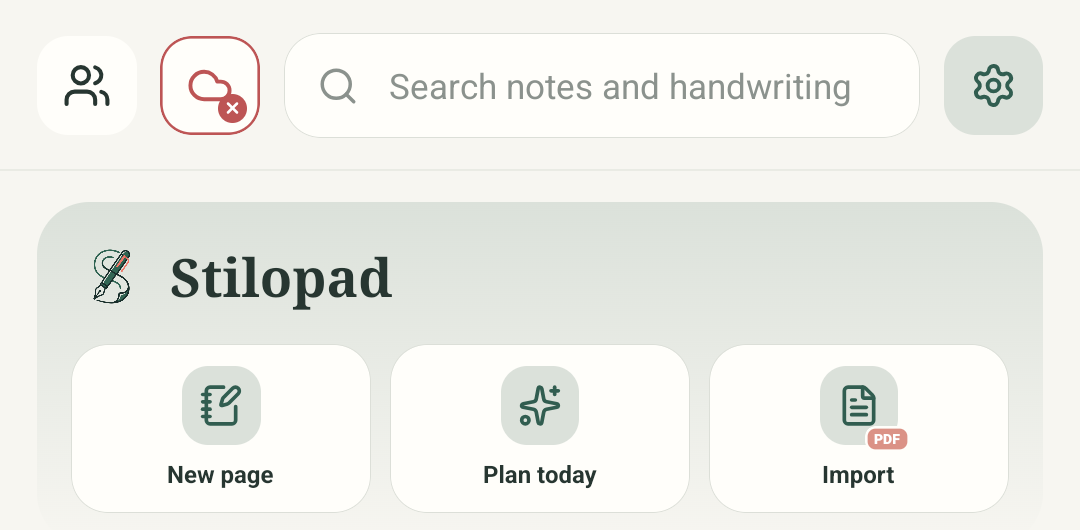
Step 1 of 7 — Start in the Library
All four images are genuine Stilopad Light captures from the shared Pixel 8 API 35 emulator, debug build 0.1.71 (72). Weekly was created on 8 October 2026 and showed 5–11 October; one note, Picnic, remained after reopening. A same-size second page was added. Daily and Monthly choices were visible but not selected. Source inspection confirms preset planner objects are locked. Web Lite, other periods/locales, and automatic date advancement were not tested.
Create a planner on Android
Create a planner on Android
Start in the Library
Tap Plan today in the middle card. This opens the planner choices.
Choose the period
Tap Weekly planner to make a week at a time. The chooser also offers Daily planner and Monthly planner; this test did not create those two.
Check the week shown
The weekly page starts with the current Monday-to-Sunday week. This test displayed Week of Oct 5–Oct 11, 2026. Check your own title because dates depend on when you create the planner.
Add a note to Monday
Tap the open Monday card and add a short note. The keyboard was not captured; this animated overlay shows “Picnic” appearing in the blank card, followed by the actual saved result. Preset planner artwork is locked, so write in the open space.
Check Monday’s saved note
The real page shows “Picnic” in Monday’s card, with the other planner entries still visible.
Open All pages and add a page
Tap the grid and page counter to open All pages. Then tap New page. The captured overview below shows the page before adding; the extra page is blank and does not automatically move the planner to the next week.
Check the second page
The second page was the same size as the first, and the counter showed 2/2. Adding a page creates another blank page; it does not automatically move the planner to the next week.
The shared Pixel emulator showed the three planner choices. I created the weekly option on 8 October 2026; its title covered Monday 5 October to Sunday 11 October.
On Web Lite
On Web Lite
From the Web Lite library, choose the planner action and select Daily, Weekly or Monthly if those choices are shown.
Check the date in the new planner before adding plans. The exact Web Lite screen and date display were not replayed for this guide.
The Android screenshots show one selected weekly planner. Daily and Monthly were visible choices but were not opened in this test.
The planner gives you a starting layout
A planner is made from page artwork and spaces for your own notes. The tested weekly page began as one page. Its preset headings and boxes are locked so they stay in place; you can write into the open spaces and add more blank pages.
Your note stays with the page
After leaving and reopening the test notebook, Picnic remained in Monday’s card and the app showed Saved. The additional page was blank and the same physical size. This check did not confirm that new pages advance the date.
If a planner looks different
- Check the period and date shown near the top before you start writing.
- If tapping a printed heading selects a locked object, leave it in place and add your note in an open area.
- This test chose Weekly only. It did not verify daily/monthly page layouts, date changes on later pages, other locales or a catalogue planner.