
A simple guide to PDF notebooks
How to import a PDF into Stilopad
Open a PDF planner, book or worksheet in Stilopad, then check that its pages and links are there.
Bring a PDF into your library, open it, and make sure it looks right before you start writing on it.
Import a PDF on Android
Follow a PDF from import to its links
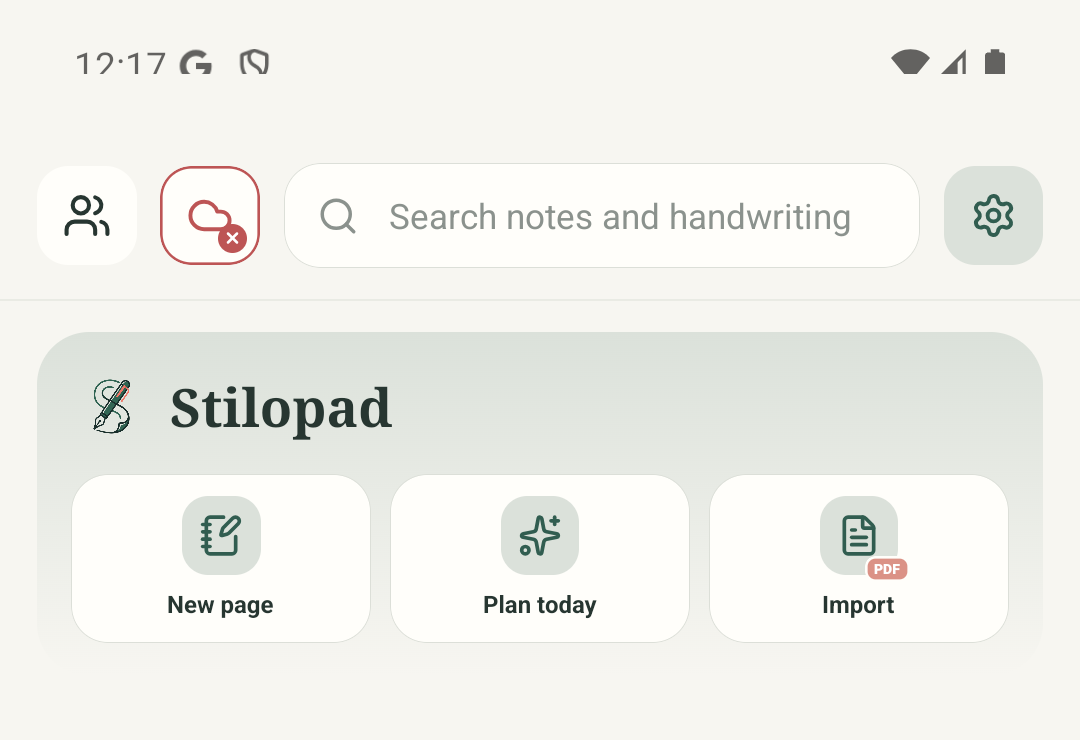
Step 1 of 7 — Start Import
Real Android screenshots are shown. Web Lite import controls and PDF links were not tested in this batch; they may look different.
Import a PDF on Android
Import a PDF on Android
Start Import
On the library screen, tap Import. The PDF icon opens the import choices.
Choose files to import
Tap “Choose files to import”. The Android file picker opens. “Scan with camera” and “Browse Stilopad Library” are different routes.
Pick your PDF
This labelled example file gallery stands in for the Android file picker. The search is shown so you can see what is being looked for; tap Study notes.pdf. Your own picker may look different.
Wait for the pages to open
The test file opened as a three-page notebook and showed Saved. Larger files can take longer. Wait until the page appears before trying again.
Check an in-page link
Tap the PDF’s own page link. Stilopad shows where it will take you. Choose “Go to page” to continue, or Cancel to stay here.
Make sure the link arrived
The test link opened page 3, and the page says the in-page PDF link worked. Your planner’s links should be tested the same way.
Pause before opening website links
External links show the address first. Check it, then choose Open only if you trust it. This test stopped at the confirmation screen.
These Android screenshots use a tiny three-page test PDF with a real link to page 3 and a website link. Your own file may take longer, especially if it has many large pages.
On Web Lite
On Web Lite
From the home screen, choose the visible Import files or Import PDF action.
Pick a PDF in the browser file chooser, then wait for the imported notebook to open.
The Web Lite file-selection and link flow was not exercised in this batch. Button names can differ from Android, so follow the action shown on your screen.
A PDF page and a note are different
The PDF is the page underneath. New writing or drawings are things you add on top. A link printed inside the PDF may jump to another page or point to a website.
Keep the original file too
The imported notebook is saved in Stilopad. Keep your original PDF in Files or another safe place as well. A PDF is not the same as an editable Stilopad backup.
If the PDF seems stuck or looks wrong
- Large PDFs may need more time to prepare. Wait for the page and Saved status; do not tap Import repeatedly.
- If the file will not open, check that it is a PDF, that it is not damaged or password-protected, and that the device has enough free space.
- If a link does not open, first check that the original PDF contains that link. Internal page links ask before moving; website links ask before opening a browser.