
A simple guide to notes on the page
How to write and style text in Stilopad
Add a text box, type a note, choose a font and colour, and check how it looks on the page.
Open a notebook, add a text box and write a quick reminder. Then give it a style that is easy to read.
Write and style text on Android
Type a note, then choose its look
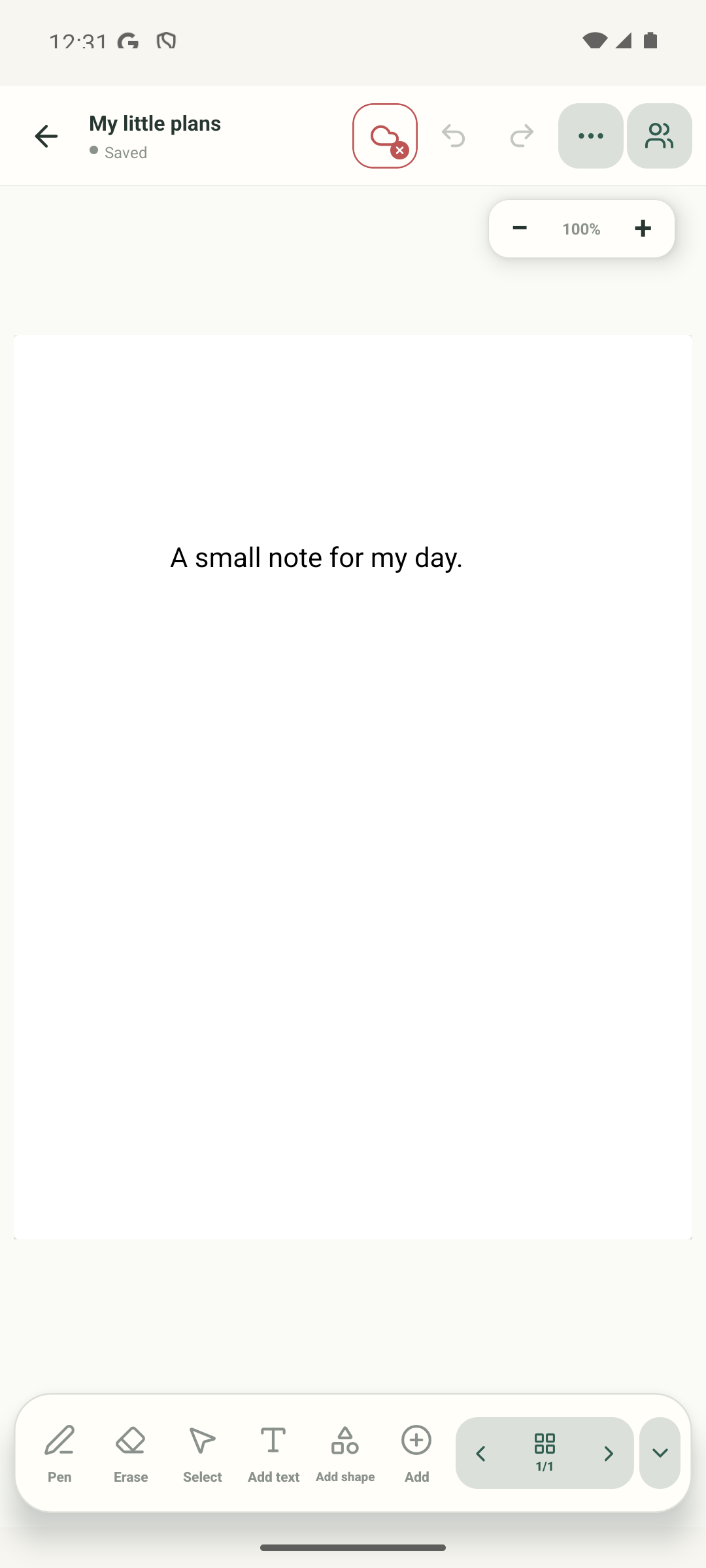
Step 1 of 6 — Open Add text
The screenshots are genuine Android captures. A separate local Web Lite check typed the picnic note, selected Georgia, changed Text colour to #1f6b57, then reopened the notebook and confirmed the styled text persisted. No Web Lite screenshot was captured; font upload, near-edge insertion and the other formatting controls remain untested.
Write and style text on Android
Write and style text on Android
Open Add text
Start on the notebook page. Tap Add text in the bottom toolbar; the next screen shows the text box ready for your note.
Type the note
Tap where the note should begin. The words appear as they are typed, then the keyboard stays open so you can check them before styling.
Select the note
Tap the sentence on the page. The captured selected-note view opens the Text toolbar. The earlier capture of this screen contained corrupted text, so this walkthrough uses the clean capture instead.
Choose Classic Serif
In the font row, tap Classic Serif. The Rounded choice is selected in this starting view; the next frame confirms the serif style.
Choose a green colour
Classic Serif is now selected. Tap the dark-green swatch in the Colour row. Keep enough contrast between the letters and the page.
Check the styled note
The note now uses green Classic Serif. This capture still shows its selection handles and Text toolbar; tap outside the text in the app to see the finished page without them.
The example uses the sentence “Remember the picnic snacks”. It was entered, changed to Classic Serif, coloured green and saved on the page.
On Web Lite
On Web Lite
Open a notebook in Web Lite and choose Add text from the bottom editor toolbar.
Click where the note should begin and type “Remember the picnic snacks”. Select the note to show its text toolbar.
Choose Georgia and set Text colour to dark green (#1f6b57). Return to the library, reopen the notebook and confirm the styled note remains. Font upload and the other formatting controls were not tested.
The text box holds your words
The font and colour controls change how the selected note looks. Other buttons shown in the toolbar include bold, italic, underline, alignment and justification. This capture pass verified the font and colour change, not every formatting button.
Give the text room
After changing the words or their style, tap outside the box and check that the whole note is visible. If a line wraps, make the box wider or move it to a clearer part of the page.
If the note looks different
- Tap the text itself to reopen its options. Tap outside it when you want to finish editing.
- If the words are hard to read, try a simpler font, a darker colour or a little more text-box width.
- The Android toolbar also contains extra font and formatting controls. Font upload and every formatting option were not tested in this example.