
A simple guide to your reusable stickers
How to manage stickers in Stilopad
Open My stickers to add a picture, edit a saved sticker, or hide one you no longer want to see.
Your sticker collection is separate from the copies placed on notebook pages. You can reuse a saved sticker.
Manage the sticker collection on Android
Find, edit and keep a reusable sticker
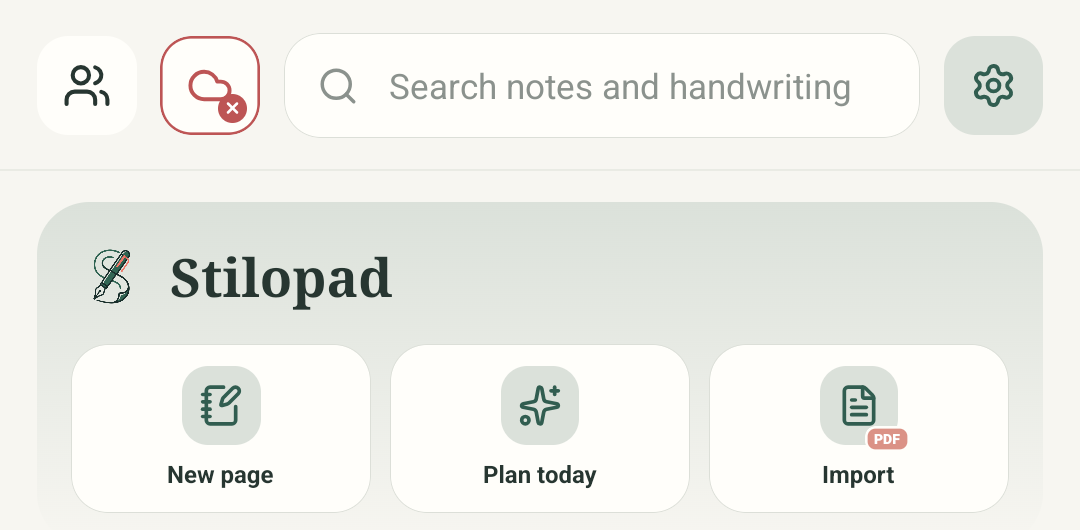
Step 1 of 6 — Start at the home screen
The home screen, Settings overview and My stickers/editor captures show the real Android route in Stilopad Light. In Web Lite, Settings opened directly on Your stickers and the empty state showed Upload your first sticker; the browser file chooser did not open, so upload and existing-item actions were not verified. Drive cross-device sticker sync was not tested.
Manage the sticker collection on Android
Manage the sticker collection on Android
Start at the home screen
On Android, Settings is the gear at the top-right of the Stilopad library. Tap it to open the Settings overview.
Choose My stickers
The first Settings category is My stickers. Tap it to manage your reusable sticker collection.
Edit a saved sticker
My stickers shows Add sticker and your saved tiles. Tap the pencil on Sunny daisy to edit it; the bin has separate hide and delete choices.
Inspect the crop and finish controls
The real Edit sticker form shows a touch crop preview, Background control, outline choices, colour dots and Save sticker. This pass inspected the screen; it did not move or save the sticker.
Close without saving
Tap the X in the top corner to cancel. The unchanged collection screen that follows is the result of closing without saving.
Check the saved tile
The Sunny daisy remains in My stickers because this edit was closed without saving. A page copy and its reusable collection item are separate.
The animation starts on the Android home screen, taps Settings, selects My stickers, and then opens the Edit sticker form for the existing Sunny daisy QA sticker. The editor was opened and cancelled without saving changes.
On Web Lite
On Web Lite
Start in the Library and click the profile button at the top-right to open Settings. The Your stickers section is already visible; the test collection was empty.
The empty state offers Upload your first sticker for an image, GIF or video. The browser file chooser did not open in this test, so file selection and upload could not be verified.
There were no saved tiles in the test collection, so editing, hiding or deleting an existing sticker in Web Lite remains unverified.
A reusable item and a page copy differ
My stickers keeps the collection. A page copy is one use of that sticker in a notebook. The collection editor can crop, remove a flat edge background, set a name and add a coloured outline. Animated GIFs and videos have different edit options from still pictures.
Keep the collection you want
Tap Save sticker to apply an edit to the collection item. The bin opens choices to delete the collection item everywhere or hide it on this device. Hiding can be undone; check the prompt before deleting.
If a sticker does not look right
- Drag the picture inside the preview to choose what stays in the crop. Use the corner gesture to resize it.
- Background removal works on similar colours that touch the image edge. It is not a detailed cutout brush; check the preview for missing parts.
- Use the page toolbar for one page copy. Use My stickers only when you mean to edit or remove the reusable collection item.