
A simple guide to searchable handwriting
How to make handwriting searchable
Let Stilopad recognise handwriting on a page, then find that notebook with a search.
Write a few words by hand, ask Stilopad to recognise them, and search for a word it found. Recognition can make mistakes, so check its suggestion.
Recognise and search handwriting on Android
Write, recognise, and search
Step 1 of 4 — Open a page with handwriting
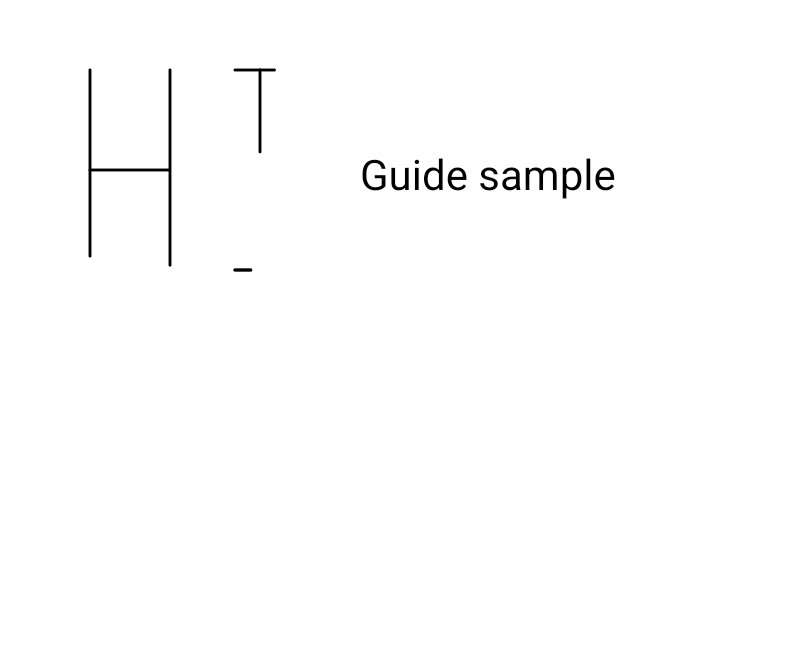
These are real Android Stilopad Light screenshots from debug build 0.1.71 (72). The test installed the English model on the emulator, created sample pen strokes, received “HI” with alternative guesses and searched HI to find the notebook by indexed handwriting. It did not test printed-image OCR, handwriting in other languages, model size/storage, replacement via Convert ink to text or Web Lite. The image shows disposable QA content only.
Recognise and search handwriting on Android
Recognise and search handwriting on Android
Open a page with handwriting
From the library, open a notebook page and write a short sample with Pen. The QA page shows real pen strokes beside sample text; your own words can be longer.
Open the recognition action
Tap Add, then choose Recognise handwriting. The real Add sheet shows that action and the handwritten page behind it. On first use, the English model may need to be installed; this test installed it on the emulator.
Check the words it found
Choose Read handwriting. In this test the on-device model returned “HI” and offered other guesses. Review the result before using it; handwriting recognition can confuse similar letter shapes.
Search for one recognised word
Close the panel and type a recognised word in the Library search field. Searching for HI returned the QA notebook even though its title is Guide Sample QA, not HI; the result comes from indexed page handwriting.
On debug build 0.1.71 (72), the English handwriting model was installed on the test emulator. It recognised the sample pen strokes as “HI” (with alternatives), showed “Recognized and indexed”, and the library search for HI returned Guide Sample QA although HI was not in the notebook title.
On Web Lite
On Web Lite
Open the Web Lite notebook and look for the search or handwriting-recognition actions available in your current editor.
The Android walkthrough uses a private on-device handwriting model. The Web Lite handwriting-search route was not tested here.
Do not treat “recognise handwriting” as reading printed words from a photo; a separate image-text recognition route has different controls and was not checked in this guide.
Handwriting recognition is not photo OCR
This Android tool reads pen strokes on the page and indexes its recognised words for search. It is different from OCR, which reads printed text from an image. The screenshot says processing is on-device; installing the language model is a separate first-use step.
Keep the ink, or convert it only if you mean to
The recognition sheet also offers “Convert ink to text”, which replaces the handwriting with editable cursive text. This guide used Read handwriting and indexed the result instead; it did not replace the original strokes.
If the search finds nothing
- Check that the model for the handwriting language is ready on the device.
- Use a clear, short sample and review the model’s alternative suggestions; similar letters may be read differently.
- Search for the recognised word, not only the notebook title. Printed-image OCR and the Web Lite route were not tested in this walkthrough.