
A simple guide to privacy controls
How to find privacy and app permissions
Find Stilopad’s privacy controls and Android’s separate camera and microphone permissions.
There are two places to check: privacy choices inside Stilopad, and device permissions in Android. You can review them without changing anything.
Find the controls on Android
Review both places before changing a setting
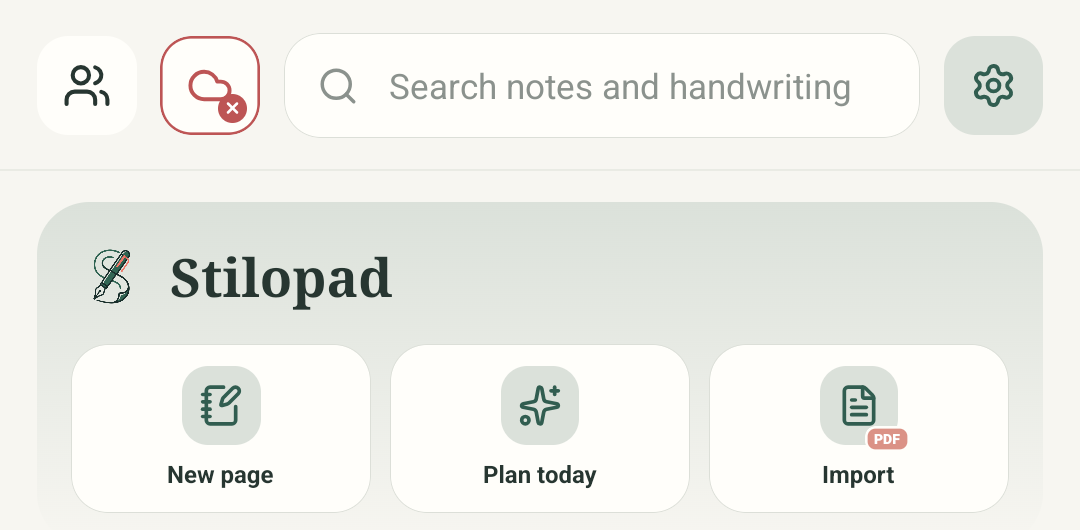
Step 1 of 4 — Start in the library
Real Android Stilopad Light/debug 0.1.71 (72) and Android 15 system screenshots. The in-app Help improve Stilopad switch was on; it was not changed. The Android permissions screen showed Camera and Microphone as Not allowed; no permission was granted or revoked. Web Lite privacy controls, browser permissions and regional ad-consent forms were not tested.
Find the controls on Android
Find the controls on Android
Start in the library
Begin on Stilopad’s Library screen. Tap the Settings gear to open the settings categories; do not start inside a nested page.
Open Privacy & analytics
The Settings overview groups preferences by topic. Choose Privacy & analytics near the bottom of this captured list to review app-level data controls.
Read the current in-app choice
This captured privacy screen has Help improve Stilopad turned on. Review the explanation and controls before changing your own preference. Analytics settings are not Android permissions.
Check Android permissions separately
Android lists camera and microphone access under the app’s system permissions. In this emulator both were Not allowed. Allow a permission only when you choose to use that feature.
The Android captures show the path from Library → Settings → Privacy & analytics. The current emulator had Help improve Stilopad switched on. Android App permissions showed Camera and Microphone as Not allowed; neither setting was changed.
On Web Lite
On Web Lite
Start at the Web Lite library and open the profile/settings control.
Look for the privacy and account choices offered by the current browser version. Browser site permissions are managed separately in your browser settings.
Web Lite privacy and browser permission screens were not tested for this guide. The exact choices can differ from Android and by region.
App choices and device permissions are separate
An in-app privacy switch does not grant the camera or microphone. Android asks for those permissions separately when a feature needs them. Ad privacy choices can also depend on region and availability.
You do not have to enable every permission
Leave camera or microphone off if you do not use a feature that needs it. You can review app access later in Android Settings → Apps → Stilopad → Permissions; labels may vary slightly by Android version.
If a feature asks for access
- Read the Android prompt and allow only the device feature you are trying to use.
- If you previously denied access, open Android App info for Stilopad and check its Permissions page.
- Ad privacy forms and available choices vary by region. No permission was granted and no ad-choice form was submitted in this test.