
A simple guide to animated stickers
How to find and add a GIF
Search for a moving GIF, choose a result, and place that same item on a notebook page.
A GIF is a small moving picture. Search needs an internet connection; the chosen file is saved into your notebook.
Search and add a GIF on Android
Search, choose and place one GIF
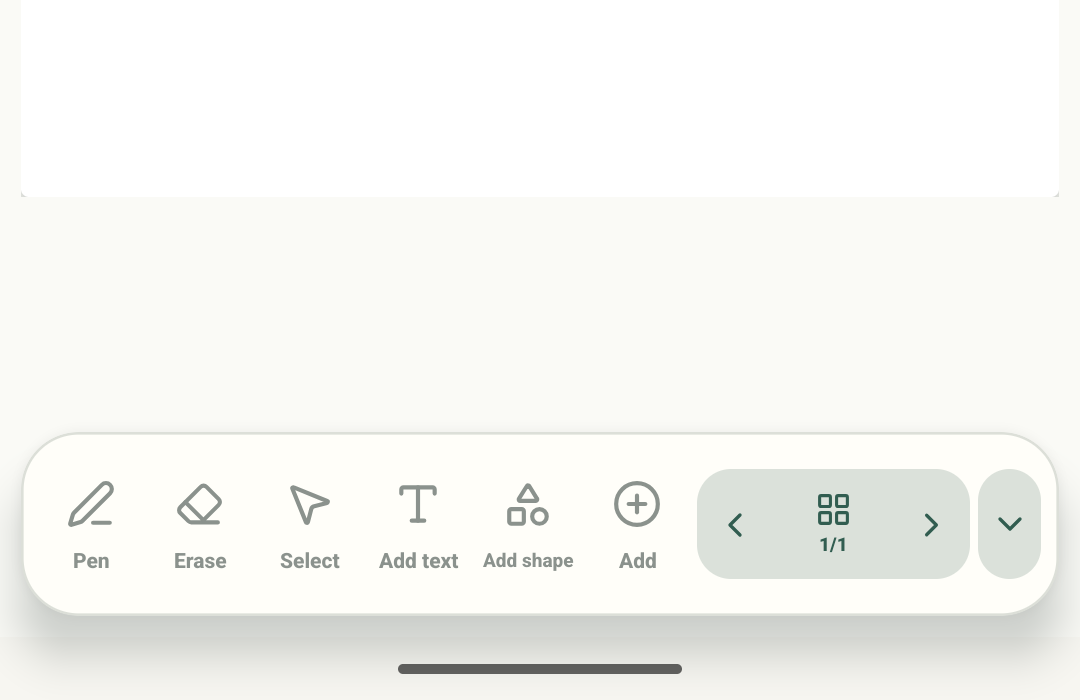
Step 1 of 4 — Start on the notebook page
The editor, Add sheet, Klipy “cute cat” result grid and saved page result are real Stilopad Light captures from emulator-5554, debug build 0.1.71 (72). Separately, Web Lite was tested in an isolated Chrome profile with a QA notebook: search returned 24 GIFs, the selected cat remained after reopening and a browser-page reload, and two screenshots about 1.1 seconds apart showed motion. A fresh browser process/profile and cross-device playback were not tested. Screenshot controls are English.
Search and add a GIF on Android
Search and add a GIF on Android
Start on the notebook page
Open a notebook page and tap Add in the bottom toolbar. This close crop comes from the same real editor screen and keeps the page and its Add control large enough to inspect.
Choose GIF
In Add to this page, tap GIF. This close crop keeps the real menu title and GIF tile visible over the same blank QA page.
Search live GIF results
Type a short search such as “cute cat”, then tap Search. This close crop shows the query, the real Search button and several actual Klipy results; the provider’s choices can change.
Check the page after choosing
The selected cat appears on the page and stays there after you return to the library and reopen the notebook. In this test, the inserted image also changed between screenshots, confirming that it moves on the page.
The editor, Add sheet, “cute cat” search results and inserted cat are real Stilopad Light captures. Klipy returned multiple moving results; after choosing one, the same cat appeared on the saved page. Consecutive screenshots about a second apart showed the inserted image changing, confirming on-page animation on this Android build.
On Web Lite
On Web Lite
Open a notebook, tap Add, then choose Search GIFs in Add to your notebook. The search panel opens with a query field and trending results.
Type a short search such as “cute cat” and choose Search GIFs. In this check Klipy returned 24 GIFs; results can change and need an internet connection.
Choose a result. Web Lite shows “Downloading GIF locally…” and places it on the page. Return to Library and reopen the notebook to check it stayed. After a browser-page reload, the saved GIF still moved between screenshots about 1.1 seconds apart. This does not verify a fresh browser process or another device.
GIFs can behave differently in exports
The editor can show a supported GIF moving on a page. A PDF is still imagery, so it does not play the animation. Transparency depends on the original GIF and may not be preserved by every source.
Keep the chosen result
The real cat GIF stayed on the page after reopening the saved notebook, and its image changed between two screenshots about a second apart. Try the same check with your chosen result; movement and transparency depend on the media file.
If GIF search is empty
- Check the internet connection and try a shorter search word.
- Search results come from a provider and can change or be unavailable. You can import a supported GIF file from your device instead.
- If a result does not move after reopening, check that it was added as a GIF rather than a still image.