
A simple guide to page objects
How to select, move and lock objects
Select words or shapes, move them, keep an item still with Lock, and change which overlapping item sits on top.
Text, shapes, pictures and other things on a page are objects. Select one to open its toolbar and make changes.
Select and arrange objects on Android
Select one item, arrange it, then try a group
Step 1 of 6 — Choose Select
All guide images are real Android Stilopad Light screenshots from debug build 0.1.71 (72); Android screenshot controls are in English. Android text move/lock, overlapping layer order and group movement were checked. In the separate isolated Web Lite QA notebook, unlocked text and shapes moved, blank-paper clicks cleared selection, a locked shape stayed in place and triggered its lock-shake state, and a marquee selected a text object plus a shape (“2 selected”); dragging either moved both together. These reversible shape/move tests were undone, restoring the page to its single original text object. The selected-text toolbar has no Lock action, and Web Lite has no layer-order buttons in its object actions. Android resize/rotation, free-form ink selection and visual review of the lock-shake motion remain unverified. No Web Lite screenshot was saved; the QA notebook remains in the isolated preview.
Select and arrange objects on Android
Select and arrange objects on Android
Choose Select
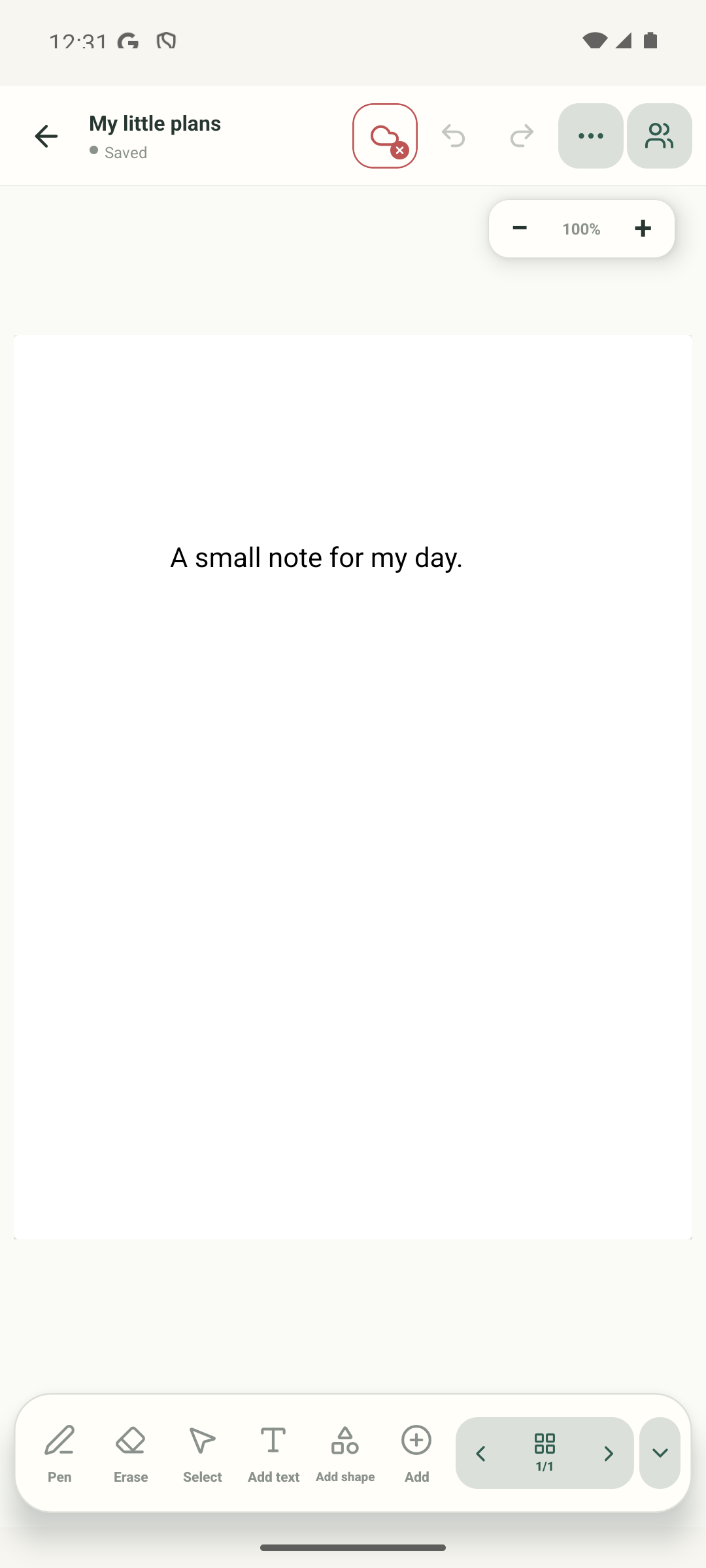
Start on an open notebook page and tap Select in the bottom toolbar. The next step explains how to select and move an object.
Move an unlocked object
The captured sample starts selected. In your notebook, tap an unlocked item to show its handles, then drag it to the open area. Here the cursor follows the selected “Guide sample” text to the right; the next state is the real moved result.
Lock the selected item
Tap the lock button at the left end of the object toolbar. The result shows the lock badge after an attempted move; a locked object stays in place until you unlock it.
See that the locked item stays put
The lock badge appears on the object. In this test an attempted drag left the locked sample in place; use Unlock before moving it again.
Send one object behind another
The sample starts with the green circle selected in front of the black rectangle. Tap Send backward in the object toolbar; watch the layer change while the objects stay in place.
Move a group together
The two unlocked shapes start selected. Drag inside their shared selection to move both together; the result keeps both selected and shows “2 selected”.
Choose Select in the bottom toolbar, then tap an object. Its selection outline and contextual toolbar appear. The lock badge indicates a locked item; the toolbar button offers the matching unlock action.
On Web Lite
On Web Lite
Open a Web Lite notebook page and choose Select. Click a text object or shape; its selection outline and contextual toolbar appear. Clicking empty paper clears the selection.
Select a shape and choose Lock selection. The action changes to Unlock selection; its lock badge shakes when a drag is attempted, and its measured bounds stay unchanged. The selected-text toolbar does not show a lock action.
Drag an unlocked text or shape to move it. To select a group, keep Select active and drag a box around the objects; the toolbar shows the selection count. In the QA note, a text object and shape showed “2 selected”, and dragging either moved both together. Web Lite does not expose layer-order buttons here; use the Android examples below for Bring forward and Send backward.
Lock and selection work together
Select lets you work with a page object. Lock protects an object from accidental changes. Unlock it when you are ready to move or edit it again. Multi-select combines several objects into one move.
Look for the selection count
When you choose more than one object, check the number in the toolbar before dragging. In this Android test, two unlocked shapes moved together. Layer buttons were unavailable for the group.
If the wrong object is selected
- Tap the visible object itself. On Android, select the overlapping object you want and use Bring forward or Send backward. Web Lite currently has no layer-order buttons.
- If an object does not move, look for its lock badge and choose Unlock.
- Corner and rotation handles are visible in the selection UI, but resizing and rotation were not successfully verified in this capture session.