
A simple guide to dictation
How to turn speech into text
Say a short note and insert the words as editable text on your page.
Dictation is different from an audio recording: it makes words you can edit, not a sound clip.
Dictate text on Android
Choose Dictate text, review, then insert
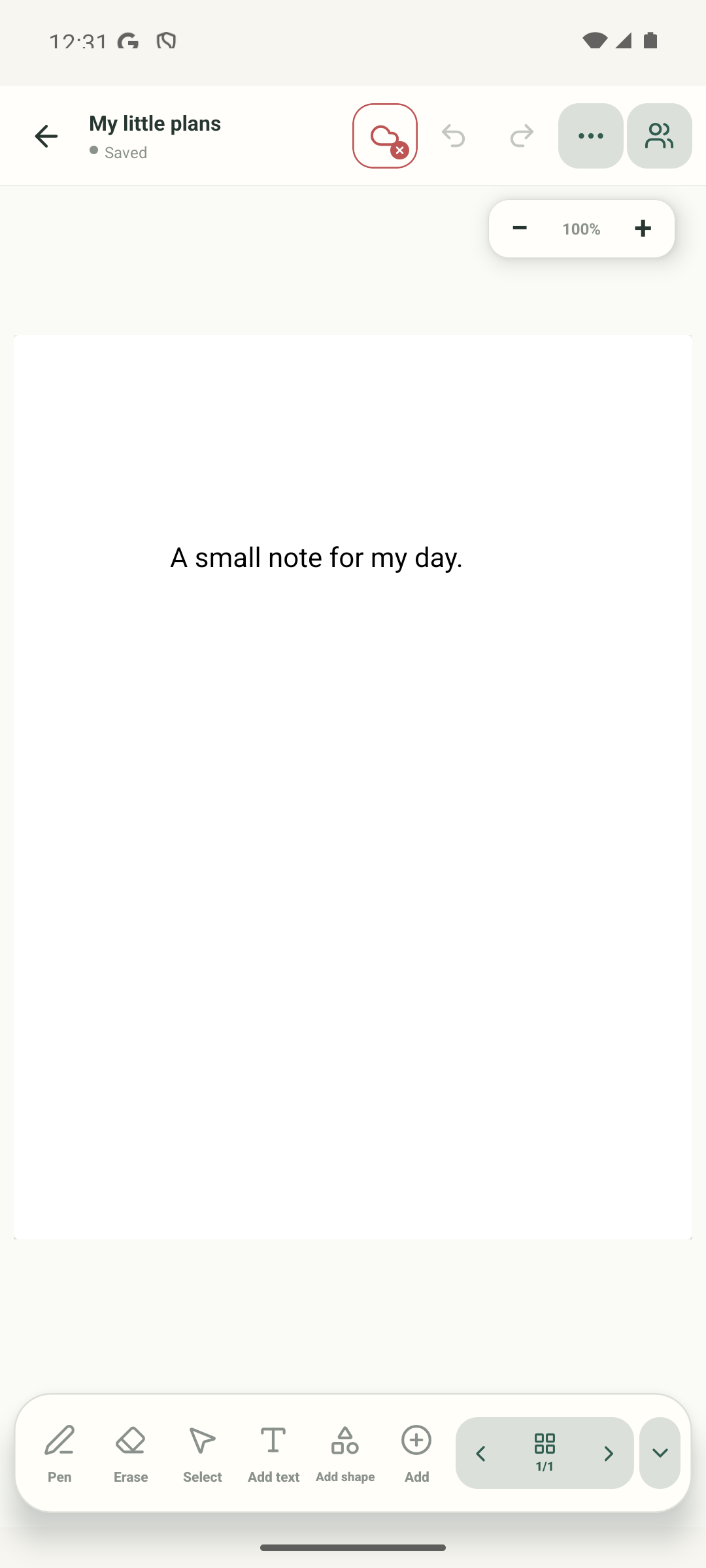
Step 1 of 5 — Start on the open page
The editor and Add sheet are real Android Stilopad Light captures. Record menu, transcript and inserted-text frames are labelled illustrations. In local Chrome, Web Lite Dictate text stayed on Starting and returned a start error without a transcript; Insert and Android dictation remain unverified. Speech support varies by browser, language and provider.
Dictate text on Android
Dictate text on Android
Start on the open page
Open a notebook and tap Add in the bottom toolbar. The real editor screen shows the action before its menu opens.
Open Record
In the real Add sheet, tap Record. Dictate text appears alongside Audio recording and Video recording, but does a different job.
Choose Dictate text
This labelled example highlights Dictate text. In the app, choose it from Record. The drawing is not a captured menu.
Speak and review the words
Allow microphone access if asked, then speak clearly. This example shows a sample waveform and a sentence appearing as recognition runs; it was not spoken or recognised by the app.
Insert editable text
Review the words, correct mistakes, then tap Insert. The example shows the kind of page text you get; it is not a real transcription result.
The app provides a Dictate text action in Add → Record. It requests microphone permission and uses the available device speech-recognition service. Availability, languages and offline behaviour depend on the device and provider.
On Web Lite
On Web Lite
Open a notebook page. Tap Add (+) in the bottom toolbar, then choose Record from the Add menu.
In Record, choose Dictate text. This opens Live dictation, not Audio note. The option appears only when the browser exposes speech recognition.
Tap Start or Resume, allow microphone access if asked, and speak a short sentence. If the status stays on Starting or no words appear, check browser speech support, permission and language, then try Resume.
Review any words that appear, correct mistakes, and tap Insert to add editable text to the page. Recognition quality and availability depend on the browser and speech service.
Dictation makes text, not an audio clip
Use Dictate text when you want editable words on the page; it makes text, not an audio clip. Use Audio recording when you want to keep the sound itself. Recognition quality and availability can vary by language, device and speech provider.
Read the text before you move on
Inserted words behave like a text object, so you can select and edit them. Always review names, numbers and important instructions because speech recognition can make mistakes.
If no words appear
- Check microphone permission and whether another app is using the microphone.
- Check that the device or browser has a speech-recognition service for the selected language. Do not assume recognition works offline.
- If recognition stops, retry a short phrase, then review and insert only the words that look right.