
A simple guide to links in a notebook
How to add a link to a page or website
Attach a link to selected text, choose a page in this notebook, and confirm before opening it.
A link can take you to another page in your notebook or to a website. This guide follows a real text-to-page link; the website-link route is explained from the current app source and not opened during the test.
Add and open a page link on Android
Link a note to another page
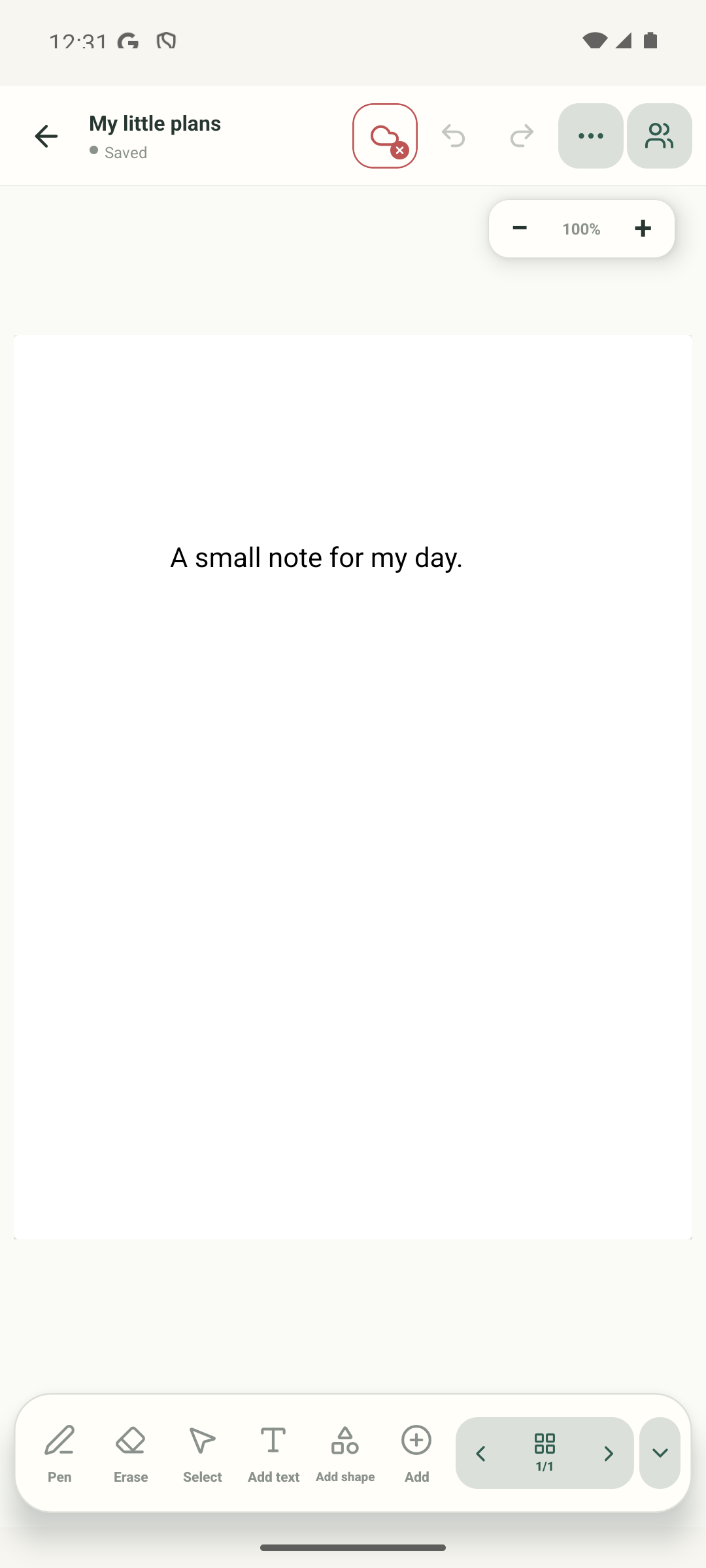
Step 1 of 7 — Start on the notebook page
Real Android Stilopad Light screenshots from shared Pixel 8 API 35 and standalone debug build 0.1.71 (72): selected text, link editor, attached-link toolbar with Open, confirmation, and successful page-2 navigation. The URL/email field is visible but was not submitted. No external app/browser hand-off, Web Lite link task, deleted destination, or link behavior after PDF export was tested. Screenshots crop away the temporary notebook header.
Add and open a page link on Android
Add and open a page link on Android
Start on the notebook page
Tap Select in the bottom toolbar to choose the selection tool.
Select the text object
Tap the words you want to turn into a link. This real capture shows the sample text selected and its object toolbar open; tap the text once in your notebook to reach this same state.
Open Add or edit link
With the text selected, tap “Add or edit link” in its object toolbar. This guide tested a text link; check your selected object’s toolbar for the same action.
Choose Page 2
Tap the Page 2 button at the bottom of the link sheet. This attaches the link to that page; entering a website address was not tested.
Open the linked words
After the link is attached, the selected text toolbar returns with an Open action. Tap Open to ask Stilopad to follow the link; the app shows a confirmation before changing pages.
Confirm the destination
The “Open link?” dialog names Page 2 and shows “Open internal links directly” unchecked. Tap Go to page to continue, or Cancel to stay here.
Check the page that opened
The app opened page 2 in the same notebook and changed the page counter to 2/2. A website link is different: it opens in the browser after its own confirmation unless that external-link preference is enabled.
On the shared Pixel emulator, a text object was linked to page 2, the confirmation dialog appeared with the direct-open preference off, and Go to page opened page 2.
On Web Lite
On Web Lite
Open a notebook and select the text object you want to use as a link.
Choose Add or edit link. Pick a page in the same notebook, or enter a complete website address in the link field.
Open the link and check its destination. Browser navigation and the Web Lite link editor were not replayed in this batch, so follow the confirmation shown in your version.
Page and website links do different things
A page link stays inside the current notebook. A website or email link hands off to another app. The internal-link preference shown here only affects internal page links; external links have a separate setting.
The destination was checked
The link moved from page 1 to page 2 in the same disposable test notebook. The test stopped before visiting an external website or email app.
If a link does not open
- Select the linked object first, then use its Open action. If the object has no link yet, choose Add or edit link.
- Check that the destination page still exists in this notebook. Links to another notebook do not open that notebook automatically.
- External links use a different confirmation preference and need a browser or email app. Those hand-offs were not tested in this capture session.