
A simple guide to the Stilopad Library
How to browse the Stilopad Library
Find a planner or notebook in the mobile Library, check its details, and add a copy to your own notebooks.
The Stilopad Library is a catalogue of ready-made books and planners. It is separate from the notebooks you have already made.
Browse the Library on Android
Find a catalogue item and understand the import
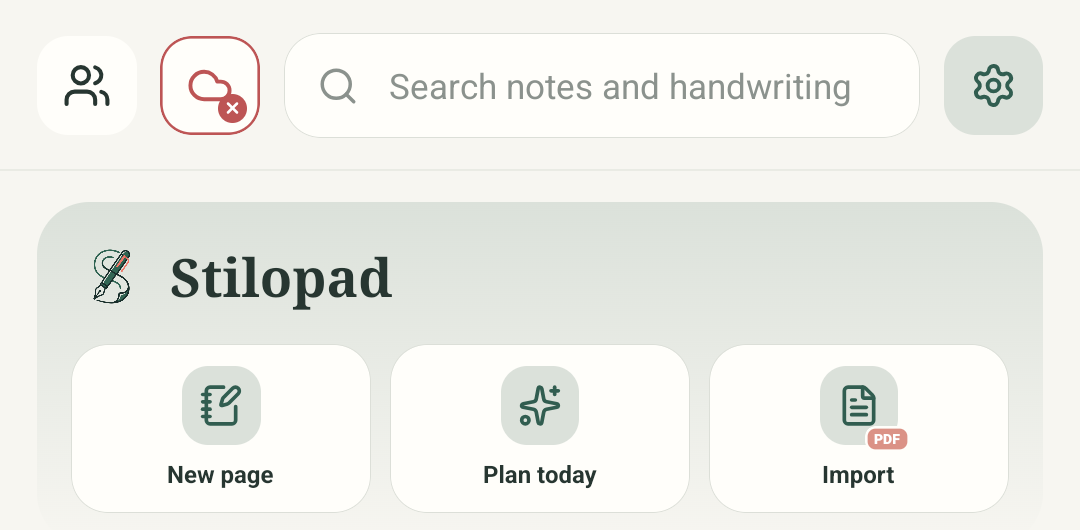
Step 1 of 4 — Start on the home screen
Home, Import choices and the live catalogue are real Stilopad Light screenshots from emulator-5554, debug build 0.1.71 (72). Search returned live catalogue cards, including Potsy’s 601-page planner; no item was selected, downloaded or imported. Only the expected import stages are an illustration. Web Lite has no in-app catalogue route.
Browse the Library on Android
Browse the Library on Android
Start on the home screen
Tap Import on the Stilopad home screen. The Library is one of the import choices.
Choose Browse Stilopad Library
On the Import to Stilopad sheet, choose Browse Stilopad Library. This is different from choosing a file on your device.
Look through the live catalogue
This is the real Stilopad Library screen. Search or choose a category, then read the title, creator, page count and licence before deciding whether to add it. The captured first item has 601 pages, so check its size before downloading.
Know what happens after Add
After you choose a real item, Stilopad downloads its source, prepares its pages and saves an editable copy. This labelled diagram explains those stages; no import was started in this test, so it is not live progress.
The home and Import-choice screens are real Stilopad Light captures. The catalogue frame is a live Android screen with two current entries, including Potsy’s Stilopad Planner. No item was selected or downloaded; the later import stages remain a labelled example.
On Web Lite
On Web Lite
The current Web Lite editor does not expose the mobile Stilopad Library catalogue. Do not look for a matching Browse Library button there.
Web Lite can import supported files from your device. Use the mobile app to browse the catalogue, and check the current account and sync options before expecting an item to appear on another device.
The sample catalogue and progress pictures below are teaching illustrations, not Web Lite screens or a completed download.
Catalogue and personal library are different
The Stilopad Library helps you find shared catalogue items. Adding one imports a copy into your personal notebook library. Check the item’s creator, licence, page count and format before adding it.
Check the opened notebook
When a real import finishes, wait for the notebook to open. Check its page count and follow an internal link if the item says it contains one. A download finishing does not always mean page preparation and saving are finished.
If an item will not add
- Check your internet connection; browsing and downloading catalogue items need a connection.
- Keep enough device storage free and wait through the preparing and saving stages.
- Check the item details and licence. If it fails again, note the title and use the app’s retry or help option.