
A simple guide to working together
How to start or join a shared session
Start a live notebook room or enter a host’s six-letter code to join one.
A shared session lets people work in the same live notebook. One person starts the room; others join with an invite. It is different from making a backup.
Start or join on Android
Choose the route that matches your role
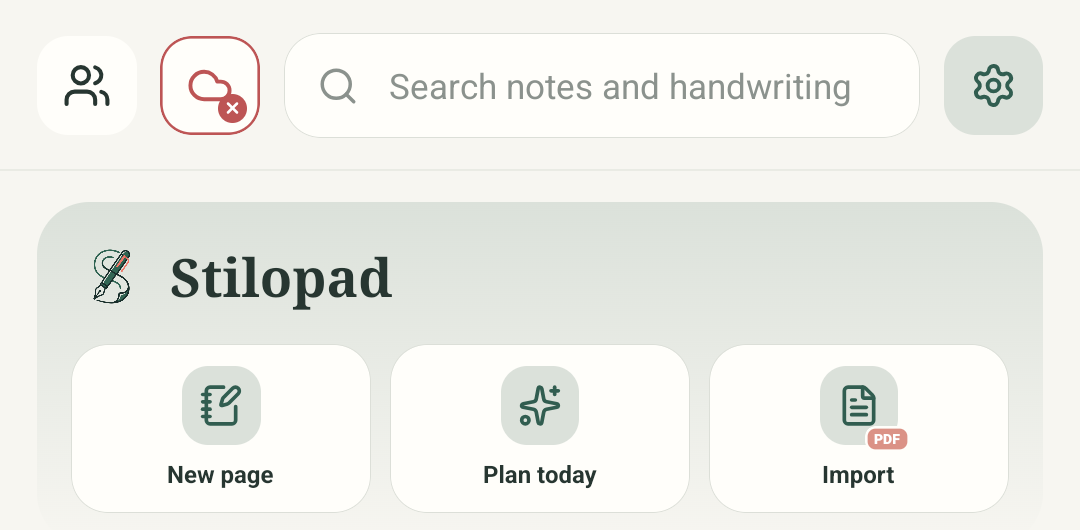
Step 1 of 6 — Start at the Library
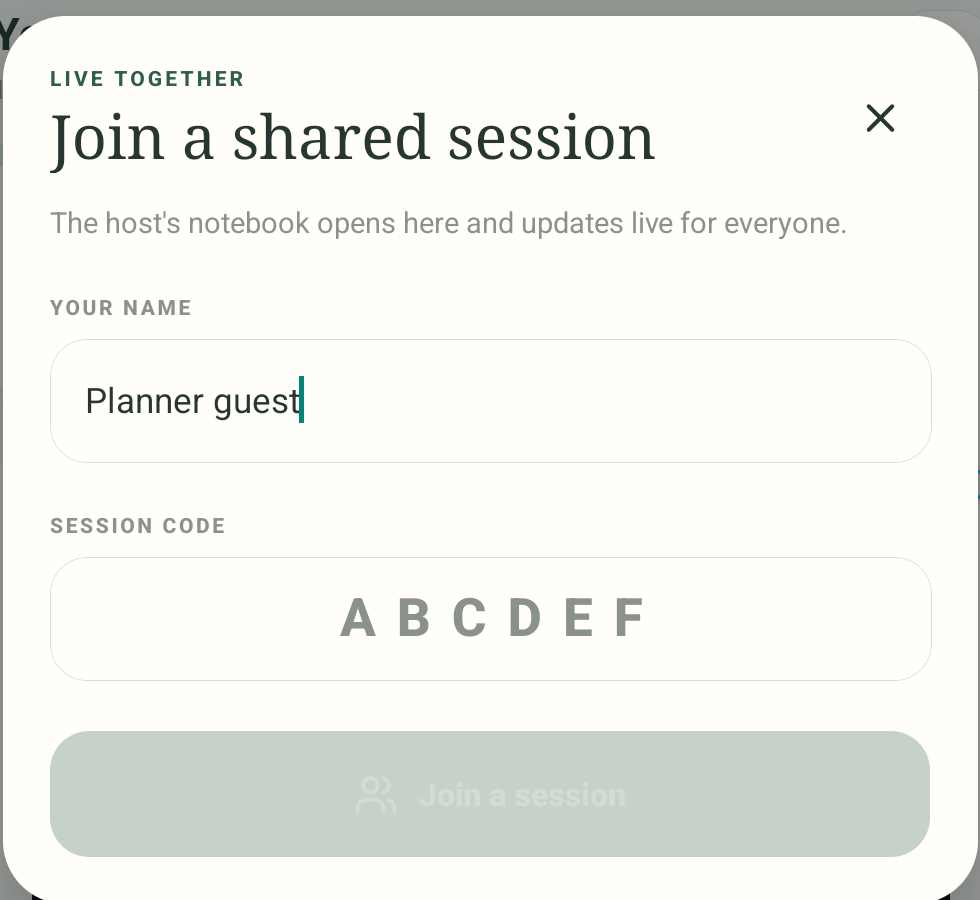
The first two images are real Android Stilopad Light pre-session dialogs from debug build 0.1.71 (72); the final two are labelled explanatory illustrations. We did not start or join a room, generate a code, invite a guest, edit live, grant microphone/camera access or test Web Lite collaboration. The screenshot name and placeholder code are QA-only examples.
Start or join on Android
Start or join on Android
Start at the Library
Tap People in the top-left corner. From the Library, this opens the Join a shared session form directly.
Enter the host’s invite
Use the display name and six-letter code from your host. ABCDEF in this capture is only a placeholder. We stop before Join because no test room or host was available.
Open the notebook you will host
To host instead, open the notebook you want to share and tap People in its top bar. In the editor, People opens the Start a shared session dialog.
Review the Start dialog
Enter a display name. Pressing Start creates a live room; we stopped at this dialog during screenshot capture.
Share the real invite privately
After the host starts a room, share its actual code or link with the intended people. This labelled diagram explains the route only; it contains no real code or room.
Remember: a session is not a backup
A live session is for working together now. To keep a separate copy, export an editable file or set up Drive separately. This diagram is an explanation, not a live shared page.
The actual Join and Start session dialogs were opened on the Android 15 debug emulator. We stopped before pressing either action, so no room, code, guest or live edit was created.
On Web Lite
On Web Lite
Check whether your current Web Lite editor shows a shared-session or people control; the route was not exercised in a browser for this guide.
If a host gives you an invite, use the matching join action and enter the code exactly as shared. Do not use the example placeholder shown in the screenshot.
Only start or join when you intend to collaborate. This guide did not connect to the session service or test Web Lite collaboration.
Joining and hosting start in different places
Join is available from the Library. Start is offered for an open notebook. The join form asks for a six-letter host code and your display name. A session is a live collaboration space, not an exported file or Drive backup.
Only share an invite with the people you choose
The code/link is how another person reaches the room. Check the intended recipients before you share it. No real invitation was created for these screenshots.
If a code does not work
- Ask the host to confirm the current six-letter code or resend the invite link.
- Check that the display name is filled in and the code has six letters before tapping Join.
- Joining needs a reachable live session service. This test did not check connection errors, access controls, saving a session copy or multiple-device updates.