
A simple guide to moving around a notebook
How to turn pages and zoom in
Use the page buttons, swipe between nearby pages, open the page overview, and zoom for a closer look.
Move through your notebook with the page counter. Zoom in to read or work on a detail, then reset the view when you are done.
Turn pages and zoom on Android
Use the counter, overview and zoom controls
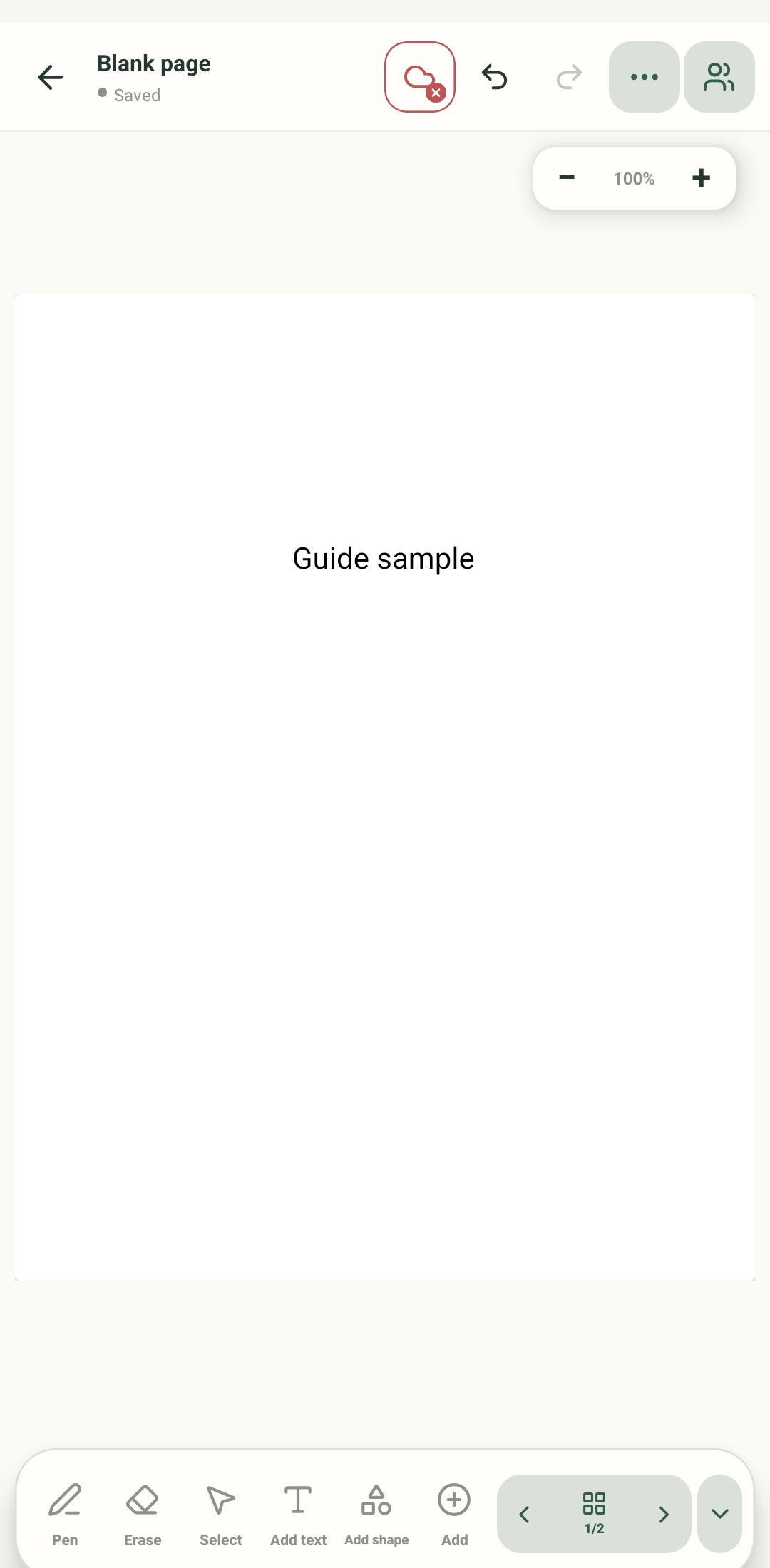
Step 1 of 4 — Find the page counter
These are real Android Stilopad Light screenshots from debug build 0.1.71 (72). Android Next/Previous, a horizontal swipe between the two sample pages, the page overview, and plus/Reset zoom were checked. In a separate Web Lite QA notebook, Previous/Next changed pages, the All pages thumbnail opened page 3/3, and zoom changed 106% → 116% → 106%; this toolbar has no separate Reset zoom button. Web Lite touch swipe/pinch, book view and mobile-browser layout remain untested. Screenshot controls are English.
Turn pages and zoom on Android
Turn pages and zoom on Android
Find the page counter
Open a notebook. The bottom toolbar shows the current page and total page count. Use the arrows to move one page at a time. A horizontal swipe also moved between pages in this Android test; swipe on the empty page, not an object.
Check the new page number
After tapping Next, the counter reads 2 of 2 and the second page appears. A swipe from this page returned to page 1 during the test.
Open the page overview
Tap the grid and counter to see the page cards together. Choose a card to open that page; the screenshot shows both pages in the overview.
Zoom, then reset
Use plus or minus to change the view. This capture shows 125% zoom; Reset zoom returns the page to its normal view. Zoom changes how large the page looks on screen, not its printed content.
The screenshots show a real two-page notebook. The bottom toolbar has Previous and Next arrows beside the page counter. The on-page zoom control has minus, plus and Reset zoom.
On Web Lite
On Web Lite
Open a notebook with at least two pages. Use Previous and Next beside the page counter to move one page at a time; the counter shows the current and total page numbers.
Choose the grid-and-counter button to open All pages, then select a page thumbnail to jump directly to it.
At the lower right, use Zoom out and Zoom in and read the percentage between them. In the Web Lite toolbar checked here, Zoom in changed 106% to 116% and Zoom out returned to 106%; there is no separate Reset zoom button. Touch swipe and pinch were not tested in Web Lite.
Page and zoom controls do different jobs
The arrows and page overview change which page you see. Zoom changes the size of that page on your screen. It does not resize the notebook page or change its contents.
Check both numbers
The counter shows the page you are on and how many pages the notebook has. After choosing a thumbnail, check the counter so you know which page opened.
If a swipe moves an object instead
- Tap an empty part of the page before swiping. A selected object can respond to a drag instead of a page gesture.
- Use the page arrows or overview when a swipe is difficult to make.
- If the page is enlarged, use the zoom controls to return to a comfortable view. Pinch zoom was not verified in this walkthrough.