
A simple guide to session calls
How to use audio and video in a shared session
Choose an audio or video call, control your microphone and camera, and end the call when finished.
Calls are optional. Join a shared session first, then choose audio or video when you are ready to talk. Check each permission prompt before allowing access.
Use call controls on Android
Choose a call and know how to stop it
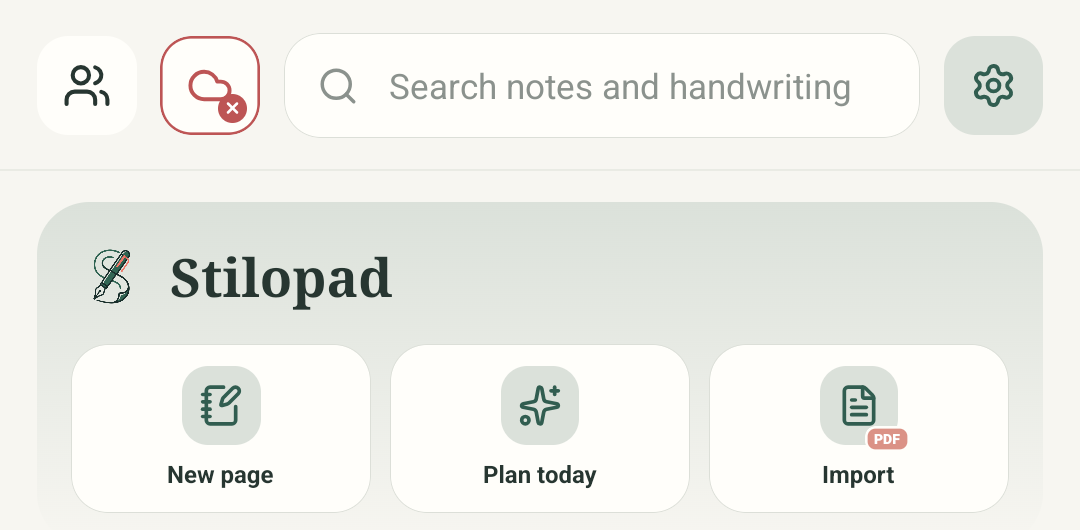
Step 1 of 5 — Open People from the Library
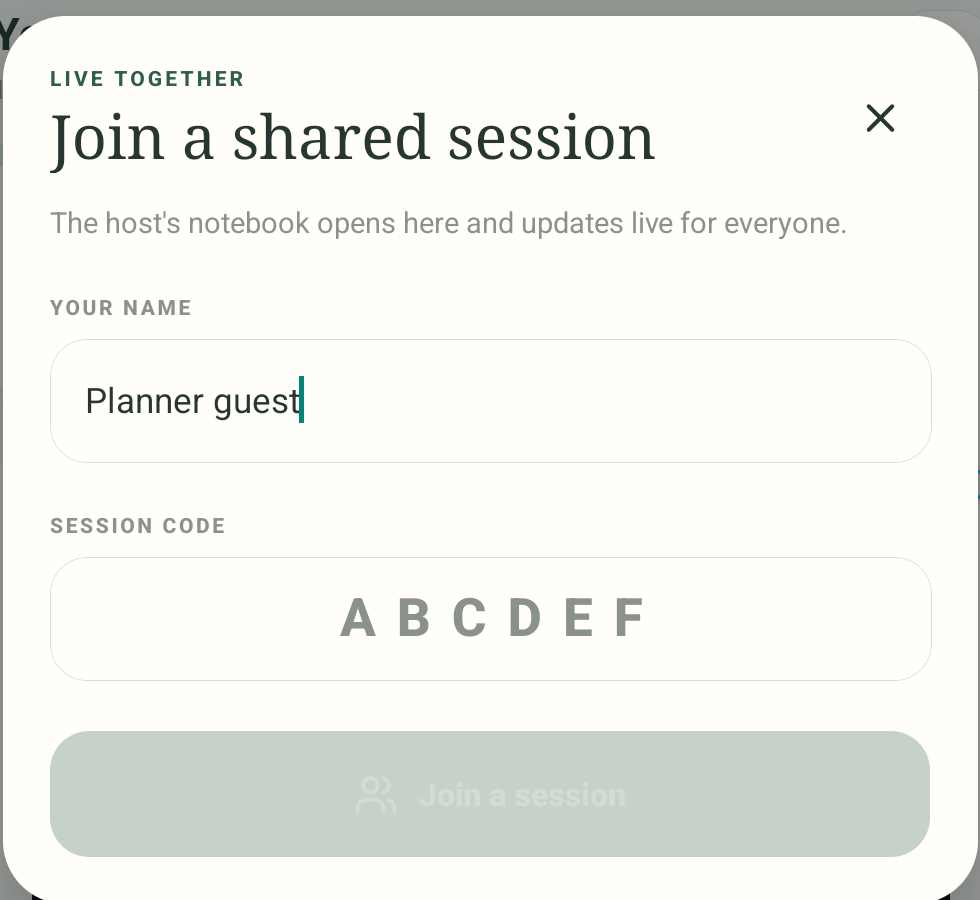
Only the join-session entry point is a real Android screenshot (debug build 0.1.71 (72)). The three call diagrams are labelled illustrations based on current mobile source. No session was created or joined; no participant, audio/video call, OS permission, Web Lite call or remote stream was tested.
Use call controls on Android
Use call controls on Android
Open People from the Library
Calls happen inside a shared session. Start at the Stilopad Library and tap People; on the Library this opens the Join a shared session form.
Join a real room before choosing a call
Enter a real host code and join only when you are ready. We stop at the actual Join dialog because no test host was available; the following call screens are labelled examples, not live screens.
Choose audio or video when ready
Inside a joined room, the mobile app offers separate audio and video call buttons. A video call may need both camera and microphone permission. This is a labelled example, not a captured call screen.
Use the controls while talking
During a call, the mobile app provides microphone mute/unmute, camera on/off and End call controls. This source-based diagram explains them; it does not show an active call or actual permission state.
End the call or leave the room
End call stops audio/video but leaves the shared session. Leave shared session exits the room. Those are separate actions in the mobile UI; the diagram is illustrative, not a live session.
Current mobile source shows Audio call and Video call actions inside the shared-session dock. During a call it exposes microphone mute/unmute, camera on/off and End call. No room, call or permission was started for these guide captures.
On Web Lite
On Web Lite
Join a shared session if the current Web Lite experience offers one, then look for its call controls.
Choose audio or video only when ready. Check browser permission prompts before allowing a microphone or camera.
Web Lite session calls, controls, permissions, remote audio/video, mute state and call ending were not tested in this guide.
Audio/video are optional parts of the room
The shared notebook can be used separately from a call. Audio calls use the microphone; video calls can use microphone and camera. End the call to stop media while staying in the room, or leave the session to exit collaboration.
Check the button state before you speak
The mobile controls change between Mute/Unmute and Camera on/off. Look at the current state before talking or showing video. Actual transmission, permission handling and remote participant states were not tested in this guide.
If a call will not start
- First check that you have joined a live shared session with another participant.
- Review the device or browser microphone/camera permission for Stilopad, and allow only what you intend to use.
- Call connection, audio routing, camera preview, remote media, mute behavior and call ending were not tested in this capture session.