
A simple Stilopad guide
How to create a notebook in Stilopad
Start a digital notebook, choose its first page and give it a name on Android or Web Lite.
Make a fresh place for your ideas. Choose the first page, give the notebook a name and add a little note.
On Android
See the Android steps
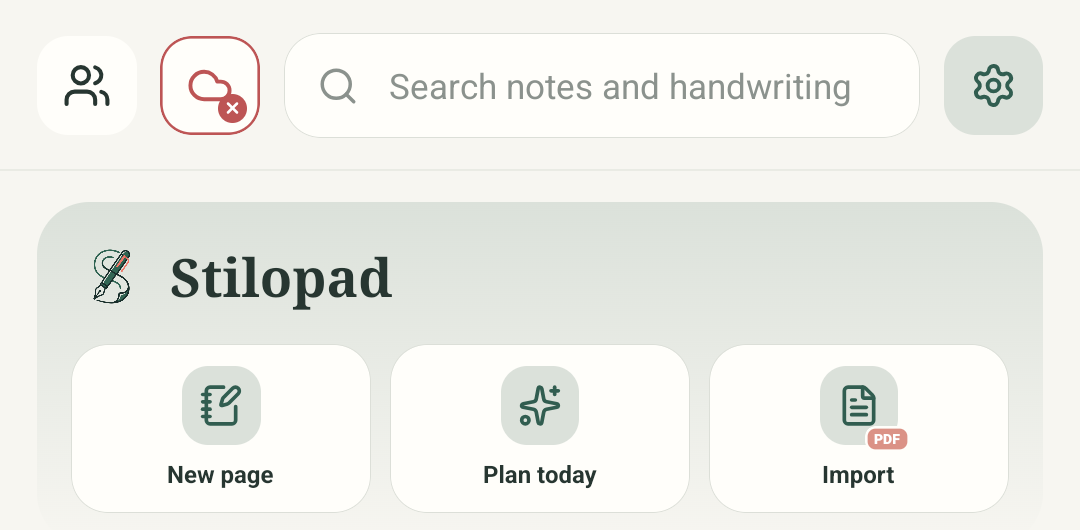
Step 1 of 5 — Tap “New page”
The Android pictures use English button labels. If your app uses another language, look for the matching page or notebook action.
On Android
On Android
Tap “New page”
On the home screen, tap “New page”. This opens the page chooser. On Android, this is where you start a notebook.
Choose your first page
Choose “Blank page” for a clean sheet or “Lined paper” for writing. You can also look through the other page designs.
Open the notebook menu
After the page opens, tap the three-dot menu in the top bar. Choose “Rename notebook”.
Give it a name
Type a name such as “My little plans”, then tap “Save name”. You can change the name later.
Check the saved note
The note is already on the page. Look over the words and the Saved status before you continue.
These pictures show the Android app. On Android, the home button says “New page”. The notebook opens first; you can name it from the top menu.
On Web Lite
On Web Lite
Choose “New notebook” on the home screen.
Type a name in “Notebook name”.
Choose “Blank Page” or another first page. The notebook opens with your name. In Web Lite, add a note or drawing before leaving: an empty notebook is not kept in the library.
What is a template?
A template is a page that is ready for you. A blank page has no lines. Lined paper has writing lines. Grid and dot pages help you place things neatly.
Saved on this device
Once you add page content, your work saves on this device. In Web Lite, an empty notebook is not kept in the library. This is separate from optional Google Drive backup.
If something looks different
- If you do not see the page chooser, wait for the home screen to finish opening, then tap “New page” once.
- The Web Lite button is called “New notebook”. It asks for the notebook name before you choose a page.
- You can choose a different template next time. Do not delete a notebook just to change its page.