
A simple guide to app appearance
How to change the Stilopad app theme
Choose a light, dark or colourful Stilopad palette for the library and editor.
Pick a look that feels comfortable. You can change it again whenever you like.
Choose a theme on Android
Change the palette and switch it back
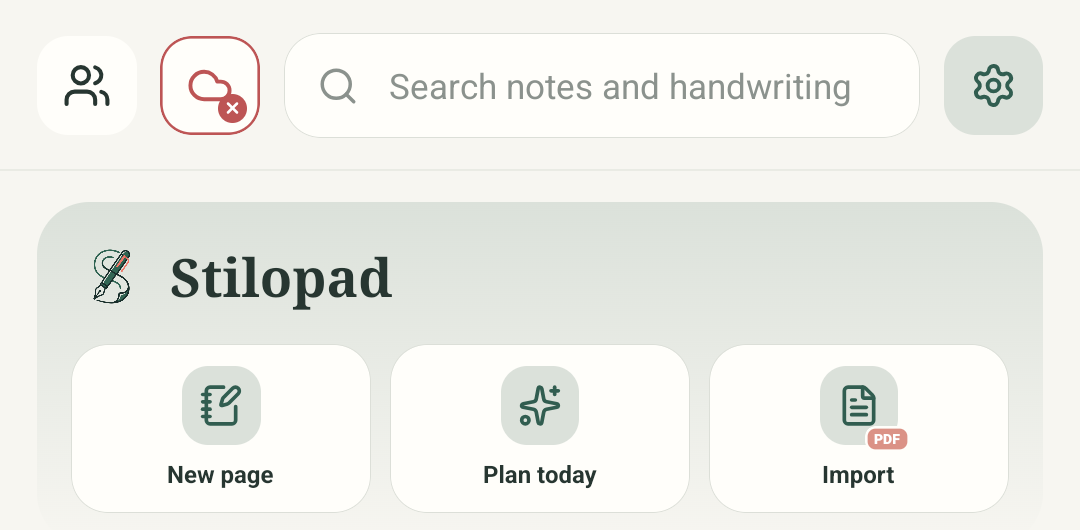
Step 1 of 6 — Start in your library
The Android palette change was tested and then restored to Stilopad Light. In an isolated Web Lite browser origin, Pink Bloom visibly changed the library and Stilopad Light was restored with keyboard navigation. Existing local demo notebooks were left untouched.
Choose a theme on Android
Choose a theme on Android
Start in your library
From the Stilopad home screen, tap the gear in the top-right corner to open Settings.
Choose Appearance
In the Settings overview, tap Appearance. Its subtitle is “Theme, colour and paper style”.
Look through the palettes
The chooser shows Stilopad Light, dark choices and several colourful palettes. A check marks the current selection.
Choose a colourful look
Tap Pink Bloom. Its card is in the third row on the right. The next screen shows the selected result.
See it across the library
The library and its buttons now use Pink Bloom. The same palette also colours the editor.
Return to Stilopad Light
Choose the Stilopad Light card whenever you want the original palette back. This guide pass restored Light after the test.
The Appearance screen says the palette changes the whole library and editor and is saved only on this device. The guide changes to Pink Bloom, then shows the Stilopad Light option to switch back.
On Web Lite
On Web Lite
Open the Appearance button in the Web Lite home screen or editor.
Choose a palette card. The library and editor use the selected app appearance.
This Web Lite flow was tested in an isolated browser origin: Pink Bloom changed the library, then Stilopad Light was restored.
App colour is not page colour
A palette changes the app around your pages: the library, buttons and editor surfaces. It does not recolour your writing or change the paper inside a notebook. Paper and pen colours have their own controls.
Saved on this device
The Appearance screen says your palette is saved only on this device. It is a local preference, not part of a notebook or Google Drive backup.
If you cannot see the new look
- Close the Appearance sheet to see the whole library. The palette cards may look similar, so check the name and check mark.
- Choose Stilopad Dark for the dark green palette; it is a palette choice, not a switch that follows your phone automatically.
- If only the paper inside one notebook should change, use the page or paper controls instead of changing app Appearance.