
A simple guide to notebook links
How to open page links directly in Stilopad
Turn off the confirmation for links that move to another page in the same notebook.
A link inside a planner can take you to another page. Choose whether Stilopad asks first.
Change internal link opening on Android
Choose whether an in-notebook link asks first
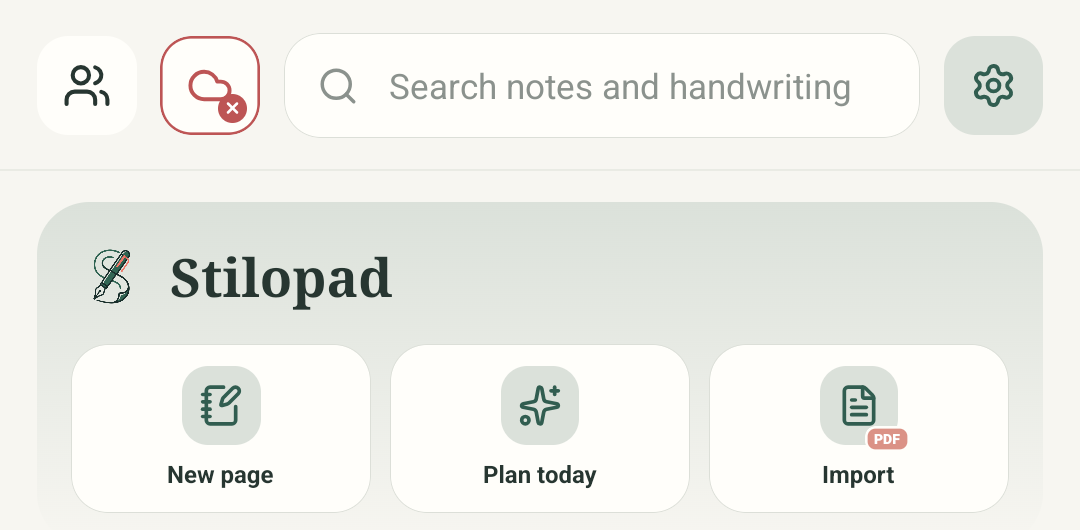
Step 1 of 6 — Start in your library
Android steps and the direct page jump were tested on build 0.1.71 (72). In an isolated Web Lite profile, a disposable two-page note verified link creation, the default-off “Open link?” dialog, its destination, Go to page, and a direct page jump after enabling the checkbox. An external URL showed its separate confirmation; it was canceled without opening the site. The isolated test tab was closed without deleting its disposable note. No original Chrome library was changed. No browser screenshot was saved; controls inside the app screenshots are in English.
Change internal link opening on Android
Change internal link opening on Android
Start in your library
Tap the Settings gear on the Stilopad home screen. This begins at the same place you would start when changing an app preference.
Open Profile & editor
In the Settings overview, choose Profile & editor to find the notebook link preferences.
Find Link opening
Open internal links directly is on in this example, so a notebook link goes to its page without a question. External links have their own switch and stay off here.
Tap an in-page link
Return to a notebook with an internal link and tap the linked words once. In the test PDF, the page-one link pointed to page 3.
See the linked page
With Open internal links directly on, Stilopad goes to the destination without showing the “Open link?” question.
Website links still ask first
External-link confirmation is a separate preference. It stayed off in this test, so the example website link stops at the confirmation dialog.
Tested with the three-page G02 study PDF on Android. With “Open internal links directly” on, its page-one link opened page 3 without a dialog. The setting was returned to off after the test; external links remain a separate choice.
On Web Lite
On Web Lite
Start in the Library and open a notebook. Choose Select, tap a text or image object, open ⋯ (More object actions), then choose Add or edit link. Enter page:2 or choose Page 2, then choose Apply link. This route was tested in a disposable two-page note.
Tap the linked object. Web Lite shows “Open link?” with the destination and an “Open internal links directly” checkbox, unchecked by default. This preference is in the confirmation dialog, not the Settings screen.
With the box unchecked, choose Go to page to follow the link. To skip this confirmation next time, tick Open internal links directly; in an isolated Web Lite test, the next tap jumped from page 1 to page 2 without the dialog. An external URL has its own confirmation; the test was cancelled without opening the site.
Internal and external links are different
An internal link stays inside one notebook and jumps to another page. An external link opens a website, email app or other app. Each kind has its own confirmation preference.
You can change this later
Turn the internal setting off again to show the “Open link?” confirmation. The test confirmed a direct jump to page 3; it did not enable direct external links.
If a link does not go where expected
- Check that the link points to a page in the notebook you opened. A link in a PDF may point to a website instead.
- If you still see “Open link?”, check the internal setting under Profile & editor → Link opening.
- For website links, use the separate external-link preference. Leave it off if you want to check each address first.