
A simple guide to a separate backup
How to back up and restore a notebook file
Save an editable `.stlpd` copy, find it in Files, import it, then open the restored notebook.
A separate file is handy to keep somewhere safe. Importing it adds another notebook to your library; it does not merge it with the original.
Make and restore a file backup on Android
Save a separate file, then bring it back
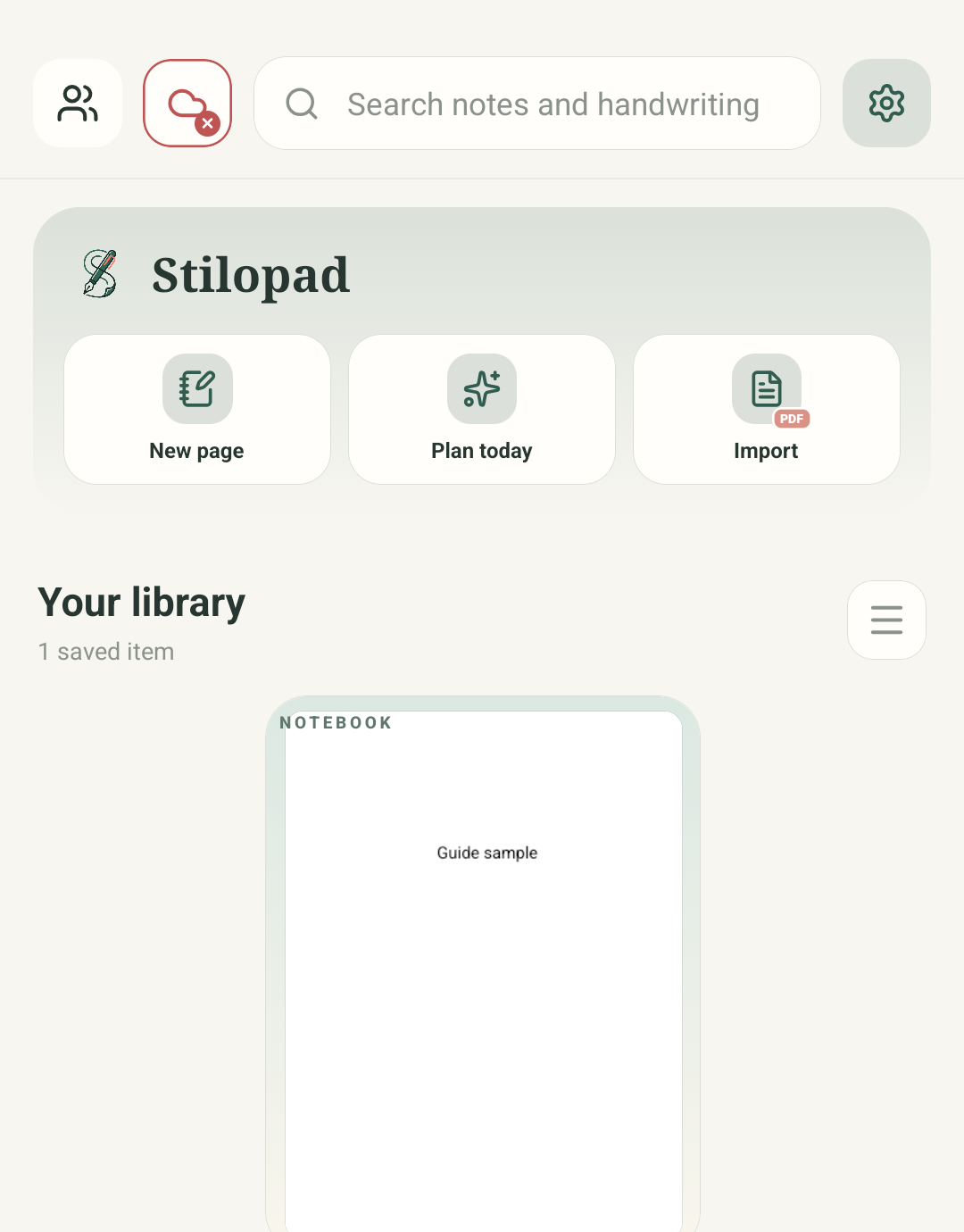
Step 1 of 4 — Start in the library
These are real Android Stilopad Light and Android Files screenshots from debug build 0.1.71 (72). Export to `.stlpd`, the Downloads/Stilopad file, import preparation, a separate second library item, and opening its sample content were verified. Web Lite, large-file integrity and every attachment type were not tested; no Google account was connected.
Make and restore a file backup on Android
Make and restore a file backup on Android
Start in the library
Tap Import on the home/library screen, then choose Choose files to import. The real library screenshot shows where the import route begins.
Choose the saved backup
In Android Files, open Downloads → Stilopad and tap Blank-page.stlpd. Check the extension and name so you choose the editable backup, not a PDF or picture.
Wait for import to finish
The app displays “Importing document” and “Preparing…” while it reads the file. Wait for the notebook to open before trying again.
Open and check the restored copy
Import adds another library item rather than merging with the original; this test showed two cards with the same title. Open the imported copy and check its content. Here it opens on page 1 of 2 and still shows “Guide sample”.
This test exported one two-page notebook as `.stlpd`, found it in Downloads/Stilopad and imported it again. The app kept both notebooks as separate library items; the restored copy opened with its sample text.
On Web Lite
On Web Lite
Export an editable Stilopad file from the notebook if that option is available in your Web Lite editor.
Save the file somewhere you can find later. Browser download folders and prompts differ by device.
Choose Import in Web Lite and select the saved Stilopad file. This browser round-trip was not exercised here; keep the source until the copy opens correctly.
A file backup is separate from Drive sync
This `.stlpd` copy is a file you can store separately. It is not continuous Google Drive sync. Importing the file makes another notebook item; later edits to one copy do not automatically update the other.
Keep the source until you check the copy
Open the restored notebook and check pages and content before moving or deleting the exported file. The test restored the sample text and two-page count; it did not test every media type or a large notebook.
If the file is not listed
- Check Downloads → Stilopad and confirm the filename ends in `.stlpd`.
- Wait for “Preparing…” to finish. A large notebook may need more time.
- Keep the original notebook and backup until you have opened and checked the imported copy.