
A simple guide to text styles
How to choose a font or add your own
Preview built-in font styles, apply one to selected text, or open the font-file picker.
Make a heading feel like a heading or give a note a handwritten look. Choose a built-in style first; you can also add a font file that you have permission to use.
Choose a font on Android
Preview a style before using it
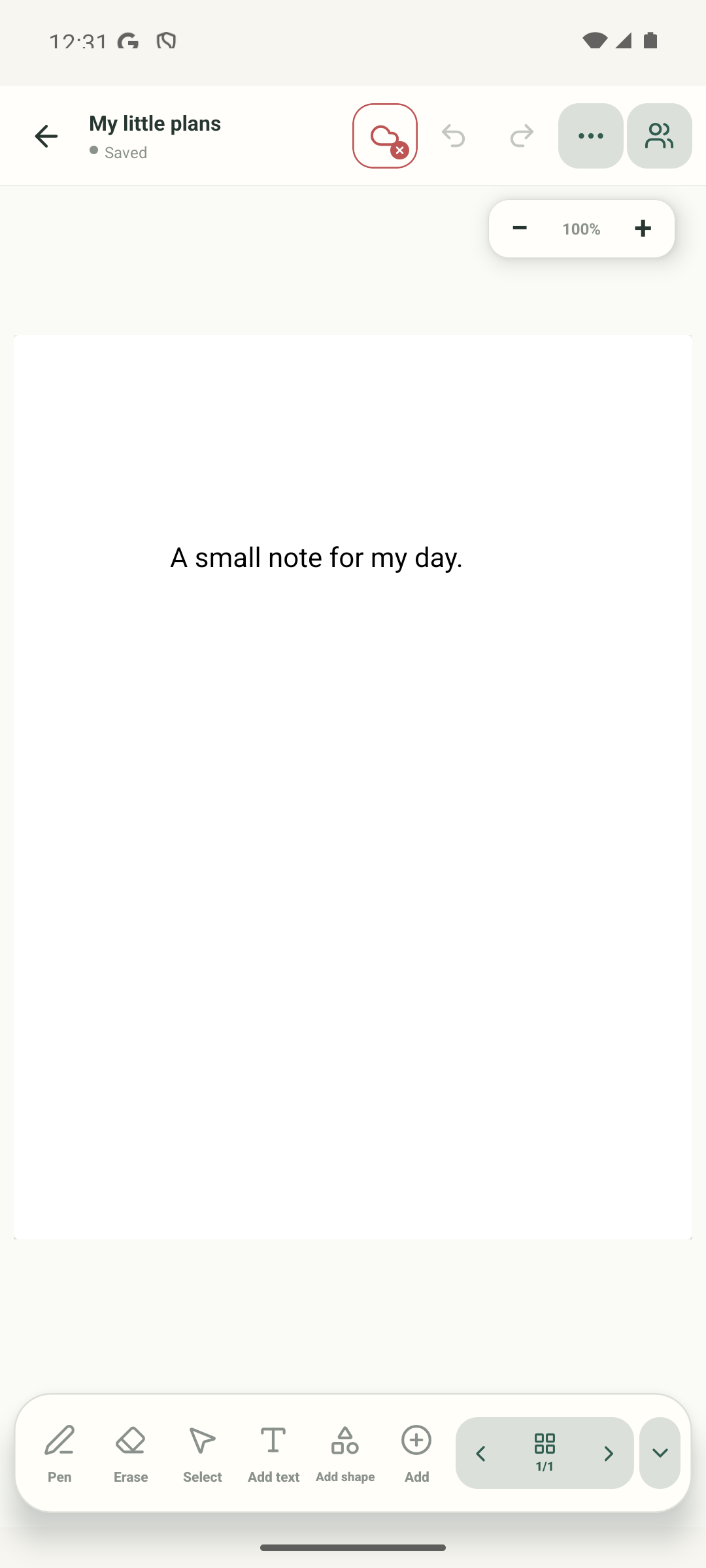
Step 1 of 10 — Choose Select
Actual Android Stilopad Light captures from debug build 0.1.71 (72) show the More fonts list, Handwritten applied to sample text, and the system file picker opened from Upload font. No custom font file was selected or uploaded. Web Lite font upload is present in source but not replayed; rendering, export, Drive sync, language glyph coverage and restart persistence for uploaded fonts remain unverified.
Choose a font on Android
Choose a font on Android
Choose Select
Open the notebook page with your words and tap Select in the bottom toolbar. The real editor controls show where to begin.
Select the words
Tap the text object you want to style. This real sample capture shows “Page two” selected with its Text toolbar open.
Open More fonts
In the selected text toolbar, tap More fonts. The real screen below shows the button and the current Handwritten style; the menu opens at the top of its list.
Browse font previews
The list previews every style with “Ag” and a sample sentence. Swipe up in the list to find Handwritten; the footer also explains TTF/OTF, the 20 MB limit and the font licence reminder.
Apply Handwritten
Tap the Handwritten preview for the selected words. The actual next capture shows the same “Page two” text in that style.
Check the styled words
“Page two” now uses Handwritten. The text stays selected so you can open the style list again or continue changing its size, colour and alignment.
Open More fonts again
To try a font file instead, reopen More fonts from the same text toolbar. The list opens at its top; the next swipe moves down to the Upload font button.
Scroll to Upload font
Swipe up through the same list until Handwritten and Upload font are visible. Only choose a font file if its licence lets you embed and share it.
Open the file picker
Tap Upload font to open the Android file picker. This capture stops before selecting a file; no custom font was uploaded.
Check the file picker
Downloads is open with a Stilopad folder and no font selected. The app accepts TTF or OTF files up to 20 MB; this guide did not select a file or test saving, exporting or syncing a custom font.
The real More fonts dialog showed live style previews, including Handwritten, and an Upload font action. Handwritten was applied to the sample text. The file picker was opened, but no custom font file was selected.
On Web Lite
On Web Lite
Open a notebook and select a text object. Use its font control to choose a style, or open More fonts.
Preview the listed styles and choose one. Web Lite also has a font-file upload control in its source; the web upload task was not replayed here.
For a custom file, use a supported TTF or OTF font up to 20 MB and check its licence allows embedding and sharing. Keep the original notebook until you have checked the result.
Choose a font you can share
Font files have their own licences. Before uploading one, check that its terms allow embedding in documents and sharing with other people. A font can also lack letters for some languages, so review the text after changing it.
The Handwritten sample is visible
The built-in Handwritten style was applied to the sample text on the disposable Android notebook. A custom font was not uploaded, so this is not proof of a custom font’s persistence, export or cross-device behavior.
If a font is missing or looks different
- Use a TTF or OTF file within the 20 MB limit. The file picker does not make an unsupported format usable.
- Check the font’s licence and whether it includes the letters your text needs. Missing characters may render differently.
- The web font upload and custom-font persistence across export, Drive and another device were not tested in this batch. Keep a copy of the original file.