
A simple guide to notebook pages
How to add and arrange pages
Open the page overview to add a page, jump to another one, copy, or change page order.
Use the page overview when you want to see more than the page that is open now.
Manage pages on Android
Open the overview, then add and arrange
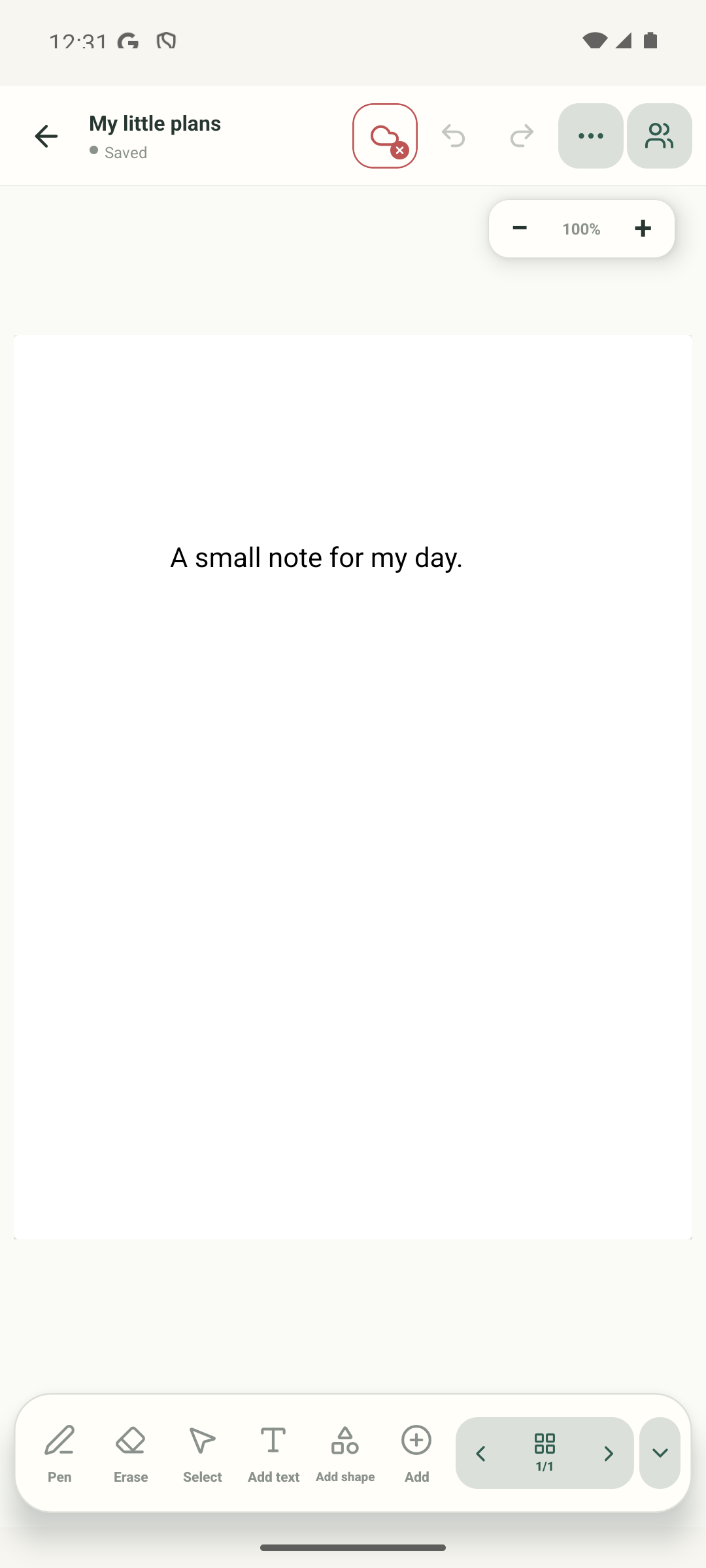
Step 1 of 5 — Open Page overview
The editor and page-overview crop are real Android Stilopad Light captures from build 0.1.71 (72); the new-page size examples are labelled illustrations. In an isolated Web Lite notebook, adding a blank page, copying a page, changing order with Move earlier/later, and reopening the saved notebook were tested. Deletion and Web Lite page-size inheritance remain unverified. Screenshot controls are English.
Manage pages on Android
Manage pages on Android
Open Page overview
On an open notebook page, tap the grid and page counter near the bottom toolbar. This real editor screenshot shows the route into the page list.
Add a blank page
In the real All pages overview, tap New page at the top. A new blank page keeps the physical canvas size of the page before it, even when that page is large, small, portrait or landscape.
See the page-size result
This diagram explains the result: the new blank page uses the previous page’s physical size. It is an example, not a live capture from this test.
Move or copy a page
Use the Move earlier and Move later arrows on a page card to change its order. Use Copy when you want another version. The screen shown here is an example layout, not a live overview capture.
Delete only when you mean it
Delete is a separate page action. Read the confirmation before continuing, and make a backup if the page contains work you need.
Tap the page grid and counter in the editor toolbar to open Page overview. Open a page card, use its Move earlier or Move later arrow to change the order, and use its other page actions to copy or delete.
On Web Lite
On Web Lite
Open a notebook and choose the page overview control near the page counter.
Choose New to add a blank page. Select a thumbnail to open it, or use that card’s Move earlier and Move later arrows to change the order.
Use a page’s actions to copy or delete it. In an isolated Web Lite notebook, adding a page, copying one, changing order with the arrows, and reopening the saved notebook were tested. Deleting a page and inherited page size were not tested there.
A new page is editable paper
Adding a page creates a blank editable page rather than copying the previous page’s writing. Its physical canvas dimensions follow the preceding page so imported or unusual paper sizes do not suddenly shrink or grow.
Check the page count and order
After adding or moving a page, check the counter and reopen the intended thumbnail. On a PDF-based notebook, a new page is blank paper with the same size; it does not duplicate the PDF page.
If a page looks like a different size
- Imported notebooks can have different physical page sizes. Fit the new page on screen before comparing it with a nearby page.
- A new page after a PDF page is blank editable paper, not a copy of the PDF background.
- Before deleting a page, make sure you selected the right thumbnail and read the confirmation.