
A simple guide to Android widgets
How to find Stilopad home-screen widgets
Open Android’s widget picker and see the available Stilopad notebook and Google Drive widgets.
A home-screen widget can give you a quick way back to a notebook or show Drive status. The launcher decides where widgets can be placed and resized.
Find widgets in an Android launcher
Find the previews without changing your home screen
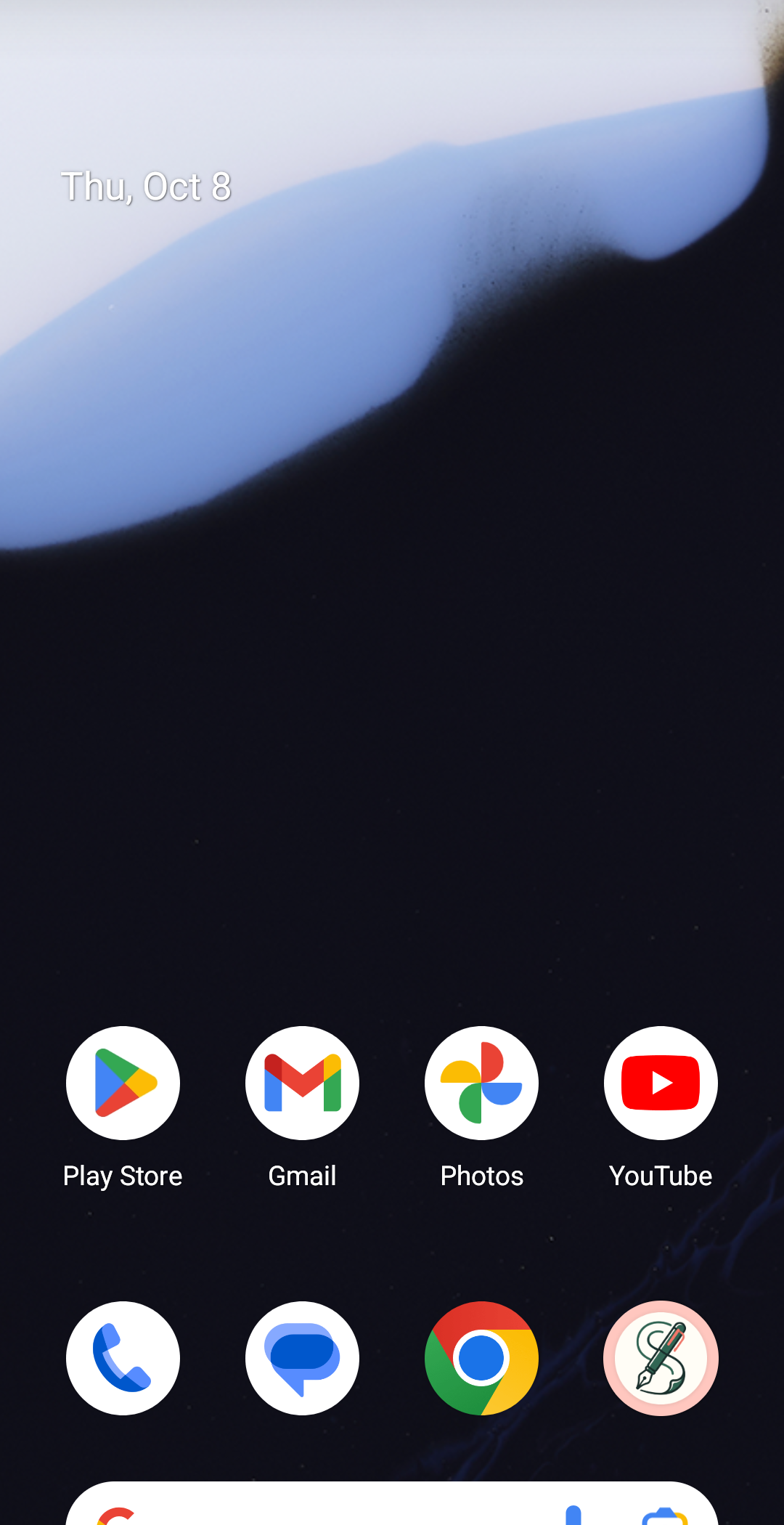
Step 1 of 4 — Go to the Android home screen
All four images are actual Android/Pixel launcher captures from the shared Pixel 8 API 35 emulator. The device had both Play and debug Stilopad packages installed, explaining the duplicate picker groups. Preview sizes were visible and recorded. No widget was placed, resized, tapped, or checked for updates; no Drive account was connected. iOS and Web Lite widgets were not tested.
Find widgets in an Android launcher
Find widgets in an Android launcher
Go to the Android home screen
Use the Home gesture or button. Long-press an empty space on the launcher to open its menu.
Tap Widgets
The launcher menu is open. Tap Widgets to open Android’s widget picker; this menu is part of Android, not Stilopad.
Search for Stilopad
Tap the search field and enter “Stilo”. This capture shows the actual filtered results. The test emulator had both debug and Play builds installed, so it showed two groups; a device with one installation may show one.
Compare the available widget previews
The expanded group showed Google Drive sync and Latest notebook at 1 × 1, and Recent notebooks at 3 × 2. These are picker previews. No widget was added to the launcher, resized, or opened during this test.
On the shared Pixel 8 Android 15 launcher, long-pressing an empty home area opened Widgets. Searching “Stilo” showed the Drive sync, Latest notebook and Recent notebooks previews. No widget was placed or resized.
On Web Lite and iPhone/iPad
On Web Lite and iPhone/iPad
Android home-screen widgets are added from the launcher, not from the Web Lite page.
This guide does not verify an iOS Stilopad widget or a Web Lite widget. Use the launcher options available on your own device.
The widget preview and the final placed layout can vary with launcher, screen size and installed Stilopad version.
A preview is not the final widget size
The Android widget definitions allow horizontal and vertical resizing, but the launcher controls which sizes it offers and how the widget looks after placement. The picker’s 1 × 1 and 3 × 2 labels describe the previews shown on this emulator, not every supported final size.
Choose one only when you want it on your home screen
The picker was opened and inspected, then left without placing anything. A placed widget can be removed or resized using your launcher’s own controls; the exact gestures depend on the launcher.
If you cannot find the widgets
- Check that Stilopad is installed and search for “Stilo” in the launcher’s Widgets list.
- The widget list can take a moment to refresh after an app install or update. Reopen the picker before troubleshooting further.
- Some launchers do not support every size or preview. This capture did not test placement, resizing, notebook opening, live thumbnail updates or Drive status updates.