
A simple guide to app language
How to change Stilopad’s language
Search for a language in Settings, see the interface direction change, or choose the device-language option.
Pick a language you can read. The searchable list uses language names, and Arabic changes the app layout to right-to-left.
Choose a language on Android
Search, choose and check the layout
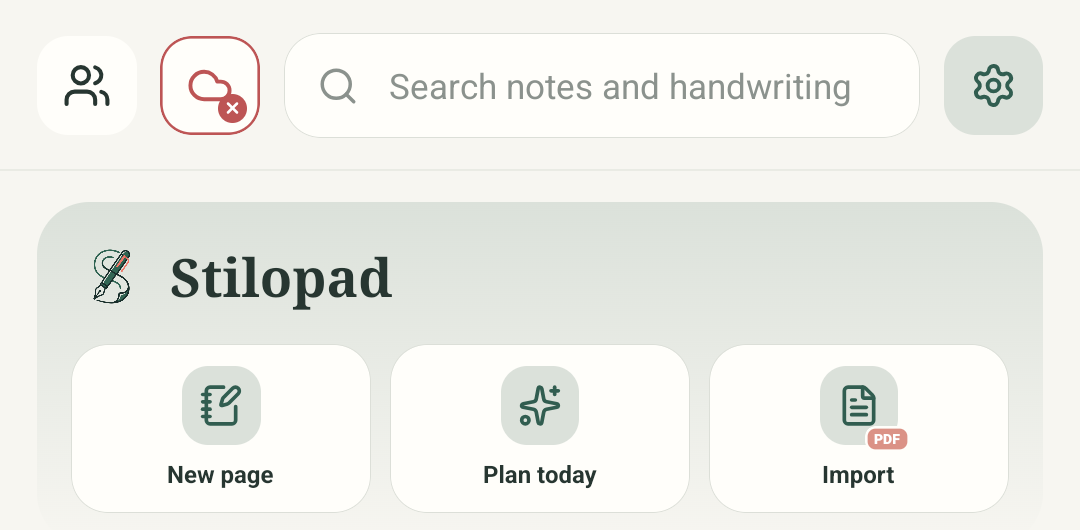
Step 1 of 4 — Start from the Library
The opening Library and Settings overview are genuine Android Stilopad Light captures. The Arabic search result and Arabic RTL Library are fresh Android screenshots from debug build 0.1.71 (72), Android 15. Hindi was also selected during the check. “Use device language” was restored and English verified afterwards. The search frame is cropped to the picker, not a localized article; Web Lite language selection and RTL were not tested.
Choose a language on Android
Choose a language on Android
Start from the Library
Tap the Settings gear on the Library screen. This begins the same route you will use to change the language later.
Open Language in Settings
From the Settings overview, tap Language. The current choice can follow the phone or use a language chosen in Stilopad.
Choose Arabic from the results
Tap the Arabic result in this already-filtered list. On your phone, tap Search languages and type Arabic first if the list is not filtered yet.
Check the new reading direction
After Arabic was selected and the picker closed, the real Library used Arabic labels and right-to-left layout. The language choice changes the app interface, not the words you already wrote in a notebook.
On the Android 15 debug app, the searchable picker selected Arabic and the Library changed to Arabic with right-to-left layout. Hindi was also selected and checked. The app was then restored to Use device language; English returned.
On Web Lite
On Web Lite
Open Web Lite settings from the Library/profile control and look for its language option.
Choose a language if the current web version offers one. App language settings are separate from text already written in a notebook.
The Web Lite language picker and its RTL rendering were not exercised in this guide. Some message strings may use English when a locale does not include that translation yet.
Device language is a preference, not a translation guarantee
Use device language asks Stilopad to follow the phone. A chosen app language sets the interface directly. The app can fall back to English for message strings that are not present in a locale catalog, and notebook content remains as written.
You can switch back any time
Choose Use device language to follow Android again. In the capture session, Hindi and Arabic were checked and then this preference was restored; the Library returned to English.
If some words stay in English
- Check the language selected in Stilopad and whether a message is part of a notebook you wrote yourself.
- Some app messages may use English when that translation is not yet available. You can use Report a translation in the picker to email contact@stilopad.com.
- The selected app language does not automatically change Android’s system language or the recognition language for dictation and handwriting.