
A simple guide to progress messages
How to check import and sync progress
Follow the current stage while a PDF is prepared, and check Drive status separately.
A download can finish before a document is ready. Look at the stage name and page count; some preparation and saving work has no percentage to show.
Read PDF import progress on Android
Read the stage instead of guessing
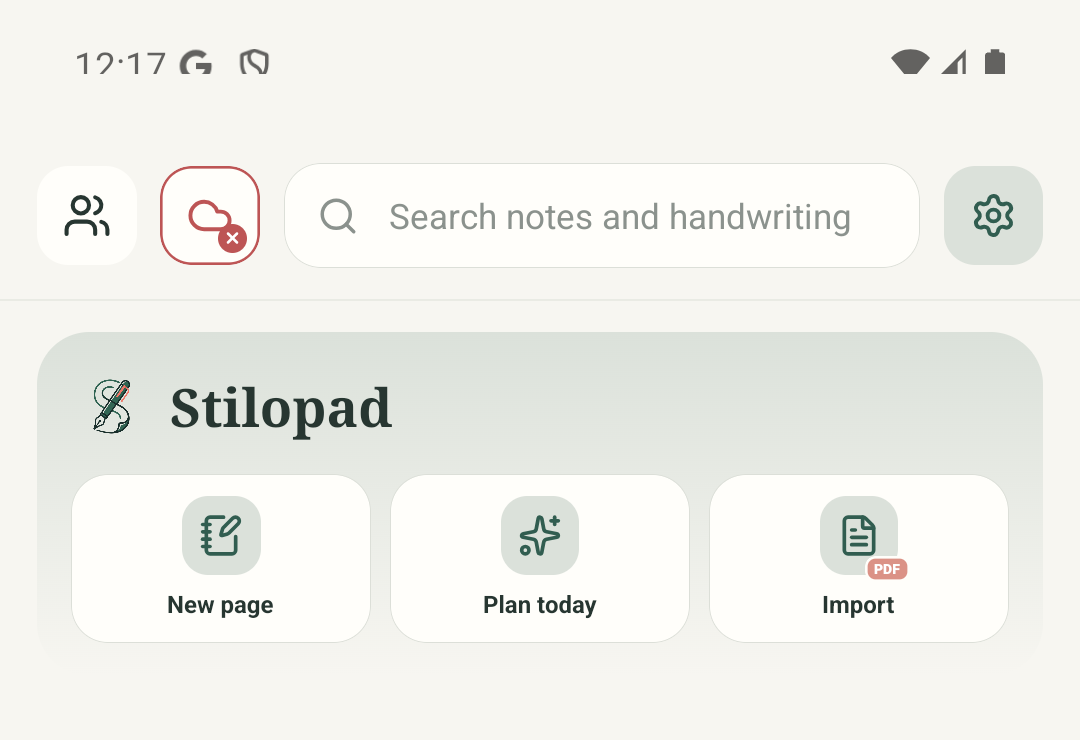
Step 1 of 10 — Start in the Library
Actual Android Stilopad Light screenshots were captured on the shared Pixel 8 API 35 emulator using debug build 0.1.71 (72). The repository-owned three-page PDF fixture showed 0/1 during initial preparation, then 1/3 pages (33%), then opened with Saved. The separate Drive screenshot shows Not connected. No live Drive sync, network failure/retry, Web Lite import or performance/ETA claim was tested.
Read PDF import progress on Android
Read PDF import progress on Android
Start in the Library
Tap Import on the Stilopad home screen to open import choices.
Choose files to import
Tap Choose files to import. This opens the Android Files picker; Scan with camera and Browse Stilopad Library are different routes.
Choose the test PDF
In Android Files, tap the small PDF file. This actual file-picker capture shows the fixture used for the test; your file names and picker layout may differ.
Read the preparation message
The imported PDF first showed “Optimising & compressing PDF” at 0/1. The spinner and stage name mean the app is preparing page images; the empty bar is not evidence that it is frozen.
Watch the page count
For this three-page test file the same stage showed “1 of 3 pages” and 1/3 · 33%. The count is useful because it tells you which page is being prepared; it is not an estimate of remaining time.
Wait for the notebook to open
After preparation, the PDF opened in the editor and the app showed Saved. For a short file this can happen quickly. Longer files may spend more time on page preparation and storage.
Return to the Library
After the PDF opens, tap Back once to return to the Library. The editor capture fades into the actual Library screen; continue from there.
Open Settings from the Library
From the Library, tap the Settings gear to check Drive separately.
Open Backup & sync
In Settings, tap Backup & sync. The actual settings overview shows that category in the middle of the list.
Check Drive separately
Drive backup is a different process. This real settings capture shows Drive disconnected, so it is not a live sync-progress example.
A small three-page repository fixture was imported on the Pixel emulator. The real UI showed an initial optimise stage, 1 of 3 pages (33%), then the PDF opened with Saved.
On Web Lite
On Web Lite
Choose a PDF through Web Lite’s import route, then keep the progress dialog open while the browser reads and prepares it.
Read the stage text. Page rendering can show a count; preparation or storage work may show a spinner without a meaningful percentage.
The browser import flow was inspected in source but not replayed live. Drive sync, an offline failure and retry were not tested in Web Lite.
A percentage is only useful when there is a count
PDF image preparation can report pages completed out of total pages. A preparation, decode, or save stage may not have a reliable total, so the app can show an indeterminate spinner and a stage description instead of making up a percentage or ETA. Drive has its own connection and sync status.
Keep the source file until the import opens
The test PDF finished and opened with Saved. Keep your original file until you have checked your own notebook. The Drive screenshot in this guide is disconnected; it does not verify a cloud backup.
If the screen seems unchanged
- Read the stage label and page count first. Do not treat 0% during a just-started preparation step as a failure.
- Keep Stilopad open while a large document is being prepared, and check that the device has enough free space.
- If the app reports an error or stays unchanged for an unusually long time, capture the stage and app version for support. This guide did not induce an error or test retry; do not clear app data or reset Drive as a first step.