
A simple guide to offline notebooks
How to use Stilopad offline
Open a notebook saved on your device, keep working without a connection, then reconnect when you are ready.
A notebook already saved on this device can still open when the internet is away. Online services need a connection, and Drive backup is a separate step.
Use a saved notebook offline on Android
A notebook stays available on this device
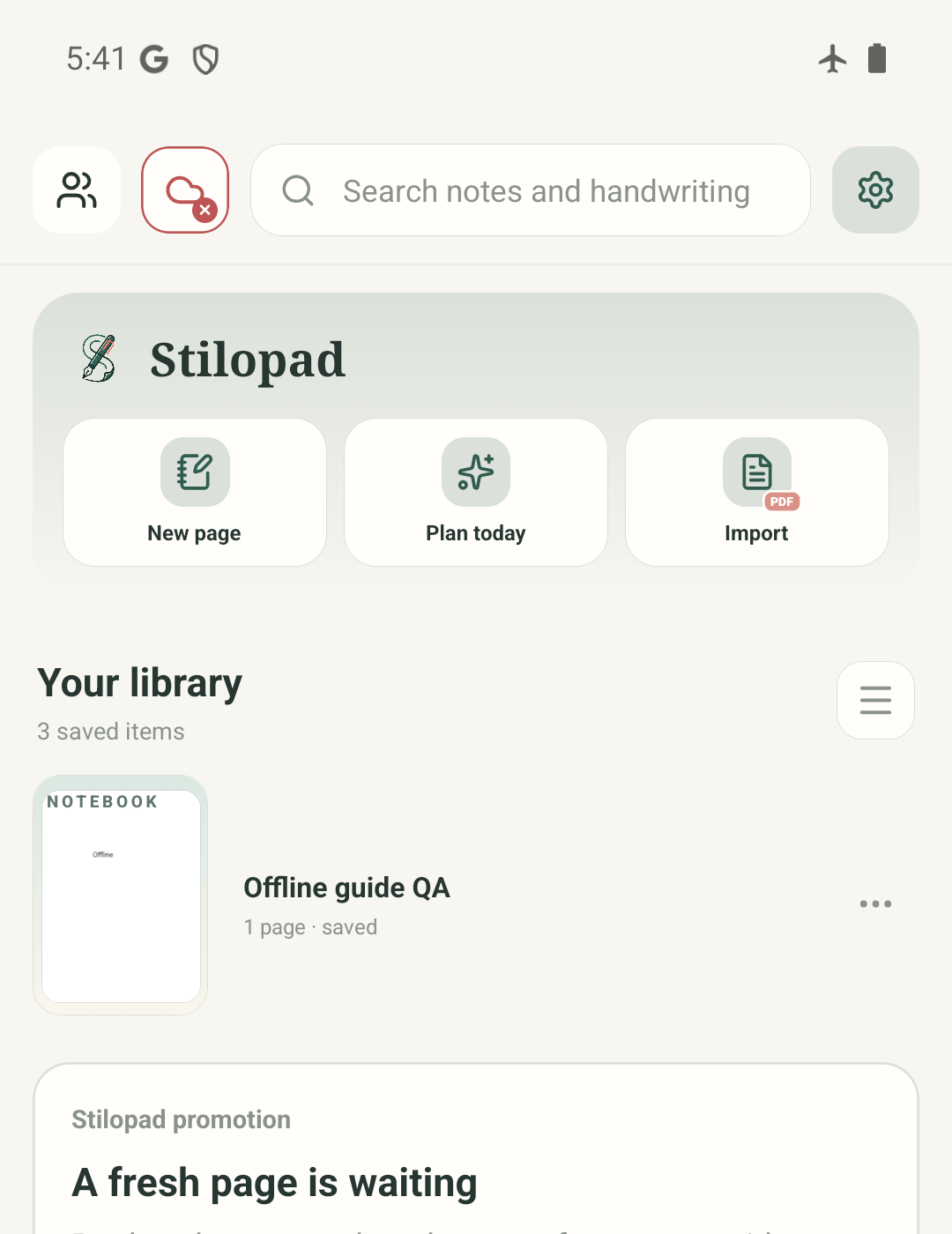
Step 1 of 4 — Start from the saved library
All four screenshots are real Android Stilopad Light captures from debug build 0.1.71 (72), Android 15, emulator-5554. The QA notebook was reopened in airplane mode and its note remained. Internet access was restored after the test. Google Drive was not connected; no upload or restore was verified. Web Lite offline behavior was not tested.
Use a saved notebook offline on Android
Use a saved notebook offline on Android
Start from the saved library
This real Android screen shows the local library while the emulator had no network. The notebook is stored on this device; the red cloud badge means Drive is not connected.
Open the notebook and save a note
The same local notebook opened offline. A short “Offline” note was entered and the app showed Saved. This proves local editing in this test, not cloud backup.
Leave and open it again
After returning to the library, the notebook opened again with the note still present. Keep the app data on the device until you have made any backup you need.
Reconnect when you need online tools
The network was restored and Stilopad showed its normal connected state. Google Drive was not connected, so this final screen does not mean the notebook was uploaded.
On the shared Android 15 emulator, an existing local notebook opened in airplane mode. Text entered in the debug QA notebook remained after leaving and reopening it. The test did not connect Google Drive or upload a backup.
On Web Lite
On Web Lite
Open Stilopad Lite while connected and make sure the notebook is saved in this browser.
Browser offline support depends on the page already being available and on that browser keeping its local site data. This guide did not test Web Lite offline reopening.
Reconnect before using cloud sync, the catalogue, online media search or a shared session. Do not clear browser data if you need unsynced local work.
Offline and backup are different
Local saving keeps your current notebook on this device. A Drive backup needs a connected account and a successful sync. Online catalogue, GIF search, shared sessions and some speech features also need the services they use.
Keep a second copy before changing devices
If you need the notebook on another device, connect Drive and verify sync, or export a Stilopad file. Do not uninstall the app or clear app/browser storage while important work exists only on this device.
If a notebook will not open offline
- Make sure you opened and saved that notebook on this device before going offline.
- Reconnect for notebooks or media that have not been downloaded, and for Drive sync or online search.
- Do not clear app or browser storage to troubleshoot unsynced work. This test did not cover Web Lite, remote backup or media downloads.