
A simple guide to spoken notes
How to record a voice note
Record a short audio note, save it on your page, then play it back.
When a thought is easier to say than type, keep an audio recording beside the rest of your page.
Record audio on Android
Record, stop, save and listen
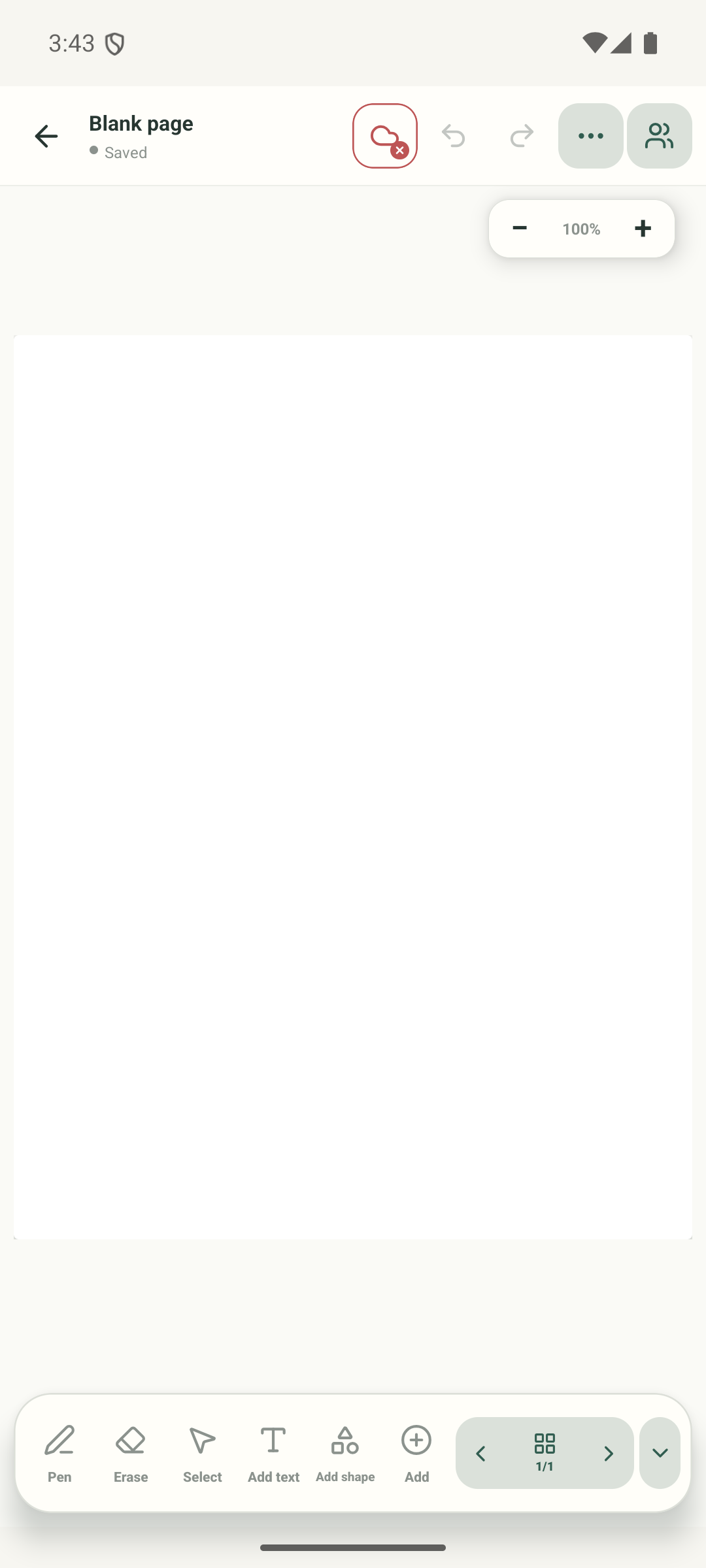
Step 1 of 7 — Start on an open page
The editor, Add sheet, Record panel, pre-record screen and Android microphone permission dialog are real Stilopad Light captures from emulator-5554, debug build 0.1.71 (72); Android microphone access was not granted in that screenshot session. Later, an approved Android QA run on debug 0.1.71 (72) saved a 2-second audio object and playback reached 0:02/0:02 after an Only this time grant; a separate Web Lite run saved a 3-second M4A and playback reached 0:03/0:03. Earlier, Web Lite saved a 30-second QA audio note and playback paused at 4 seconds; Android 0.1.57 (58) saved a 3-second audio object and playback reached 0:03/0:03. Host speech was generated during the short tests, but neither short clip was auditioned, so speech content and audibility remain unverified. The current release build remains unverified and no new screenshot was retained.
Record audio on Android
Record audio on Android
Start on an open page
Tap Add in the editor’s bottom toolbar. This real screenshot shows the blank QA page before its choices open.
Choose Record
In Add to this page, tap Record. Audio, video and dictation are separate choices in the next panel.
Choose Audio recording
Tap Audio recording, not Video recording or Dictate text. The three choices are shown in the real Record panel.
Review the recorder prompt
The app explains that a recording can last up to 10 minutes and stops when you leave Stilopad. Tap Start recording only when you are ready to grant microphone access.
Choose microphone access
Android asks before using the microphone. Choose While using the app or Only this time only when you want to record. We stopped at this prompt and did not grant access.
Record, pause or resume
After permission is granted, the timer and waveform move while you speak. Use Pause and Resume if you need a break. This labelled drawing explains the active recorder; it is not a real recording.
Stop, save and test playback
Tap Stop & Save to page, then press Play on the page object. If a transcription option is available, it is optional. This labelled drawing shows the expected audio object but contains no playable recording.
The blank-page editor, Add sheet, Record choices, in-app Record audio panel and Android microphone permission prompt are real Stilopad Light captures. In that screenshot session we stopped before granting access. In a separate approved QA run, Android debug build 0.1.71 (72) saved a 2-second audio object and playback reached 0:02/0:02 after an Only this time microphone grant. Host speech was generated during capture, but the sound was not auditioned. The current release build remains unverified. Web Lite audio recording was tested separately.
On Web Lite
On Web Lite
Open a notebook page. Tap Add (+) in the bottom toolbar, then choose Record from the Add menu.
Choose Audio note in Record. Allow microphone access when the browser asks; recording begins after permission is granted. Watch the waveform and timer, use Pause and Resume if needed, then tap Stop.
Review the Ready to add panel. Choose Save to page; Download and Discard are separate options. Tap Play on the saved audio object to check it.
A recording is an object on your page
The saved recording appears on the notebook page with playback controls. Audio can be moved and resized like other objects, and playback can be used while an object is locked. Dictation is a separate tool that turns supported speech into editable text.
Listen before you leave
The drawing in this guide is an illustration and has no sound. Separate local QA checks saved and played short clips to completion: Web Lite saved a 3-second M4A and reached 0:03/0:03; Android debug build 0.1.71 (72) saved a 2-second audio object and reached 0:02/0:02. An earlier Web Lite QA note lasted 30 seconds and playback was paused at 4 seconds. The host generated speech during the short tests, but neither recording was auditioned, so speech content and audibility are unverified. Android release 0.1.57 (58) was also tested earlier; the current release build remains unverified.
If recording or playback fails
- Allow microphone access for Stilopad or the browser, and check that the microphone is not being used by another app.
- On Web Lite, use a supported browser on a secure page and check that MediaRecorder supports the device format.
- Play the saved note with the device volume up. If it is still silent, keep the notebook and report the device and app version to support.