
A simple guide to Drive backup
How to sync notebooks with Google Drive
Connect Drive from Stilopad settings, then let your notebook library sync between devices.
Drive sync is optional. It keeps editable notebook files in a Stilopad folder in your Google Drive.
Connect Google Drive on Android
Find the Drive backup controls
Step 1 of 6 — Start in your library
One real Android screenshot shows the disconnected settings screen; the progress and completion cards are labelled illustrations, not app captures or transfer results. In a fresh isolated Web Lite profile, I skipped the optional Drive setup, opened Library → profile/settings → Google Drive sync, and inspected Not connected, Connect Google Drive and the access-consent text. No browser screenshot was saved, Connect was not pressed, and no Google account or transfer was used. Google sign-in, permissions, sync and second-device results remain unverified. Controls in the Android screenshots are in English.
Connect Google Drive on Android
Connect Google Drive on Android
Start in your library
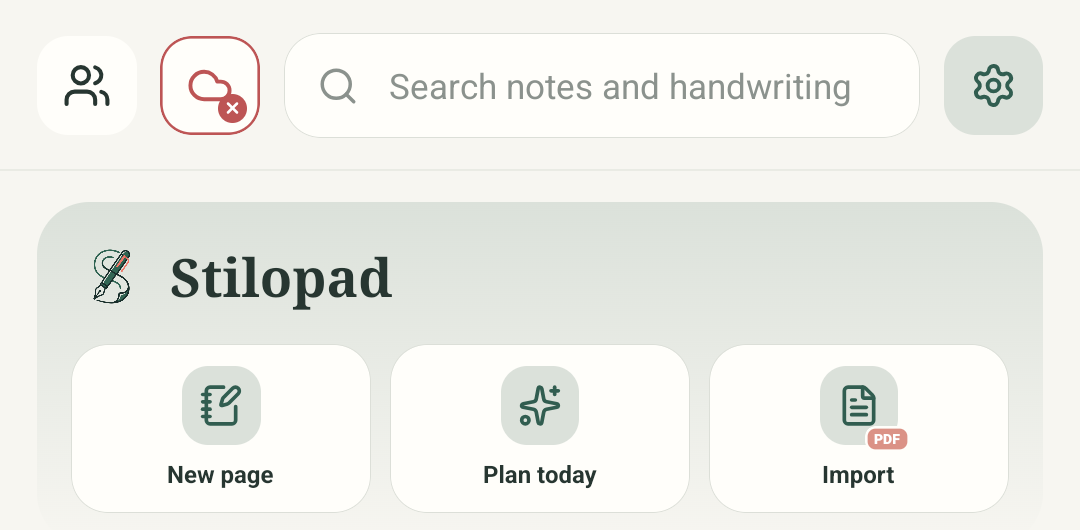
From the home screen, tap the Settings gear in the top-right corner.
Open Backup & sync
In the Settings overview, tap Backup & sync. The subtitle may say Connect Google Drive when no account is connected.
Check the connection first
This real screen says Not connected. Review which local notebooks will sync before choosing an account; no account is connected in this guide.
Choose Connect Google Drive
If you decide to connect, tap this button and review the Google account and permission screen. This guide stops before sign-in because connecting would start a real sync of this device’s library.
Watch the progress stages
This labelled illustration shows the kinds of stages the app can display. It is not a live account or captured transfer, so there is no extra click here.
Wait for the finished status
Keep Stilopad open until it says Complete or shows a message to retry. This completion card is only an illustration; no sync was run for this guide.
The screenshot shows the real disconnected Backup & sync screen. No Google account was connected and no notebook was uploaded in this guide pass. The cloud transfer steps stay unverified until a disposable QA account is available.
On Web Lite
On Web Lite
If first-run setup appears, choose Start Stilopad, then choose Not now on the optional Drive prompt. Then start in the library and use the profile button at the top-right to open Settings and find Google Drive sync.
Review the Google Drive sync section before choosing anything.
The inspected section showed Not connected, Connect Google Drive, and a note explaining which Drive files Stilopad can access. Read this before deciding.
Stop here unless you intend to sync this browser’s notebook library. Connect Google Drive starts Google sign-in and can begin a real sync; sign-in and transfer were not tested.
Sync is not the same as local saving
Your notebook saves on this device without Drive. Drive is an extra copy and a way to sync the latest notebook between devices. Connecting may upload local notebooks and import newer backups, so check the account before starting.
Check for a completed status
A downloaded percentage alone does not mean a notebook is restored. Wait until sync finishes its import and save steps. Stilopad leaves its files in Drive after you disconnect.
If sync pauses or does not connect
- Check the selected Google account, internet connection and available storage. Reconnect if sign-in expired.
- Use Sync now for a manual retry. Automatic sync can wait until Stilopad is able to run.
- Do not disconnect or delete Drive files to fix an error. Check the message and keep the local notebook as your working copy.