
A simple guide to session controls
How to manage a shared session
Find the host’s people controls, understand participant options and pause before sending a report.
A shared session is a live room. The host can manage some controls for other participants. Start one only when you are ready to invite people.
Understand the Android session controls
Know what the host can see and change
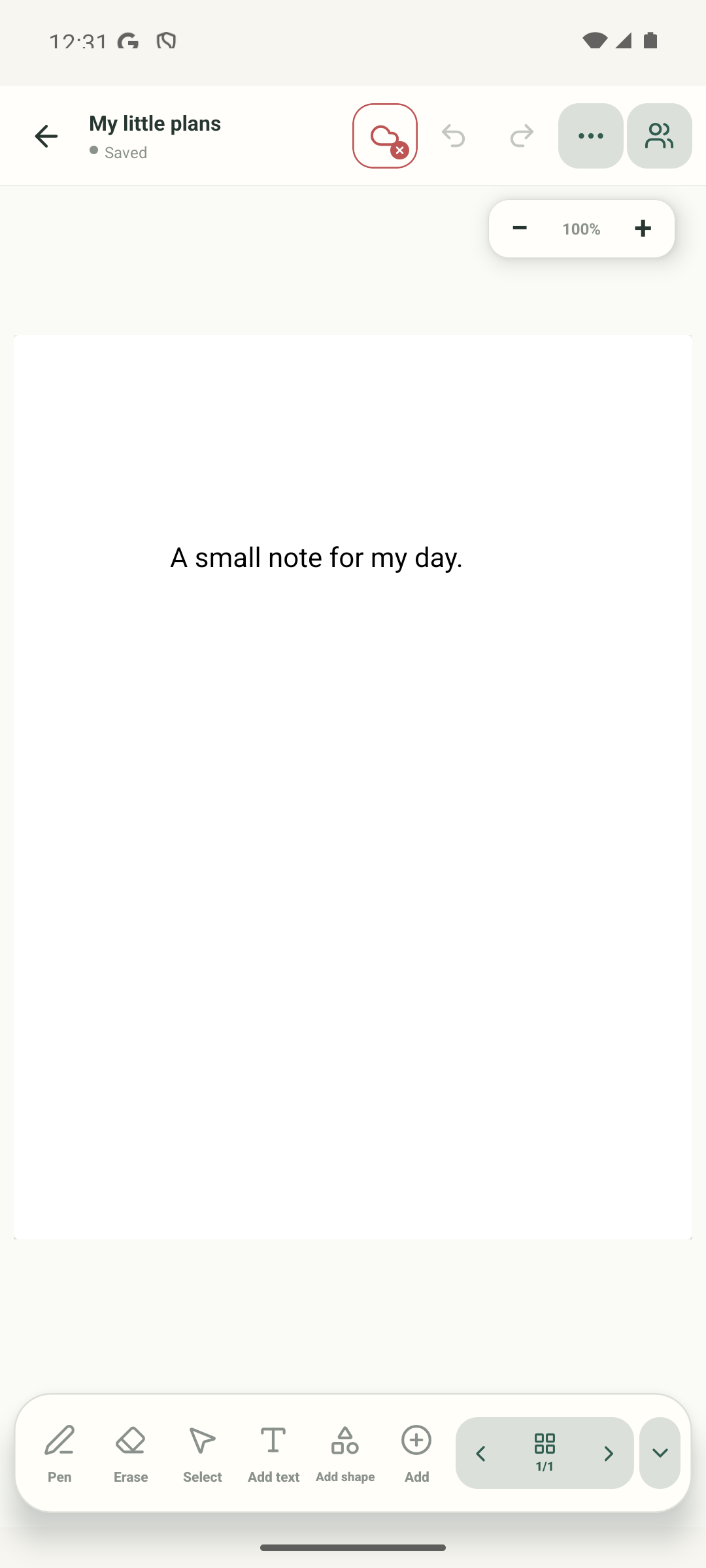
Step 1 of 4 — Start from an open notebook
The editor control and Start-session dialog are real Android screenshots from debug build 0.1.71 (72); the editor entry is reused from G04 and the pre-session dialog from G27. Two source-based diagrams are visibly labelled ILLUSTRATION · EXAMPLE ONLY. No room, participant, invite, moderation action, report, OS permission or live result was created or tested. Mobile and Web Lite live behavior remains unverified.
Understand the Android session controls
Understand the Android session controls
Start from an open notebook
Open the notebook you intend to share, then tap the people icon in the editor bar. This real editor screen shows where the shared-session entry begins.
Review the Start dialog before creating a room
Enter your display name and start only when you are ready to host. This real dialog is the last screen captured; we stopped before starting, so it contains no live session or invite code.
Use the People panel for host controls
In an active session, the host’s People panel shows microphone, camera and chat controls beside another participant. This labelled diagram explains source-inspected controls; it is not a real room screenshot. The Android panel does not offer a role-switch control.
Review a report before you send it
The mobile app asks you to confirm before reporting a participant to the session host. Read the prompt and choose Report only when you intend to submit it. This is an example diagram; nobody was reported.
The actual editor entry and pre-session Start dialog were captured. No room was started, so participant controls and reporting are explained with diagrams clearly marked as examples, not screenshots.
On Web Lite
On Web Lite
Open an editor and use the people/session control if it is available in your current Web Lite view.
A host’s participant panel has microphone, camera and chat controls for other participants, plus a report action. The source shows no role-change control in this panel.
Web Lite live session behavior, remote participants, permissions and moderation results were not tested in this guide. Only use controls shown in your current session.
A session is live collaboration
The current mobile People panel provides host controls for another participant’s microphone, camera and chat. The source contains other moderation actions, but this panel does not expose a role switch. Reporting sends a report to the session host and requires confirmation. A live room is separate from backup or export.
Only start or report when you mean to
No session was created for these screenshots. The guide stops before Start and before Report, so there is no real invite, participant state or moderation result to copy.
If the controls do not match
- Check whether you are the host; participant controls are shown to the host for other people.
- The panel described here has mic, camera and chat controls, not an exposed role selector.
- No active room, guest, report, permission prompt, disconnect, Web Lite moderation or host-end flow was tested. Do not rely on the diagrams as evidence of a live result.